
Browse Articles
Select a Product
null Support Directory
Browse all null articles. (Last Updated
No articles found.
Search Results
No articles found.
AI Assistant in Storyline 360: Generate Theme Colors
Article Last Updated Jan 21, 2026
This article applies to:
Theme colors are critical for setting the visual tone for your course, but creating them manually can be tricky and time-consuming. With AI Assistant in Storyline 360, you can create a cohesive, easy-to-update design palette through a simple chat, using an image or prompt as your starting point. Keep reading to learn how.
- Understand AI-Generated Theme Colors
- Create Theme Colors Using Images
- Create Theme Colors Using Prompts
Understand AI-Generated Theme Colors
AI-generated theme colors are essentially custom theme colors, but they take just a few seconds to create. That makes exploring design options, staying visually consistent, and getting on-brand colors faster—without the need for deep design expertise.
Once created, the generated theme colors are applied to the project immediately. Iterate on them by asking AI Assistant to change specific colors for each element. You can even make high-level adjustments, like making colors more vibrant or muted.
You can also request the following actions in the chat:
- Apply different theme colors to different slides in the same project.
- List the existing custom and generated theme colors in your project.
- Rename any custom or generated theme colors.
- Switch to any custom or generated theme colors.
- Recommend and apply existing custom theme colors that suit your content.
To manually edit the generated theme colors, click the Edit theme colors button from the AI Assistant chat response. Deleting theme colors via chat is currently unsupported.
Create Theme Colors Using Images
To create theme colors using images, go to Story or Slide view and follow these steps:
- On the right side of the screen, click the AI Assistant tab.
- In the chat box at the bottom, click the plus sign, then choose an image from a file or the media library.
- Enter your prompt asking AI Assistant to create theme colors. For example, “Create theme colors based on this image.”

If you want to use an image that’s already on the slide, just tell AI Assistant to use it by saying, “Create theme colors from the image on the slide.”
Using an image works especially well when you want theme colors that are based on logos or other branded materials.
Create Theme Colors Using Prompts
If you don’t have an image or just want to create theme colors based on text prompts, try asking for a style that describes a mood or vibe. For example, “Create a theme color with a professional mood,” or “Create a theme color with a playful vibe.”
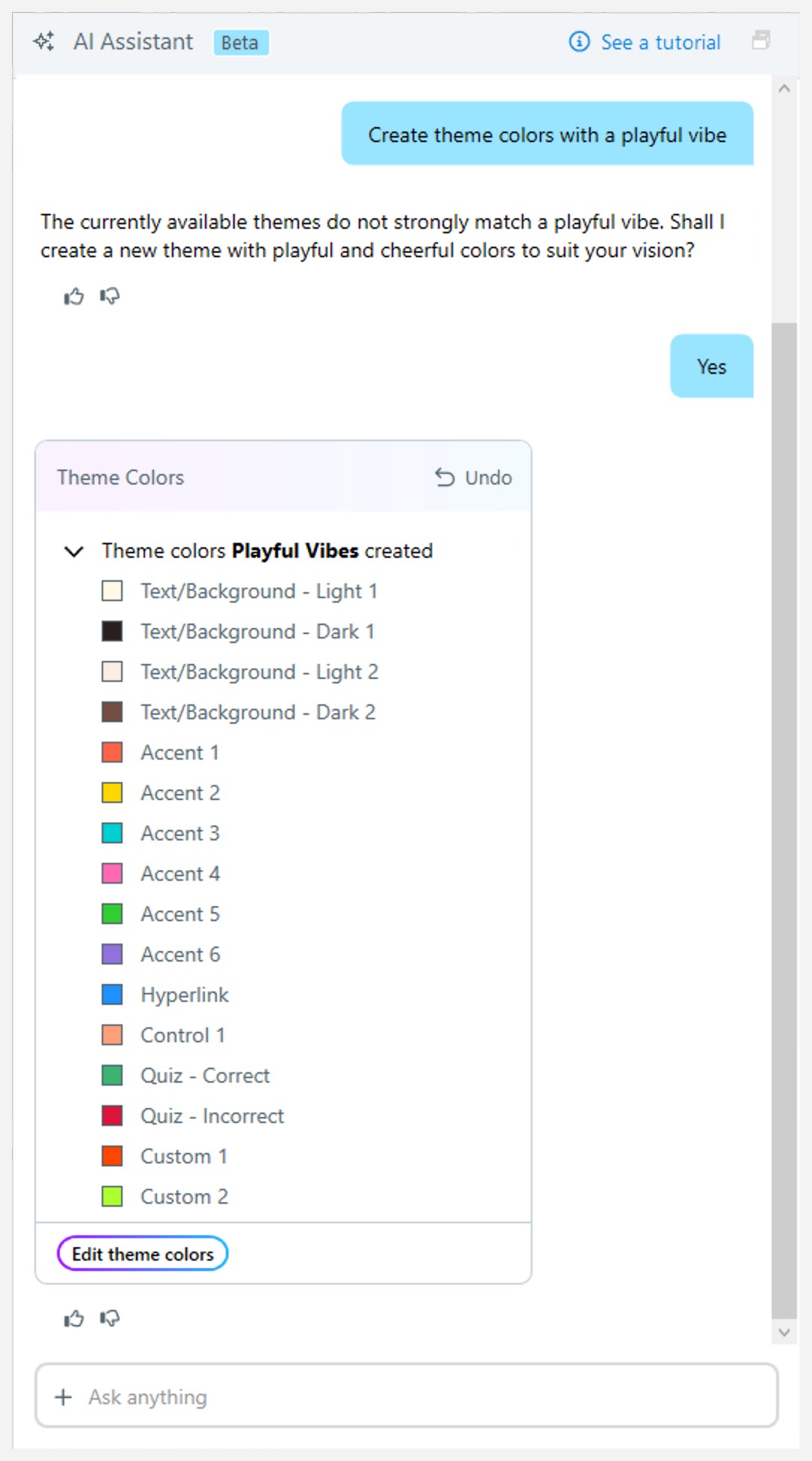
Seasonal and thematic ideas are also options. Try something like, “Create Summer-inspired theme colors” or “Create rainbow-inspired theme colors.”
Experiment with styles and ideas, and have fun exploring what works best for your course.