
Browse Articles
Select a Product
null Support Directory
Browse all null articles. (Last Updated
No articles found.
Search Results
No articles found.
AI Assistant in Storyline 360: Syncing Slide Elements With Audio
Article Last Updated May 12, 2026
This article applies to:
Manually aligning slide text and objects with audio can be a slow, tricky process. Now, you can simply describe how you want your slide elements to align with the audio by chatting with AI Assistant. It handles the timing for you! Read on to learn more.
Understand How Syncing Works
When you ask AI Assistant to sync slide elements with audio, it first works out the timing of each spoken word, if that information isn’t already available. This happens in the background, allowing you to continue working on other tasks.
You can sync the following slide elements with any audio on your slide, including multiple audio tracks and audio from videos, provided there is audible speech.
| Text Character Image Icon Video Shape | Captions Equation Table Button Slider Dial | Check Box Radio Button Data Entry Marker Web Object 360° Image |
Syncing also works on layers and grouped objects, but you need to specify whether you want to sync the whole group or its individual objects. Note that syncing object states with audio is currently unsupported.
Sync Slide Elements with Audio
To get started, open the AI Assistant tab on the right side of the screen and use the chat box at the bottom to enter your prompt. Try the following sample prompts:
-
“Sync shapes with audio.”
-
“Sync audio with text and make it appear by paragraph.”
-
“Make character 1 appear when audio 1 starts, character 2 when audio 2 starts, and so on.”
-
“Make the shapes appear only when the speaker mentions them.”
-
“Align the characters so they appear when the corresponding audio plays.”
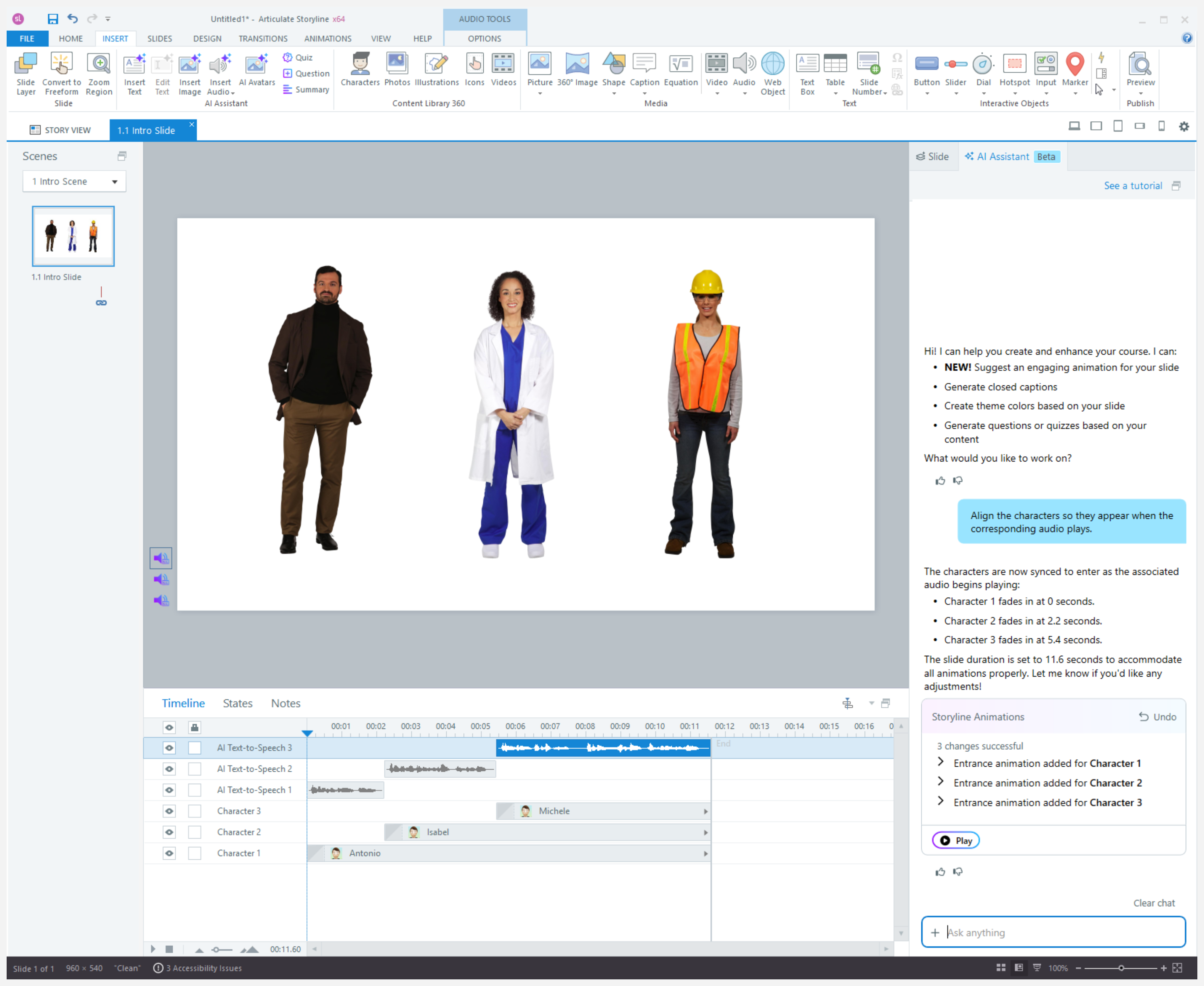
Example prompt to sync characters so they appear only when their corresponding audio plays
When the process is complete, a message appears in the lower-right corner. Click the AI Assistant Chat button in the notification if you’re on the same slide or the Go to (slide name) button if you’re on another slide to return to the chat. You can re-enter your original prompt to resume the sync request.
Improve Your Results
Following the tips below can help you get the most out of this feature.
Add Alt Texts and Object Names
When syncing audio with objects, make sure you’ve included alt text or descriptive names for each object on the timeline. That helps AI Assistant determine where to place them based on when they’re mentioned in the audio.
Write Specific Prompts
When syncing text by paragraph, include the number of paragraphs and note any lists to give AI Assistant more context. If your slide includes multiple objects and audio, specify which elements should sync to avoid confusion.
In addition to the word “sync,” try using other words that describe the result you want in your prompts. For example, “Make the shapes appear, one by one, fading in from the left, as they’re mentioned in the audio.”
Refine and Update
If the affected objects’ durations exceed the audio's length after syncing, ask AI Assistant to adjust the timeline to match the audio's length. And if you replace the audio, ask AI Assistant to resync the elements.
If the first result isn’t quite right, add more detail to your prompt and refine it. A little back-and-forth with AI Assistant can help you get exactly what you want.
If you’re not getting to the result you want, you can always reset the chat by clicking Clear chat in the top-right corner of the prompt box.