
Browse Articles
Select a Product
null Support Directory
Browse all null articles. (Last Updated
No articles found.
Search Results
No articles found.
Articulate 360 AI Teams and Frontline: Signing in with Single Sign-on (SSO)
Article Last Updated Oct 23, 2026
This article applies to:
If your admin configured single sign-on (SSO) for your team, you’ll use SSO to access Articulate 360 AI, whether your subscription includes Articulate 360 AI Teams, Frontline, or both. This short guide gets you up to speed with SSO so you can access desktop apps like Storyline 360 and web apps like Rise 360 and Frontline. The sections below contain steps for new and current Articulate 360 AI users to sign on with SSO.
Note: This guide is for creators and admins on your team. If you’re reviewing content someone shared with you in Review 360, you don’t need these steps.
New Articulate 360 AI User
To join your team, you’ll need to create an Articulate ID that’s set up for SSO. You can do this through your organization’s identity provider (IdP) or from your invite email.
From your IdP
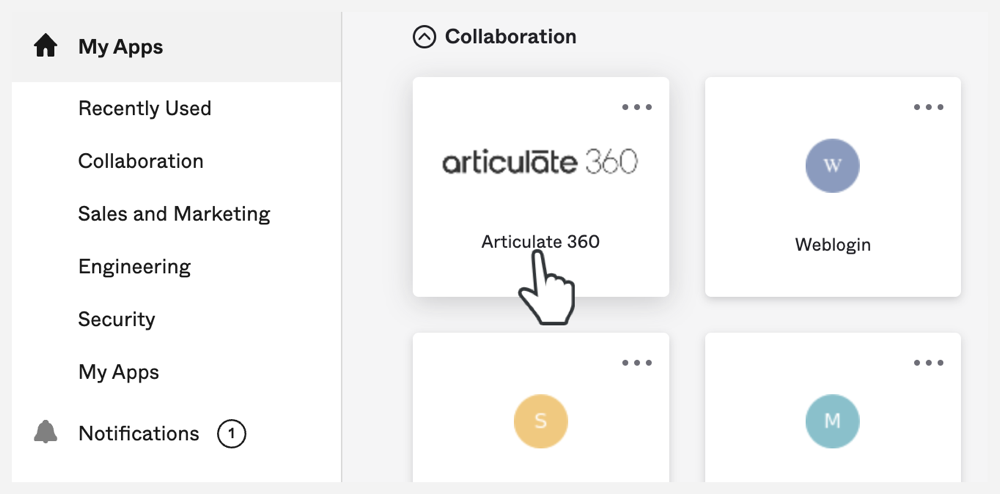
Launch Articulate 360 AI from your organization’s IdP (example below). That will automatically create your Articulate ID.
From your invite email
To create your Articulate ID without using your organization’s IdP and accept the invite, follow these steps:
- Click the link in the email invite.
- Provide your first and last name, and any other details requested to create your Articulate ID. Note that the email address field is prefilled and can’t be changed.
- Click the link in the activation email to sign in to https://id.articulate.com/redirect/account/ automatically.
- Click Accept to join your team and log in via SSO (see Current Articulate 360 AI User below).
|
Why was I asked to sign in with a password? If you’re prompted for a password after providing your email, it means you already have an Articulate ID but haven’t accepted the invite. If you forgot your password, reset it here. Once you’re signed in to https://id.articulate.com/redirect/account/, click Accept to join your team and log in via SSO. From there, follow the Current Articulate 360 AI User steps shown below. |
Current Articulate 360 AI User
If you were using Articulate 360 AI before your team enabled SSO, you now have two ways to log in:
- Sign in directly to Articulate 360 AI (360.articulate.com). Here’s how:
When you sign in to Articulate 360 AI, the sign-on screen redirects you to your identity provider (IdP) after you type in your email address and click Continue. If you’re already signed in to your IdP, you’ll see the Articulate 360 AI apps. If not, you must first sign in to your IdP to access the apps.
- Launch Articulate 360 AI from your IdP dashboard. Here’s how:
While signed in to your IdP, look for Articulate 360 AI in your dashboard or app gallery (example below). Click the Articulate 360 AI card or icon to sign in automatically, then launch any of the Articulate 360 AI apps.