Browse Articles
Select a Product
null Support Directory
Browse all null articles. (Last Updated
No articles found.
Search Results
No articles found.
Articulate 360 Teams: Unified Team Management Experience
Article Last Updated Apr 1, 2026
This article applies to:
Manage users, set permissions, and control access to Articulate products from a single place with our unified team management experience. We rebuilt the Team page with you, the admin, in mind, offering a streamlined system with fewer clicks and smoother flows. Read on to find out what’s new and see answers to common questions.
What’s New
Enhanced Interface
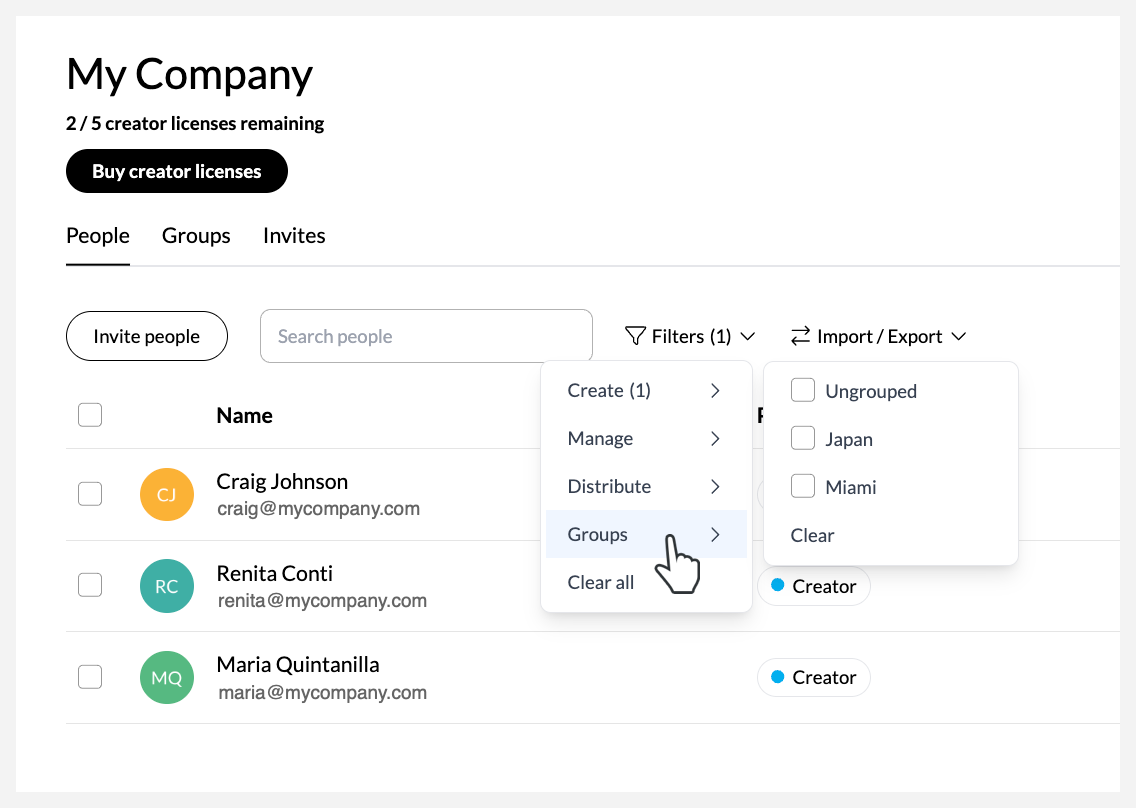
When you launch the Team page, you’ll immediately see a list of all team members and their permissions. The number of available licenses displays on the header, and an Invite people button eliminates placeholders for unassigned licenses, making the interface feel more compact and digestible. Every row provides meaningful information.
A more robust search and filter feature lets you filter the list by combining different permissions and groups, as shown below:
Simplified, Intuitive Terminology
We transitioned to a permissions-based access model to better align with how you think about and manage your teams. The table below explains these changes.
|
Previous Term |
Current Term |
What It Is |
|
Seats |
Creator Licenses or Licenses |
This is what you purchase with an Articulate 360 Teams subscription. A creator license grants one team member access to create content in authoring apps such as Storyline 360 and Rise 360. Each team member with creator permissions requires a creator license. |
|
Seat holder |
Creator |
This permission is assigned to team members who author content, allowing them to use all Articulate 360 authoring apps. Assigning this permission uses up a license. |
|
Account Admin |
360 Admin |
This permission is assigned to admin users who will manage all team members, groups, and subscription settings. Assigning this permission does not use up a license. |
|
Group Admin |
Group Manager |
This permission is assigned to users who will only manage creators assigned to their group. Assigning this permission does not use up a license. |
Account owner permissions now differentiate between primary admin and account owner permissions to reflect more accurately how they function behind the scenes. Here’s how that works:
|
Previous Term |
Current Term |
What It Is |
|
Account Owner |
Account Owner |
This permission is automatically assigned to the person who paid for the subscription. It allows them to manage billing and purchase additional creator licenses. This is typically the same as the primary admin, except when a subscription is purchased through a global reseller; in this case, the reseller is automatically assigned this permission. This permission does not use up a license. |
|
Primary Admin |
This permission is automatically assigned to the person who purchased the subscription. They have the same permissions as a team member with 360 admin permissions does, plus some additional permissions. For example, if Reach 360 is activated, a team member with primary admin permissions also has owner permissions in Reach 360. They get Reach admin permissions automatically, and they can enable SSO for learners, change the team's subdomain, and change the team’s URL to a custom domain. This permission does not use up a license. Note: When a subscription is purchased through a global reseller, one of the subscription's members—usually the main point of contact with the reseller—is granted this permission. |
One-step Permissions Management
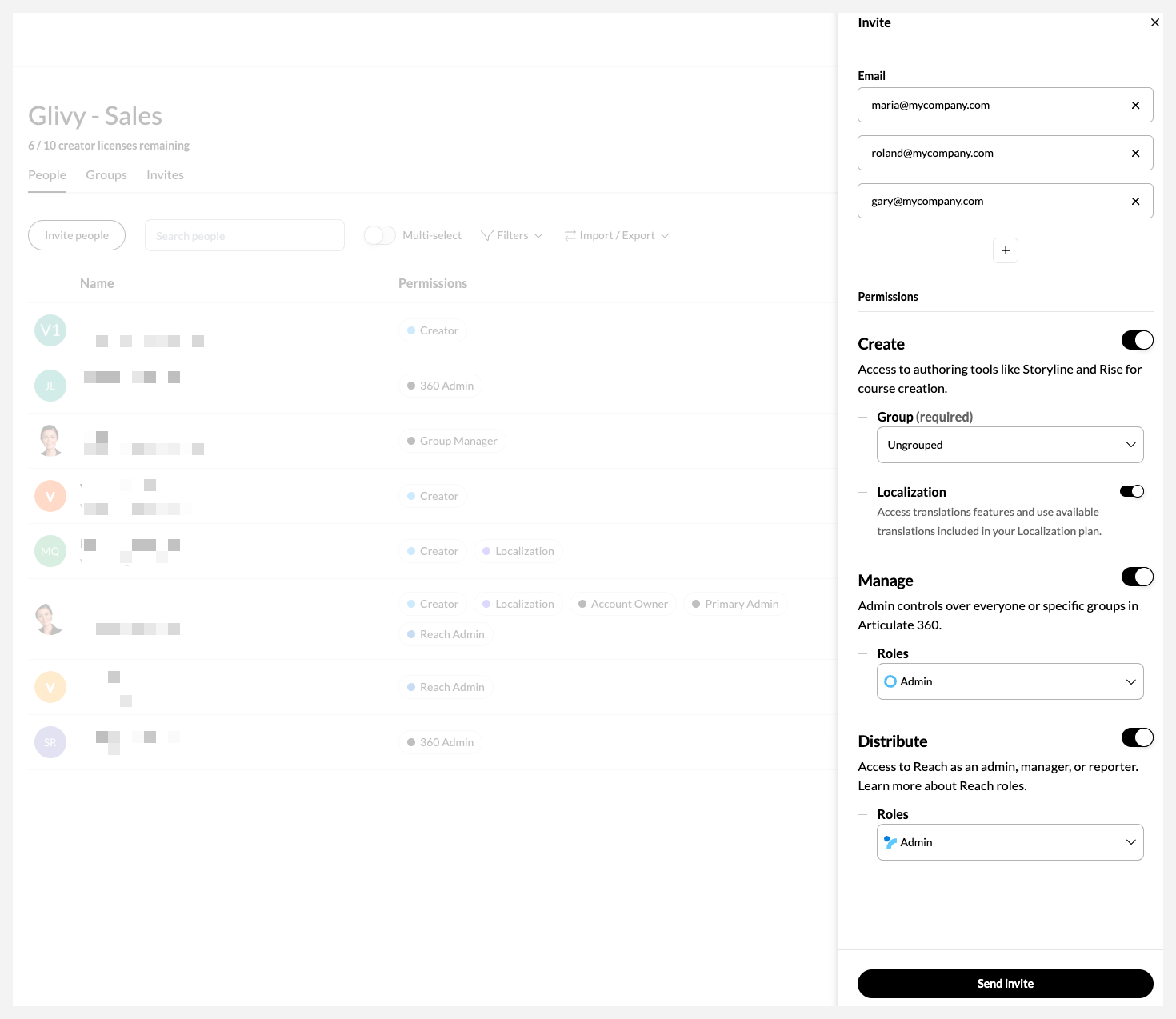
One streamlined workflow enables you to easily assign permissions to team members. You decide who can create, manage, localize, and distribute within Articulate 360. You can even invite multiple users to your subscription and grant them all permissions simultaneously. The following list outlines some common permissions and what they allow team members to do:
-
Create: Allow them to use the Articulate 360 authoring tools by assigning Creator permissions.
-
Localize: Allow them to translate content by assigning Localization permissions (requires a paid Localization plan).
-
-
Manage: Allow them to add, remove, and edit users, groups, and subscription settings with 360 Admin permissions. Or let them add and manage users in specific groups as with Group Manager permissions.
-
Distribute: Allow them to administer different aspects of the Reach 360 distribution tool with specific Reach Admin, Manager, or Reporter permissions.
You can set permissions and group assignments as you add the user to your team—and they’ll get just one email invite to everything. Settings are immediately applied once the user accepts the invitation.
More Efficient Group Management
Enjoy greater flexibility in managing group licenses. You can adjust license counts anytime. Licenses stay assigned when members move between groups, unless you choose to reassign them. Learn more about managing creator groups.
Streamlined Invite Management
Send one invite for all permissions. You can track pending invites, see when they expire, and cancel or resend them. Learn more about managing invites.
FAQs
How do I change the team name?
Members with primary and 360 admin permissions can rename the team from the Subscription page.
How do I switch between multiple teams or subscriptions?
To switch between teams, click (Change Team) in the upper right corner of your profile icon and select the team you want to manage from the drop-down list that appears.
If you have subscriptions in both the U.S. and EU data centers, sign out of your current region, then sign back in and choose the region you want to access.
Can account owners still manage teams?
Yes. Account owners have primary admin permissions and can manage teams, unless the subscription was purchased through a global reseller.
How do I find out who the account owner is for my team?
If you’re a primary or 360 admin, you can find the account owner in the Subscription page.
Members who aren’t admins can locate the account owner by clicking the Filters drop-down list next to the search field, choosing Manage > 360 Admins, and searching for the account owner.
If there isn’t an account owner listed, the subscription was likely purchased through a global reseller.
How do I transfer the license assigned to the primary admin?
Any admin can disable the primary admin’s creator permissions by disabling the Create toggle at the top of the Edit permissions sidebar and clicking Save. They may need to transfer the member’s content in the process.
How do I transfer content to a new user if a license isn’t available?
If you need to transfer a removed user’s license and content to a new user, but you’ve used up your team’s available creator licenses, you have two workaround options:
- Temporarily assign group manager permissions to the new user
- Remove the old user and temporarily keep their content unowned within the subscription
Temporarily Assign Group Manager Permissions to the New User
To use this workaround, you’ll need to create a new group for the member being removed, assign group manager permissions for that group to the new user, and then ask the new user to remove the former member and transfer the license and content to themselves. (Group manager permissions only allow access to users within their group. They won’t have access to other users and subscription settings, and they don’t use up a creator license.)
Here’s how to do that, step by step:
- Create a new group without assigning a license.
- Move the user who left your team to this new group via the Groups tab.
- Add the new user to your team, temporarily enable manager permissions, and assign them as a group manager for the new group. Group managers don’t consume licenses.
- When the new user accepts your invitation to join the team, ask them to remove the user who left your team and transfer the content to themselves. You can share these additional instructions:
Please follow these steps to transfer the license and the previous user’s content:
- Sign in to the Manage Team page: https://id.articulate.com/redirect/manage using [new user’s email address]
- Search for [email address of the user who left your team] and click it.
- Click the Remove from 360 link at the bottom of the sidebar.
- Click the Transfer to field and select your name from the dropdown.
- [Select/Deslect - decide whether to include personal content or not] the Include personal content checkbox.
- Click Remove user to accept the terms and complete the process.
- The new user becomes the content owner, taking the license vacated by the user you removed and automatically getting creator permissions.
- If you don’t want the new user to continue to have group manager permissions, disable that permission. They’ll still have creator permissions and own the content that was transferred to them.
Remove the old user and keep their content unowned within the subscription
This approach lets you remove the user and temporarily keep their private and shared content as unowned within the subscription. Once you’ve assigned a license to the new user, contact us and we’ll transfer the content.
Follow these steps to proceed:
- Remove the user’s creator permissions on the Team page using any of these methods:
- Disable the Create toggle at the top of the Edit permissions sidebar.
- Click the Remove from 360 link at the bottom of the Edit permissions sidebar.
- Click the Transfer to field and select None - do not transfer content. We will keep personal and shared content in an unowned state until you’re ready to transfer it to another team member. You won't see this option if you only have one license in your subscription.
- Click Confirm or Remove User to free up a creator license.
- Assign the creator license to the new user who will receive the content.
- Have the member with primary admin permissions contact us with the following information, and we’ll transfer the unowned content to the new team member.
- Subscription number or name
- Email address of the user that was removed from the team
- Email address of the new user who will receive the removed user's content
My subscription only has one license. How do I assign it to someone else?
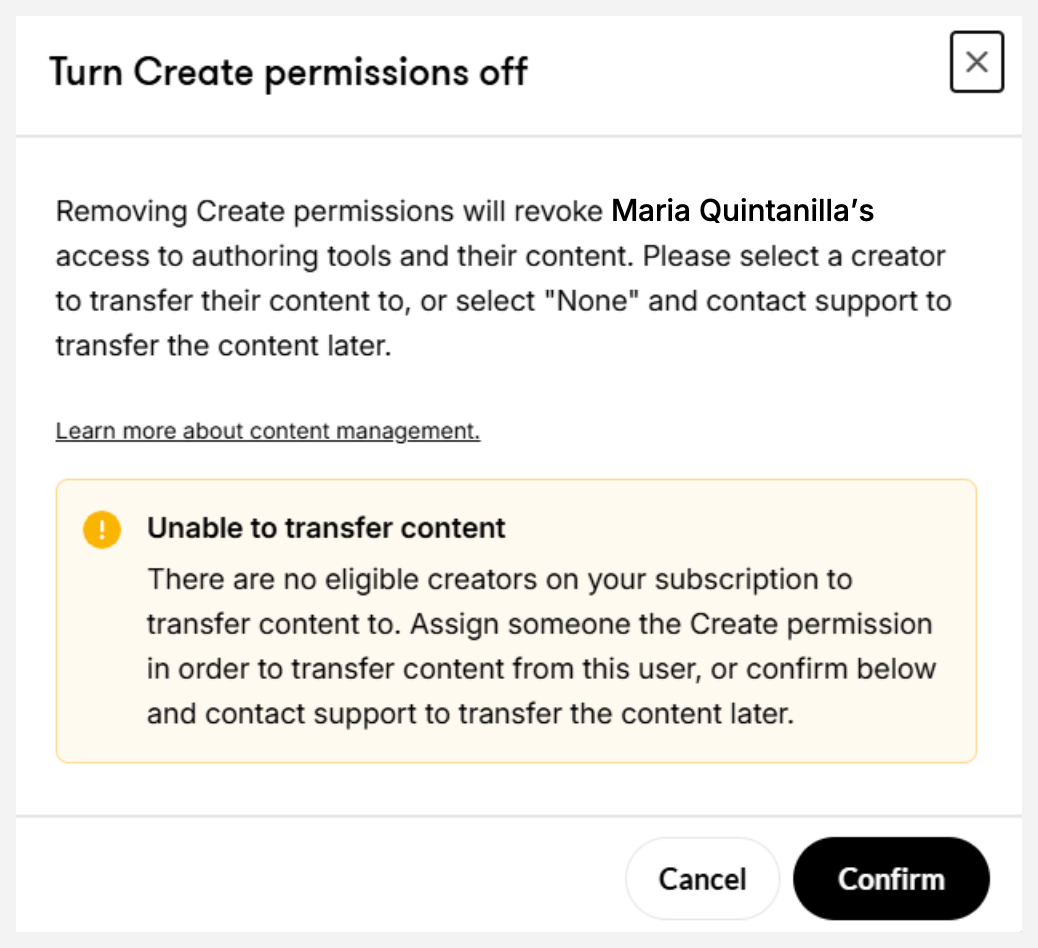
If your subscription only has one license, you can follow the steps outlined in “How do I transfer content to a new user if a license isn’t available?” above, with one difference: If you choose to keep the current user’s content unowned, you don’t need to select None - do not transfer content.
To complete the process, click Confirm when prompted as shown in the image below: