
Browse Articles
Select a Product
null Support Directory
Browse all null articles. (Last Updated
No articles found.
Search Results
No articles found.
How to Upgrade a Course to Storyline 360
Article Last Updated Aug 4, 2026
This article applies to:
It's easy to upgrade a Storyline 2 course to Storyline 360. Double-click the project file (i.e., the *.story file) to open it, then click Upgrade when prompted.
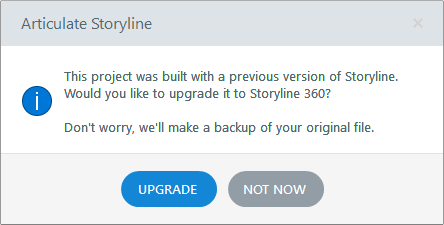
Your course will be upgraded automatically, and a backup copy of the original project file will be created in case you need to go back to it later.
Keep in mind:
- Storyline 3 projects don’t need to be upgraded because they’re compatible with Storyline 360.
- Storyline 360 projects can’t be opened or edited in previous versions of Storyline.
Will Anything Be Different After Upgrading a Storyline 2 course to Storyline 360?
For the most part, your existing courses will look and behave as they did previously. However, you will notice a few improvements and changes.
| Preview | You’ll see HTML5 content rather than Flash when previewing your course in Storyline 360. |
| Responsive Mobile Player | The responsive mobile player will automatically display when viewing HTML5 output on a tablet or smartphone. It adapts to the screen size and orientation of any mobile device for the best viewing experience. To learn more about the responsive player, see these FAQs. |
| HTML5 Gestures | New HTML5 gestures for touchscreen devices are enabled by default. Learn more about mobile gestures. |
| Text Labels | There are some new player text labels in Storyline 360. If you’ve customized or translated text labels in existing courses, you may want to scroll through them after upgrading to make sure the new labels fit your course design. Read this user guide to learn more about working with text labels. |
| Right-to-Left Text | Player elements switch positions for right-to-left languages to give learners a more intuitive experience. |
| Engage Interactions | To take advantage of new HTML5 support for embedded interactions, click Edit in Engage on the Storyline 360 ribbon for each interaction, then click Save and Return to Storyline on the Engage 360 ribbon. |
| YouTube Videos | YouTube videos will behave somewhat differently than before. |
| Publish | You can publish individual scenes or slides without publishing the entire course. |
Learn about all the new and enhanced features in Storyline 360.