
Browse Articles
Select a Product
null Support Directory
Browse all null articles. (Last Updated
No articles found.
Search Results
No articles found.
Review 360: Request Review
Article Last Updated Jan 16, 2026
This article applies to:
Getting stakeholder approval just got easier! Keep your team on track without the hassle of spreadsheets or phone calls. Send and track requests for specific stakeholders to review a content item right from Review 360. With email notifications, due dates, visible statuses, and completion buttons, you'll never miss another deadline.
Request a Review
Publish your content to Review 360, then follow these steps to get started.
- Launch the Review 360 item and click the Review Request button on the top right.
- Add reviewers by clicking the Assigned Reviewers fields and choosing any of the following methods:
- Select them from the drop-down list that appears by clicking the checkbox beside their names. The initial list shows the last five reviewers added, followed by the names or email addresses of recent reviewers you added and the members of your subscription.
- Type in the reviewer's email address and select it from the drop-down list.
- Copy a list of reviewer email addresses formatted with any kind of separator—commas, semi-colons, spaces, cells in spreadsheets—and paste it into the Assigned Reviewers field to add them automatically.
- Enter a custom message for your reviewers if you like. For example, if your content is password-protected, include the password in your message.
Make messages easier to read using the formatting options on the toolbar on top. Or, use the keyboard shortcuts below.Icon
Function
Keys Windows / macOS

Bold
Ctrl+B / Cmd+B

Italic
Ctrl+I / Cmd+I

Strikethrough
Ctrl+Shift+X / Cmd+Shift+X

Hyperlink
Ctrl+C / Cmd+C to copy the URL
Ctrl+V / Cmd+V to hyperlink the selected text
Ordered list
Ctrl+Shift+8 / Cmd+Shift+8

Bullet list
Ctrl+Shift+7 / Cmd+Shift+7

Clear all formatting
N/A
Add a line break
Shift+Enter or
Control+Enter / Cmd+Enter - Set a due date for sending email reminders to reviewers if they haven't completed their review. Reminders are sent the day before, on the due date, and the day after.
- Confirm all the details are correct, then click Send Request.
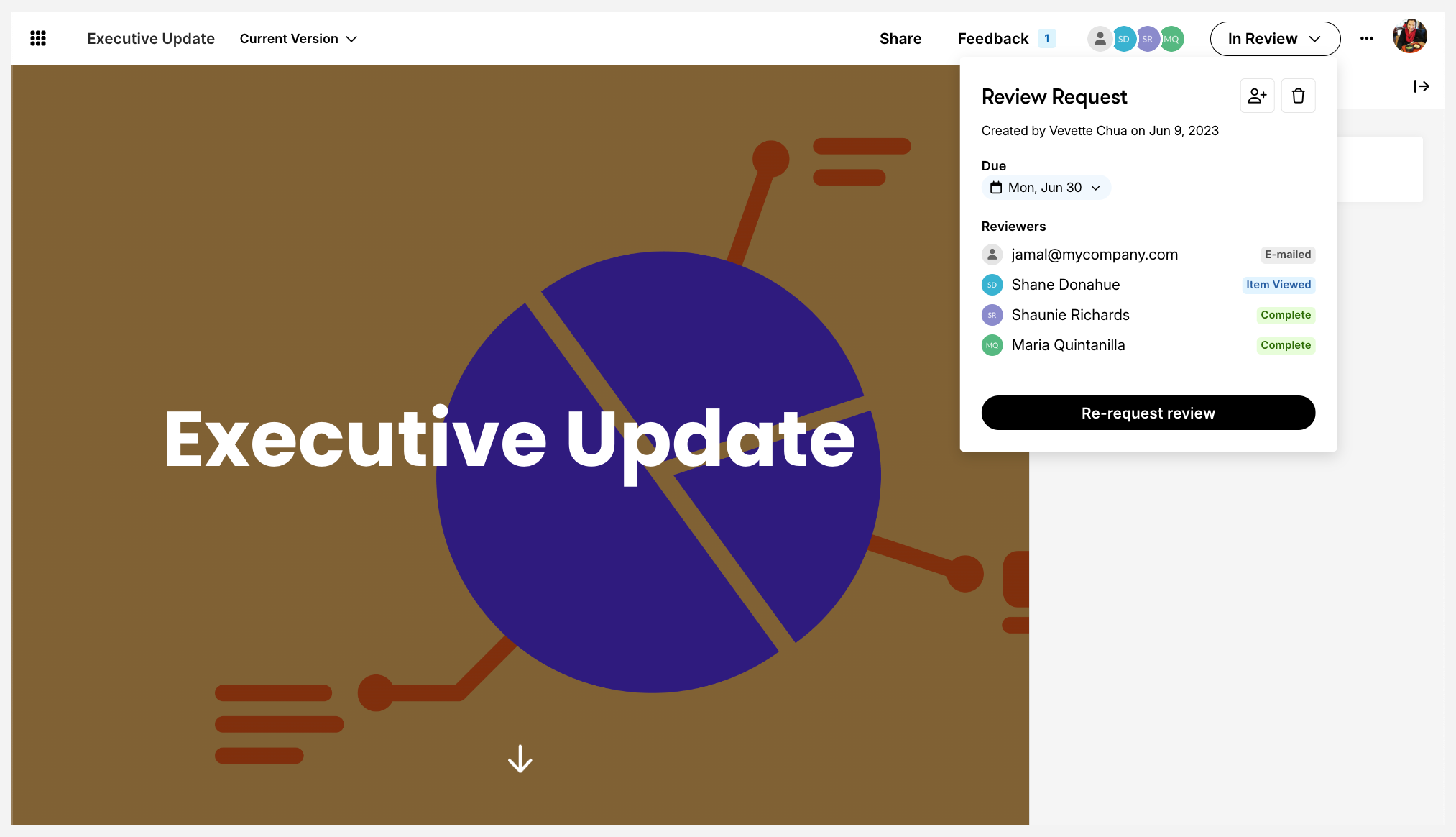
The text on the request review button reflects the status of the request, which could be either of the following:
|
Button Text |
Description |
|
Request Review |
You haven’t assigned any reviewers. |
|
In Review |
You have assigned reviewers who haven’t completed the review. |
|
Review Assigned to You |
Assigned reviewers see this text when they use their personalized URL or are signed in with their Articulate ID. More details in below. |
|
Review Complete |
All assigned reviewers have completed their review. |
Reviewer's Experience
Reviewers receive an email notification with a personalized URL to access their Review 360 item. Using this URL, they'll see the request review button set to Review Assigned to You on the top right. Clicking this button allows them to:
- View the request details, including the person who made the request, the due date, and a list of assigned reviewers.
- Click the Finish Review button to set their status to "Review Complete" and notify the person who made the request.
- Reset their status if they've completed their review and want to make additional change by using the Re-Open Review link at the bottom right.
Tips:
- If your reviewers are new to Review 360, point them to this user guide for stakeholders or share this quick-start guide document (PDF) in your custom message.
- All seatholders can create or edit a request for any Review 360 item they have access to within the subscription. Only the person who made the request will be notified when reviewers set their status to complete.
- If a reviewer has an Articulate ID account, they must sign in with their password before posting a comment.
- Anyone viewing the Review 360 item via the share link can see the Request Review details. Assigned reviewers with Articulate IDs will also see the Your Request section using the public link when signed in.
- Select Allow users without Articulate IDs to comment if you want assigned reviewers without Articulate IDs to post comments.
- If your Review 360 item's share link is private, reviewers must have an Articulate ID to view it. If they don't have one, ask them to create a free account using the same email address.
Update Your Request
Modify your request after sending it.
Change the Due Date
Click the In Review button, select a new date from the due-date dropdown, and click Save. All reviewers will receive email notifications of the new due date. Their status doesn't change.
Add Reviewers
Invite more reviewers to look through your content. Click the In Review button, then select the Add Reviewers icon next to the "Request Review" header. Choose reviewers from the dropdown menu, type in their email if you don't see them listed. Click Update Reviewers when finished.
Note: To remove a reviewer, hover your mouse over their name, click the X that appears, and select Remove.
Delete
To cancel your request, click the In Review button and then the trash bin icon beside the “Request Review” header. Select Yes to confirm. Note that you can't undo this action.
Re-request Review
Restart the review process when you have updated content for review:
- Click In Review and then the Re-request Review button at the bottom.
- Verify the new request review form that’s pre-filled with previous reviewers.
- Add more reviewers and a custom message if you like.
- Click Send Request to notify all reviewers via email and update their review status to "Emailed".
Monitor Status
Refer to this table for more details about your reviewers' progress.
|
Status |
Description |
|
E-mailed |
The reviewer hasn't viewed the Review 360 item. |
|
Item Viewed |
The reviewer launched the Review 360 item or reopened their review. |
|
In Progress |
The reviewer posted their first comment. |
|
Completed |
The reviewer marked the request as complete. |