
Browse Articles
Select a Product
null Support Directory
Browse all null articles. (Last Updated
No articles found.
Search Results
No articles found.
Rise 360: How To Use Quick Insert
Article Last Updated Jun 3, 2026
This article applies to:
Quick insert lets you add AI-generated text, tables, lists, and math equations to blocks with a single click.
It's available in the sidebar and main window of just about any block that supports text. This includes paragraph, accordion, knowledge check, and quote blocks.
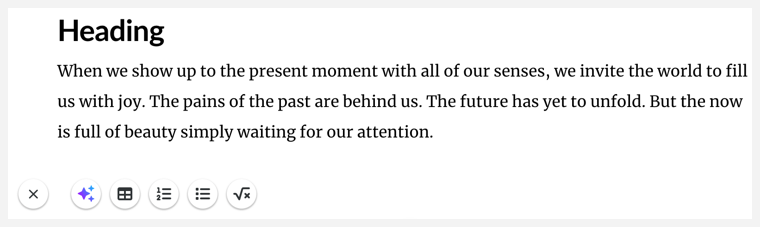
On a blank line, click Quick Insert (+). Select Write with AI, Insert Table, Unordered List, Ordered List or Math Equation from the row of icons. To close the menu, click it again. To make it disappear, click away from the blank line.
That’s all there is to it (that’s why they call it “quick”)!
Write with AI
With Write with AI, AI Assistant asks what you'd like to write about and then provides options to shape and refine the generated content. You can fix grammar, shorten or lengthen the draft, simplify or change the tone, rewrite for a specific audience, and more. You can also format the selection by having AI Assistant do things like turning your draft into a bulleted list or table, bolding key terms—even inserting emojis. Read more about using AI Assistant to generate content.
Tables and Lists
Tables are inserted as a 2x2 grid. Add more cells and headers to the table using the table toolbar as detailed here. Lists are inserted as a single entry.
Math Equations
Use Rise 360's built-in LaTex editor to build and edit math equations.