
Browse Articles
Select a Product
null Support Directory
Browse all null articles. (Last Updated
No articles found.
Search Results
No articles found.
Rise 360: Update Content with AI
Article Last Updated Sep 16, 2026
This article applies to:
Update Content with AI is currently in public beta. Functionality will evolve, and features may be modified or removed based on user feedback and stability.
Editing and refining text consistently across a lesson or course can be a lot of work. With the new Update Content with AI feature in Rise 360, you can make updates through a simple chat. Describe the change in plain language, confirm the scope, and apply it in one step. Then, review or undo it as needed. Keep reading to learn more.
- Understand Update Content with AI
- Update Content Using Prompts
- Improve Your Results
- FAQs
- Provide Feedback
Understand Update Content with AI
AI makes it easy to apply broad, consistent updates to your lesson or course text using a simple chat workflow. Describe the change once in plain language and apply it across supported blocks and text elements. Use it when the same update needs to appear in multiple places: replace terms, adjust tone or audience, improve clarity, and more.
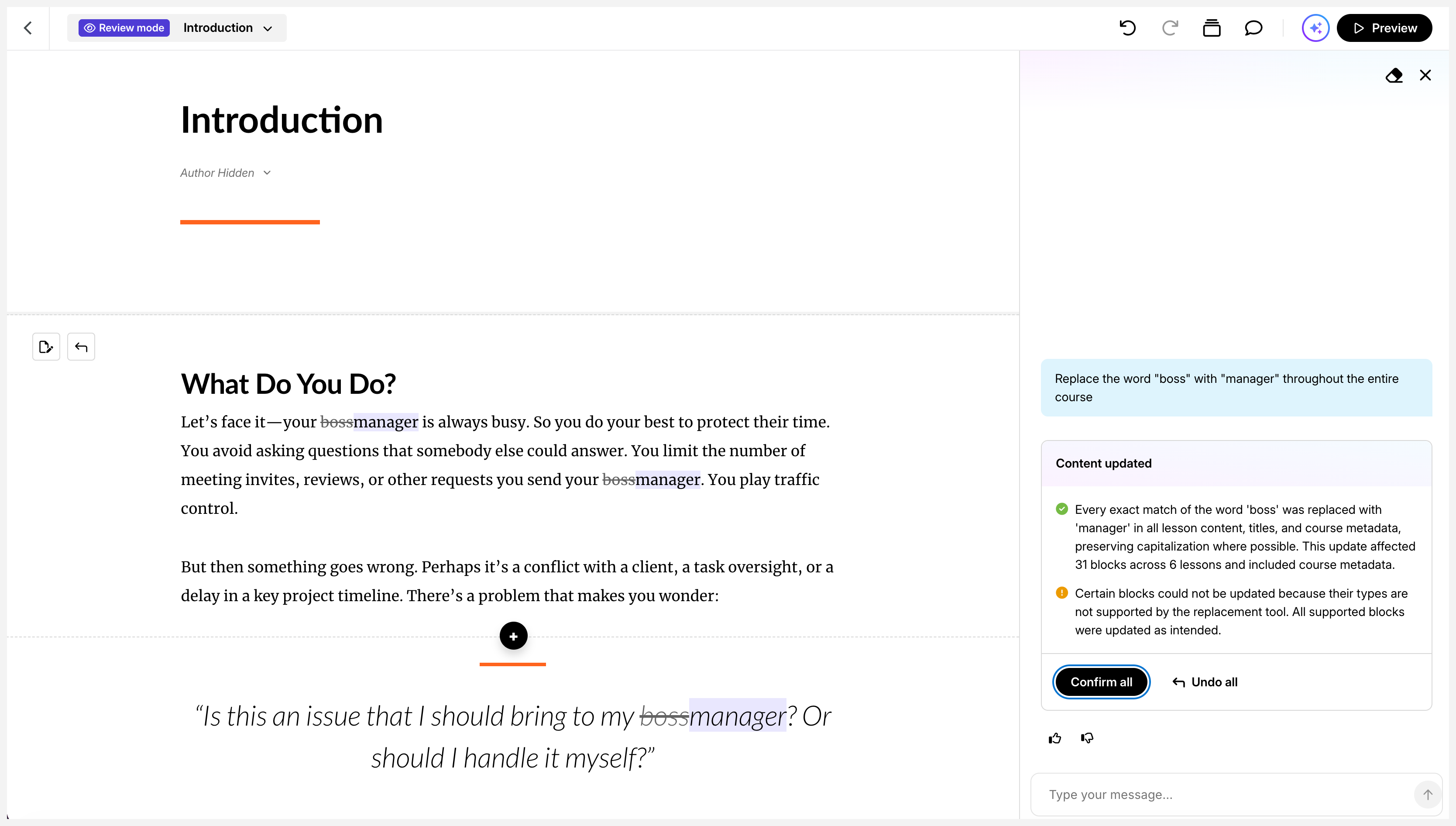
Update Content with AI works across course, lesson, and quiz titles, descriptions, sections, and most blocks. The following table shows which blocks and text elements aren't currently supported:
| Blocks | Text elements |
|---|---|
|
|
Update Content Using Prompts
Here’s how to update content by chatting with AI:
- On your course or lesson overview page, click the AI Assistant icon in the upper-right corner.
- Select Update content to open the chat sidebar.
- Enter your request in the chat box or use one of the prebuilt prompts.
- Review the AI’s understanding of your request, then confirm if you want to proceed.
- Click Review changes in the action summary to see updates on the page.
- Hover over a block to access options on the left for keeping changes, editing updates, or reverting changes in that block.
- Click Confirm all to keep the changes, or Undo all to revert them.
- If you close the chat without choosing an option, the changes are confirmed by default.
Improve Your Results
Follow these tips to achieve better results:
- Be specific about what you want to change. Clearly state the source and target text.
- Add constraints if precision matters, such as whole-word, partial-word, or case-sensitive matching.
- Call out the scope when needed, for example, “in this lesson” or “throughout the course.”
- Break large or complex updates into smaller, focused requests if the results are not as expected.
Try these sample prompts:
- “Find any instances of ‘utilize’ and replace them with ‘use’.”
- “Replace title case with sentence case in all my lesson titles.”
- “Make tone friendly instead of formal.”
- “Adjust the reading level for a third-grade audience.”
FAQs
Is there a “Find only” mode to preview all matches without changing anything?
While there isn’t a dedicated “Find only” mode, you can ask the AI to list all instances of a specific term and where they appear in your course.
Can I edit the suggested replacements in the review step (tweak a few instances) without canceling and restarting?
Yes. Hover over a block to keep changes and make the block editable, or revert changes for that specific block.
Will the AI preserve rich text formatting?
Yes. Rich text formatting is preserved after changes are applied.
Can multiple authors collaborate safely? What if someone else edits my course while my update content request is in progress?
We’re working to address this in future releases, but for now, Update Content with AI isn’t designed to support multiple creators making simultaneous edits to the same course.
Is Update Content with AI available in Storyline 360?
No. This feature is currently available only in Rise 360.
Provide Feedback
We’d love your feedback on the Update Content with AI feature so we can keep making improvements! After the AI applies the updates, thumbs-up and thumbs-down icons appear in the lower-left corner of the response. Click the thumbs-up icon if the results worked well, or click the thumbs-down icon to share what didn’t work or what could be better. Your feedback goes directly to our product and engineering teams to help improve the experience.