
Browse Articles
Select a Product
null Support Directory
Browse all null articles. (Last Updated
No articles found.
Search Results
No articles found.
Storyline 360: Applying Merge Shapes
Article Last Updated Dec 16, 2025
This article applies to:
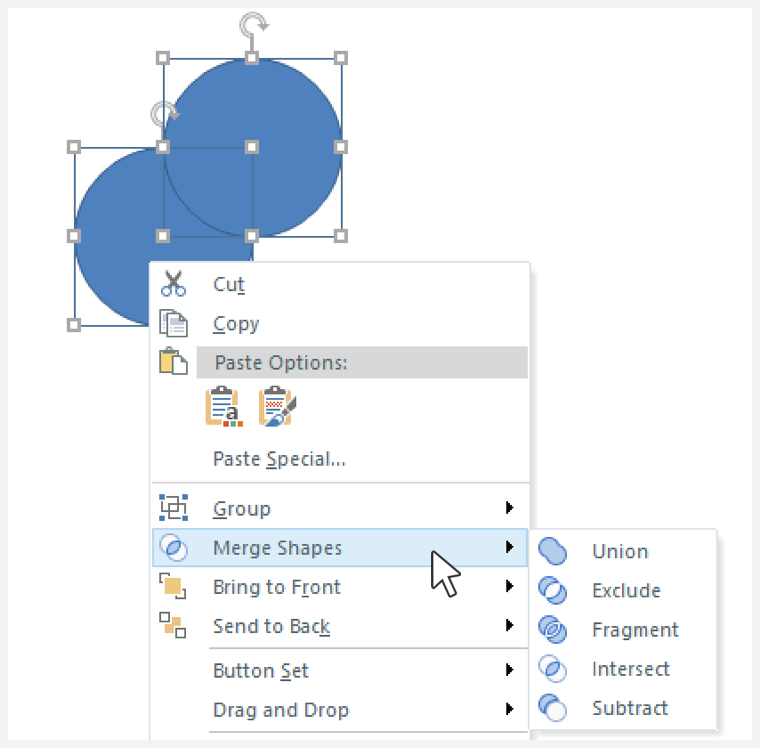
Merge shapes lets you combine basic shapes into custom, powerful designs. Select two or more shapes and apply one of five merge operations:
- Union
- Exclude
- Fragment
- Intersect
- Subtract
Create Merged Shapes
Getting started with merged shapes is easy.
- Insert and select two or more shapes.
- Right-click or choose Format in Drawing Tools.
- Select Merge Shapes.
From the drop-down menu, choose the kind of merge operation you want: Union, Exclude, Fragment, Intersect, or Subtract.
The resulting merged shape behaves like any other built-in shape and can be moved, scaled, rotated, used in triggers, etc. It can also be merged with other shapes, opening even more design possibilities for your courses.