
Browse Articles
Select a Product
null Support Directory
Browse all null articles. (Last Updated
No articles found.
Search Results
No articles found.
Storyline 360: Working with Default Slide Sizes
Article Last Updated Jul 21, 2026
This article applies to:
Set the default slide size for new Storyline 360 projects and change it whenever you need to. You can also choose how existing content scales when you change the slide size. Keep reading to learn more.
Select a Default Slide Size
Starting with the July 21, 2026 update, new Storyline 360 projects default to a 16:9 HD (1920 x 1080) slide size unless you’ve set a different default. Here’s how to set your default slide size:
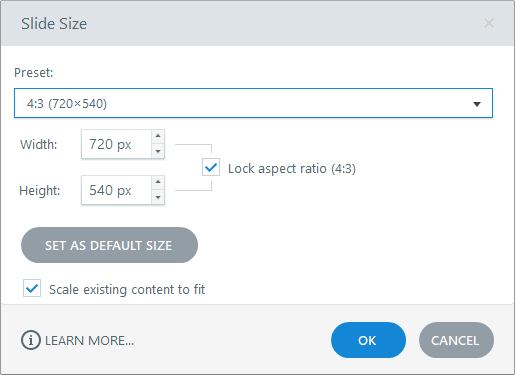
- Go to the Design tab on the ribbon and click Slide Size. Or, click the slide size dimensions link in the lower-left corner of your screen.
- When the Slide Size window appears, choose an option from the Preset selector. The following preset slide sizes work best for these types of projects:
- 16:9 HD (1920 x 1080) for high-definition screen projects (default)
- 16:9 (960 x 540) for widescreen projects
- 9:16 (1080 x 1920) for mobile projects
- 4:3 (720 x 540) for full-screen projects
- Custom for flexibility (enter the width and height in pixels, up to a maximum of 2,047 x 2,047)
- Optional: Mark the Lock aspect ratio box to maintain the current proportions for objects that have locked aspect ratios.
- Optional: Mark the Scale existing content to fit box to fit the existing slide content proportionately within the new slide size. Objects that have locked aspect ratios will maintain their proportions. Objects that don’t have locked aspect ratios may change shape, depending on the slide size you choose.
- To save the selected dimensions as the default slide size for new projects, click Set As Default Size. (The button is grayed out for the current default slide dimensions.)
- Click OK. Your new default slide size takes effect when you close and reopen Storyline 360.
Note: Storyline 360 continues to use your saved default slide size unless you choose a different one and click Set As Default Size again.