
Browse Articles
Select a Product
null Support Directory
Browse all null articles. (Last Updated
No articles found.
Search Results
No articles found.
Storyline 360: Dynamic Variable Placeholders
Article Last Updated Jan 16, 2026
This article applies to:
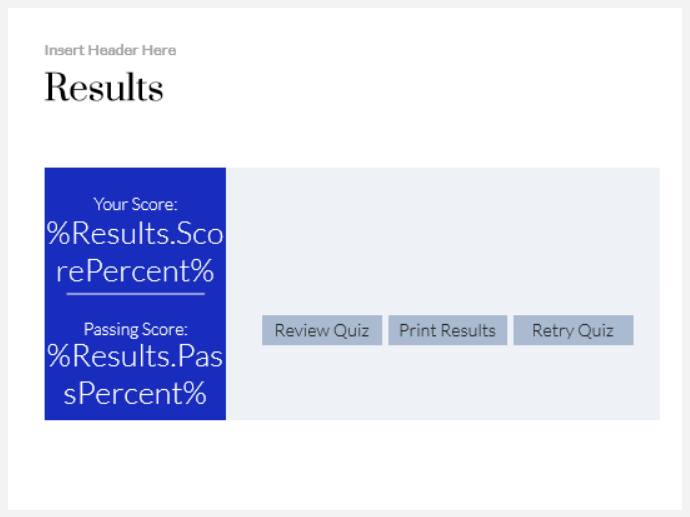
Previously, variables (except slide numbers) were displayed as the variable name enclosed in percent signs (e.g., %Results.ScorePercent%) on the slide stage. Long variable names made it hard to design a slide the way you wanted it to appear.
As of the February 2022 update, all variables display their default value in a yellow box or placeholder instead, resulting in a more precise view of how they'll look in the published output. The yellow box itself only appears on the slide stage, so variables are distinguishable from other slide elements; it won't show when you preview or publish.
Check out these before-and-after screenshots. (Click the images to enlarge them.)
| Before | After |
 |  |
Use Dynamic Variable Placeholders
To see dynamic variable placeholders in action, install the February 2022 update or later and insert any variable reference.
- Quickly replace one variable reference with another. Right-click a dynamic variable placeholder, scroll to Reference at the top of the context menu, and select a Project, Built-In, or Slide Numbers variable on the fly.

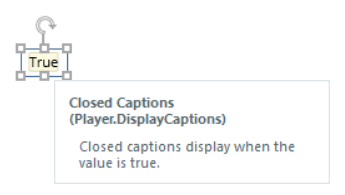
- Find out more about a built-in variable by hovering over its yellow placeholder. A tooltip with the variable title and description will display, as shown below.
If a variable reference is missing on your slide, a red placeholder with a tooltip appears instead. To fix the issue, recreate the variable reference or replace it with an existing one in your project.