
Browse Articles
Select a Product
null Support Directory
Browse all null articles. (Last Updated
No articles found.
Search Results
No articles found.
Storyline 360: Enhanced Word Translation
Article Last Updated May 27, 2026
This article applies to:
Starting with the February 2021 update, the Storyline 360 Word translation feature is more robust than ever, saving authors and translators time and effort. Here’s the scoop:
Faster Workflow
The enhanced Word translation process is remarkably faster than before. We improved the performance of both the export and import processes, reducing times from minutes to seconds.
Export Options
Say hello to more export options:
- Include slide thumbnails for reference: Check this box to easily add screenshots of each slide and layer to the supporting text for visual context.
- Export as a single table: By default, Storyline 360 splits each slide and layer into a separate table to keep translators in context. Check this box if you prefer to create a single table of the entire course for computer-aided translation.
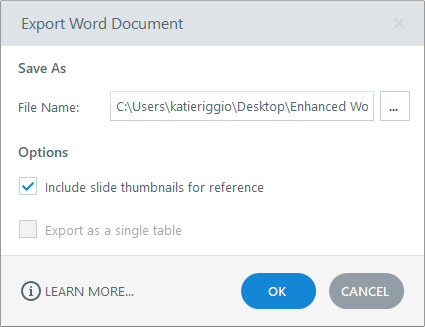
Note: The export options are mutually exclusive. You can select one or the other, but not both. Simply uncheck one box before selecting the other.
More Context
Translators need as much context as possible to correctly localize a course, so we added more details to the enhanced Word document to aid translation:
- Screenshots of each slide and layer
- Object types (text box, shape, button, marker, etc.), so translators know what they're working with
- A scene/slide/layer heading structure, so you can quickly scan the course outline (i.e., table of contents) in the Word document
- A project information summary table that features every detail about the course, including character and word counts
Check out this screenshot of the resulting Word document from the enhanced translation method. (Click the image to enlarge it.)

Note: The Storyline 360 translation process doesn't include closed captions, trigger conditions, or variable names. View the user guide for details.
Preserved Formatting
The legacy Word translation method removed some text formatting, such as lists and paragraph spacing. The enhanced Word translation method preserves all text formatting, so you don’t have to spend time and effort correcting it.
Fewer Text Splits
As of June 2021, you have more control over translation formatting. Storyline 360 no longer splits text strings with basic font formatting, such as bold, into multiple rows in the exported Word document. For example, a sentence with bold and unbold words remains in a single, more manageable cell.
These before-and-after images show the difference. (Click the images to enlarge them.)
|
Before |
After |
|
|
|
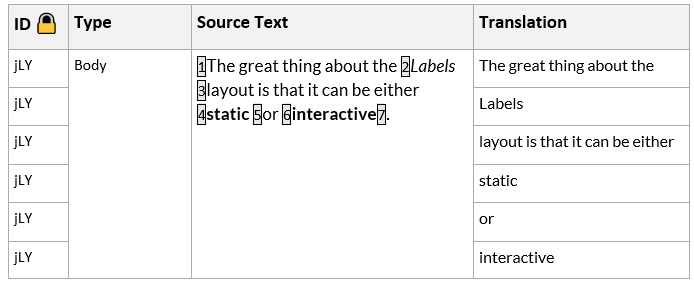

View the table below to learn how Storyline 360 handles splitting for text strings with various font formatting options in the resulting Word doc:
|
Basic Formatting (Not Split) |
Other Formatting (Split) |
|
Bold |
Font |
|
Italics |
Font size |
|
Underline |
Font color |
|
Strikethrough |
Highlight color |
|
Superscript |
Hyperlink |
|
Subscript |
Shadow |
|
Character spacing | |
|
Paragraph formatting (e.g., alignment, line spacing) |
And if you apply basic formatting (noted above) to translated text in the Word document, Storyline 360 preserves the changes during the import process.
Note: New projects use this improvement by default in Storyline 360 build 3.53.25436.0 or later.
More Editors
Unlike the legacy Word translation process, you no longer need a copy of Microsoft Word installed on your machine. Enhanced Word translation takes advantage of the modern DOCX file format, so you can translate documents with your favorite DOCX editor, such as Word, Google Docs, or LibreOffice.
Note: While you won’t be able to export new files using the legacy DOC format, you can edit and import previously exported DOC files back into Storyline 360.
Take a Tour
To use the enhanced workflow, go to the File tab on the ribbon and scroll to Localization > XLIFF/Word Translation. Click Export to Word to view the enhanced export window.