
Browse Articles
Select a Product
null Support Directory
Browse all null articles. (Last Updated
No articles found.
Search Results
No articles found.
Storyline 360: Managing a Project’s Assets with the Media Library
Article Last Updated Apr 22, 2026
This article applies to:
Manage all of your project assets in one place with the media library. It keeps track of images, characters, audio clips, and videos in your course, making it easy to add, remove, replace, reuse, and export them. See where assets are used throughout your course and jump to each location instantly. Edit assets with third-party apps and save your changes directly to Storyline 360. Check out the details below to get started.
- Open the Media Library
- Import Assets into the Media Library
- Search, Sort, and Filter Assets
- Rename Assets
- Preview Assets
- Manage Alternative Text
- Manage Closed Captions
- Add Internal Notes to Assets
- Jump to Asset Locations in Your Project
- Use Assets on Slides and Layers
- Replace All Instances of an Asset
- Replace a Single Instance of an Asset
- Edit Assets in Third-Party Apps
- Reimport Updated Assets
- Open an Asset’s Original Folder Location
- Export Assets
- Delete Assets
Open the Media Library
The media library is easy to find. Here are three ways to open it:
- Go to the View tab on the ribbon and click Media Library.
- Right-click an asset on any slide in your project and choose Show in Media Library.
- Go to the Insert tab on the ribbon, click the drop-down arrow below Picture, Video, or Audio, and then choose Media Library.
When you open the media library from the View tab or by right-clicking an asset, you’ll see asset tabs, a search field, filtering options, an asset list with metadata, and a details pane for previewing, locating, and managing assets, such as replacing, editing, exporting, and deleting them.
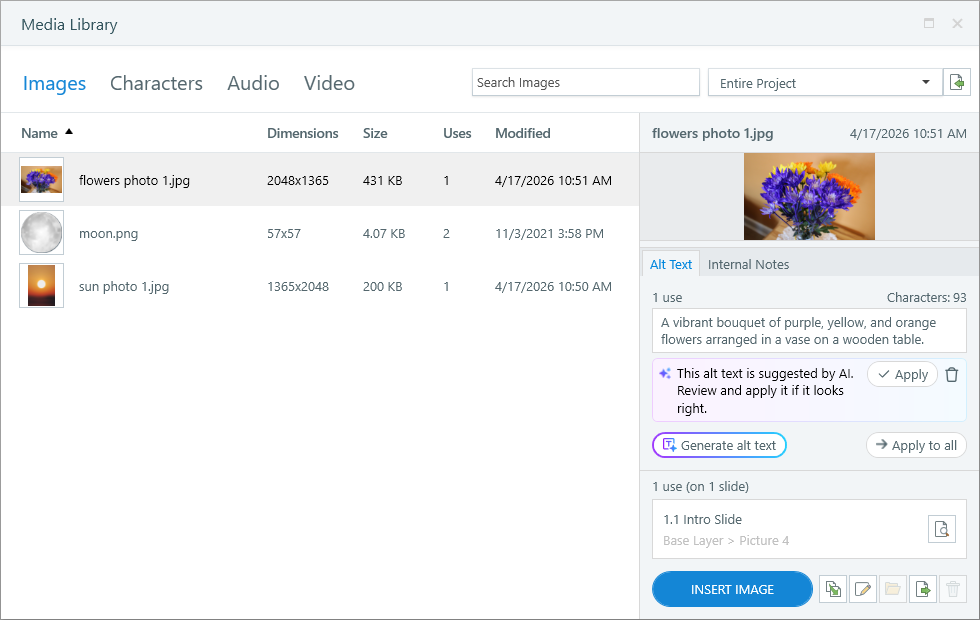
You can keep the media library open as you work in Storyline 360 or move it to a separate monitor so it’s always available while you’re building your course.
When you open the media library from the Insert tab, you can add assets to slides, but the details pane for previewing, locating, and managing assets isn’t available. The media library also closes automatically after you insert an asset.
Import Assets into the Media Library
There are several ways to add assets to the media library. Explore them below.
Drag Assets From Your Computer Directly Onto a Slide or Into the Media Library
When you drag media from your computer directly onto a slide or into the media library, those assets automatically appear in the media library. Note that icons don’t show in the media library.
Use the Ribbon to Insert Assets and Slides
When you use the Insert tab to add images, characters, audio clips, and videos to slides in your project, those assets automatically appear in the media library.
When you use the Slides tab to import slides from other sources, such as Content Library 360 and PowerPoint, assets on those slides automatically appear in the media library too. Note that screen recordings don’t show in the media library. You can find your screen recordings by going to the Slides tab on the ribbon and clicking the Record Screen drop-down arrow.
Use the Import Buttons in the Media Library
You can import assets directly into the media library so they’re ready when you need them. Click Import in the upper right corner to add new assets. If the library is empty, you can also use the Add button on any asset tab.
Here’s what you can import:
- Images: Upload from your computer or Content Library 360, or generate with AI Assistant.
- Characters: Add photographic and illustrated characters from Content Library 360.
- Audio: Upload from your computer, record with a microphone, or generate with AI Assistant.
- Video: Upload from your computer or Content Library 360, or record with your webcam.
Tip: Select multiple files at once with Ctrl+Click or Shift+Click to import them together.
Search, Sort, and Filter Assets
Let’s examine how assets are organized in the media library and how to find what you need.
Switch Asset Tabs
Use the asset tabs across the top of the media library to manage images, characters, audio clips, and videos. The media library remembers which asset tab you had open when you last saved a project and displays that same tab the next time you open the media library.
Search
Use the search field at the top of the window to find a specific asset by name. The search field is contextual, so it searches only the assets for the tab that’s currently selected (images, characters, audio, or video). The search results are dynamic and update as you type.
Pro Tip: Give your assets recognizable names and keywords to make searches quick.
Filter
By default, the media library displays all the assets for your entire project. You can narrow your focus to a specific scene, slide, or question bank by using the drop-down list in the upper right corner to filter your assets.
Sort
You can sort the asset grid by any column, such as asset names or modified dates. Click a column header to sort by that column. Click it again to reverse the sort order.
Rename Assets
Rename images, characters (and poses), audio clips, and videos in the media library so they’re organized and searchable.
In the media library, double-click an asset name to make it editable. Type a new name, then press Enter or Tab.
When you rename an asset in the media library, the new name displays in the timeline panel everywhere that asset appears in your project.
Preview Assets
Select an asset in the list on the left side of the media library, then use the details pane on the right to preview it.
When you’re working with an image or a character, hover over the preview image to zoom and pan around it. You can also click the preview image to see a larger version of it. It’ll fill the media library window. Click it again to close the asset.
When you’re working with an audio clip or a video, click the play/pause button to preview the asset.
Pro Tip: You can make the preview area in the details pane smaller when you need more room to work with the notes field. Hover over the lower boundary of the preview area, then click and drag the boundary to resize the preview area.
Manage Alternative Text
You can manage alt text in the media library. Select an image, character pose, or video in the asset grid on the left, then enter your text in the details pane on the right. Alt text will be updated wherever the asset is used throughout your course.
You can add different alt text to each instance of an asset using the Size and Position window. However, the media library will only display the alt text of the asset.
When an asset is used multiple times in your project, you can apply the same alt text to all instances of the asset by clicking the Apply to all button in the media library.
Generate Alt Text with AI Assistant
Quickly generate alt text by clicking the Generate alt text button below the text field. Learn more about generating alt text from the media library.
Manage Closed Captions
You can manage closed captions for all of your project’s audio clips and videos in the media library. In the Captions column, assets with captions display caption icons, whereas assets without captions show dots.
Add Closed Captions to an Asset
Click the dot in the asset grid (the dot changes to a plus sign when you hover over it), or click the Add captions button in the details pane. Then choose how you want to add captions from the menu that appears. You can add captions using the built-in editor, or you can import captions from a file that was created elsewhere.
Generate Closed Captions with AI Assistant
Add captions fast by clicking the Generate captions button in the Captions tab on the right. Learn more about generating captions from the media library.
Manage Closed Captions for an Asset
After adding closed captions to an asset, you can edit, replace, export, or delete them. Just click the caption icon in the asset grid or the Edit captions button under the Captions tab. Then choose an action from the menu that appears.
Add Internal Notes to Assets
Want to add notes to an asset? Select an asset in the media library and enter your notes in the details pane (up to 2,147,483,647 characters).
Notes are only stored in your project file and visible in the media library. They don’t get published with your course, so learners won’t see them.
Here are some ideas for using the notes field:
- Keep track of copyright, source, and attribution details.
- Enter keywords to help you find assets later. (Notes are searchable.)
- Store transcripts for videos and audio clips.
- Describe how assets are to be used. This is helpful when you’re creating a template or working on a project with other e-learning developers. (Articulate 360 Teams subscribers can create a library of shared team slides in Storyline 360. When you share slides with your team, notes in the media library get shared too.)
Jump to Asset Locations in Your Project
You can use the media library to see how many times an asset is used in your course and where it appears. Keep reading to learn how.
Select the asset in the list on the left side of the media library, then use the details pane on the right to find its use count and location data.
Click the left and right arrows to cycle through the carousel of asset locations. Each location displays the slide number, slide title, and a description of the location, such as base layer, slide layer, or object state. Click the magnifying glass icon to jump directly to the location of the asset in your project.
Articulate 360 Teams subscribers can collaborate on projects by creating a library of shared team slides that the whole team can access right from Storyline 360.
When you share slides with your team, all media library assets get shared too, including assets that aren’t used anywhere in your project. For example, you might import company logos, product videos, and other brand elements into the media library so your team has quick access to them as they’re building courses.
If you download team slides into an existing project, only the assets used on those slides get imported into your project. However, if you start a new project using team slides, all the assets that were originally shared with those slides get imported into your project, including unused assets.
Use Assets on Slides and Layers
You can reuse media library assets as often as you’d like throughout your course. Here’s how:
- Go to the slide or layer where you want to insert a media library asset.
- Select an asset in the list on the left side of the media library. (Ctrl+click or Shift+click to select multiple assets at the same time.)
- Click the Insert button at the bottom of the details pane to add the asset(s) to the current slide or layer.
You can also use the ribbon to add media library assets to your course.
- Go to the slide or layer where you want to insert a media library asset.
- Select the Insert tab on the ribbon and click the drop-down arrow below Picture, Video, or Audio. Then choose Media Library.
- Select an asset in the list on the left side of the media library. (Ctrl+click or Shift+click to select multiple assets at the same time.)
- Click the Insert button at the bottom of the details pane to add the asset(s) to the current slide or layer.
Replace All Instances of an Asset
You can use the media library to replace all instances of an asset at once. Here’s how:
- Open the media library from the View tab or right-click an asset on a slide and select Show in Media Library.
- Select an asset from the list on the left side of the media library.
- Click the Replace button at the bottom of the details pane, then choose a replacement option. Here are your options, depending on the type of asset you’re replacing:
- Image: Replace an image with a picture file from your computer, a Content Library photo, or an AI-generated image.
- Character: When you replace a character, the Content Library character browser automatically opens, allowing you to choose another character, expression, and/or pose.
For photographic characters, you can replace individual poses, but you can’t replace an entire character group and all of its poses simultaneously.
For illustrated characters, you can replace individual poses, or you can swap an entire character group and all of its poses with another illustrated character all at once. - Audio: Replace an audio clip with an audio file from your computer, recorded narration from your microphone, or AI-generated audio.
- Video: Replace a video with a video file from your computer, a Content Library video, or a recording from your webcam.
Replace a Single Instance of an Asset
You can replace all instances of an asset as described above, or you can replace a single instance of an asset without changing the others. Here’s how:
Replace an Image
Right-click the image in your course and scroll to Replace Picture. Then choose to replace the image using a picture file from your computer, a Content Library 360 photo, or an image in the media library. (If you use the media library, select a new image and click Replace Image in the details pane.)
Here’s another way to replace an image: Select the image in your course and go to the Format tab on the ribbon. Click the drop-down arrow beside Replace Picture and choose one of the replacement options.
Replace a Character
Right-click the character in your course and scroll to Replace Pose. Then choose to replace the character using the Content Library 360 or the media library. (If you use the media library, select a new pose and click Replace Character in the details pane.)
Another way to replace a character is to use the Character Tools—Design tab on the ribbon.
Replace an Audio Clip
Right-click the audio clip on the timeline (or right-click the speaker icon next to the slide) and scroll to Replace Audio. Then choose to replace the audio clip using an audio file from your computer, an asset in the media library, your microphone, or text-to-speech conversion. (If you use the media library, select a new audio clip and click Replace Audio Clip in the details pane.)
Here’s another way to replace an audio clip: Select the audio clip in your course and go to the Options tab on the ribbon. Click the drop-down arrow beside Replace Audio and choose one of the replacement options.
Replace a Video
Right-click the video in your course and scroll to Replace Video. Then choose to replace the video using a video file from your computer, a Content Library 360 video, a video in the media library, or your webcam. (If you use the media library, select a new video and click Replace Video in the details pane.)
Edit Assets in Third-Party Apps
You can use the media library to open assets in third-party apps, such as Photoshop, and save your changes directly to Storyline 360.
Edit Images
- Select an image in the asset list on the left side of the media library.
- Click the Edit button (pencil icon) at the bottom of the details pane and choose an app from the list of image editors installed on your computer.
- When the app opens, edit the image as you’d like.
- Save your changes and close the app. You’ll see that your edits were automatically saved to Storyline 360 and all instances of the image in your project have been updated.
The process for saving edited images to Storyline 360 could be different, depending on the image editor you’re using. In many editors, you only need to click the save button. In some editors, you have to save or export the image to the temp folder for your project and overwrite the original image. (The editor should automatically take you to the temp folder.) And in other editors, you might have to save a new version of the image, and then replace the original image in the media library with the new one.
Edit Audio Clips
- Select an audio clip in the asset list on the left side of the media library.
- Click the Edit button (pencil icon) at the bottom of the details pane and choose an app from the list of audio editors installed on your computer.
- When the app opens, edit the audio clip as you’d like.
- Depending on the specific audio editor you’re using, you might not be able to save your changes directly to Storyline 360. You usually need to publish or export audio from the editor first, and then replace the existing audio clip in the media library with the updated audio file.
Edit Videos
- Select a video in the asset list on the left side of the media library.
- Click the Edit button (pencil icon) at the bottom of the details pane and choose an app from the list of video editors installed on your computer.
- When the app opens, edit the video as you’d like.
- Depending on the specific video editor you’re using, you might not be able to save your changes directly to Storyline 360. You usually need to publish or export video from the editor first, and then replace the existing video in the media library with the updated video file.
Characters can’t be edited in third-party apps.
However, you can replace one pose with another. You can even swap out an entire illustrated character group and all its poses for another illustrated character.
And when you’re working with a character on a slide or layer (outside of the media library), you can use the formatting tools on the ribbon to change its brightness, contrast, picture effects, crop, and more.
Reimport Updated Assets
The media library recognizes when there’s a newer version of an asset’s original source file on your computer—for example, when it’s edited outside of Storyline 360. When that happens, a yellow dot appears to the left of the file name in the asset list and a notification appears in the details pane, as shown below. If you want to replace the asset in your project with the newer version, click the Reimport button in the details pane.
Open an Asset’s Original Folder Location
You can open an asset’s original folder location right from the media library. This can be helpful when you need to edit the asset outside of Storyline, or you have similar images on your computer and aren’t sure which one you used in your project.
Select an asset in the list on the left side of the media library, then click the Open Folder button at the bottom of the details pane. The folder will open and the source asset will be selected for you.
There are a few reasons why the Folder button might be grayed out or inactive.
- The original asset or folder was renamed, moved, or deleted.
- The asset was imported with a slide from another source, such as Content Library 360 or PowerPoint.
- The asset is a photographic or illustrated character.
Export Assets
You can use the media library to export assets so you can reuse them in other projects.
Export Images
When you export images from the media library, they keep their original file formats and sizes.
- Select one or more images in the asset list. (Ctrl+click or Shift+click to select multiple images.)
- Click the Export button in the lower right corner of the media library.
- Choose the folder where you want to save your image(s).
Export Characters
When you export photographic characters from the media library, they’re saved as high-quality PNG images. Illustrated characters are saved as EMF vector images.
- Click the triangle to the left of a character to reveal its poses.
- Select one or more poses in the asset list. (Ctrl+click or Shift+click to select multiple poses.)
- Click the Export button in the lower right corner of the media library.
- Choose the folder where you want to save your character(s).
Export Audio Clips
When you export audio clips from the media library, they’re saved as MP3 files.
- Select one or more audio clips in the asset list. (Ctrl+click or Shift+click to select multiple clips.)
- Click the Export button in the lower right corner of the media library.
- Choose the folder where you want to save your audio clip(s).
Export Videos
When you export videos from the media library, they’re saved as MP4 files.
- Select one or more videos in the asset list. (Ctrl+click or Shift+click to select multiple videos.)
- Click the Export button in the lower right corner of the media library.
- Choose the folder where you want to save your video(s).
While this user guide focuses on using the media library, there are more ways to export assets from a Storyline 360 project.
Delete Assets
You can delete assets from the media library if they aren’t used anywhere in your project. Just select an asset in the list on the left side of the screen and click the Delete button in the lower right corner of the details pane. (The button will be grayed out if the asset is in use.)
Want to delete multiple assets at the same time? Ctrl+click or Shift+click the assets you want to delete, and then click the Delete button.
It depends on how you added the assets to your project.
When you add an asset to a slide using the ribbon, the asset automatically appears in your media library. And if you later delete the asset from the slide, it also disappears from the media library.
However, when you import an asset directly into the media library, it’ll remain in the library until you delete it. If the asset’s use count is zero, you can use the Delete button to remove it from the media library.