
Browse Articles
Select a Product
null Support Directory
Browse all null articles. (Last Updated
No articles found.
Search Results
No articles found.
Storyline 360: Modern Player Size Control
Article Last Updated Jan 16, 2026
This article applies to:
Unlock greater flexibility with expanded sizing options for the modern player in Storyline 360. Lock the player size, or let it adjust to learners' browsers—the choice is yours. Read on to learn more.
Choose the Modern Player Size
Go to the Home tab on the ribbon and click Player. When the player properties appear, click Other on the ribbon and select one of these options from the Player size drop-down list.
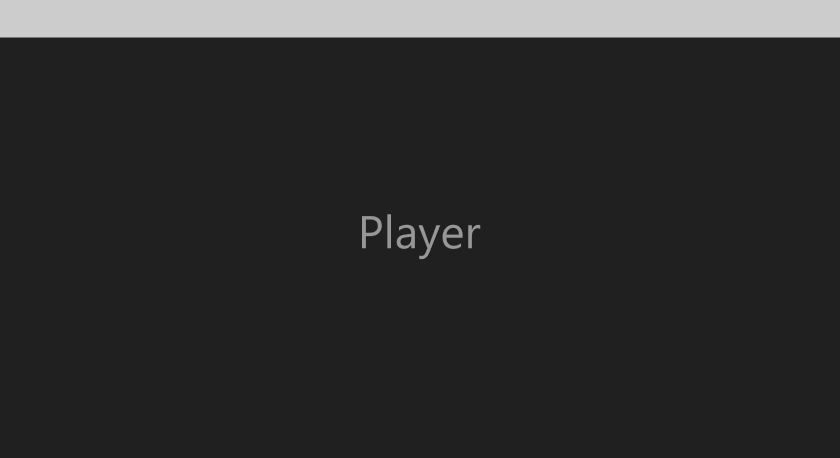
- Scale player to fill browser. This is the default option. It scales your published course to fill the learner’s browser, leaving no white space around the player.
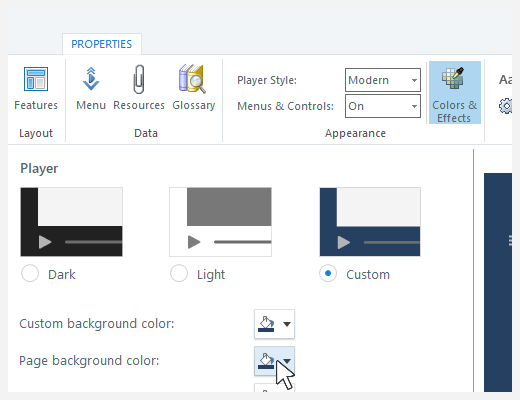
- Page background color: Learners may see a background color behind the course content when you scale the player to fill the browser and turn off menus and controls. You can change the page background color on the Colors & Effects tab in your player properties.
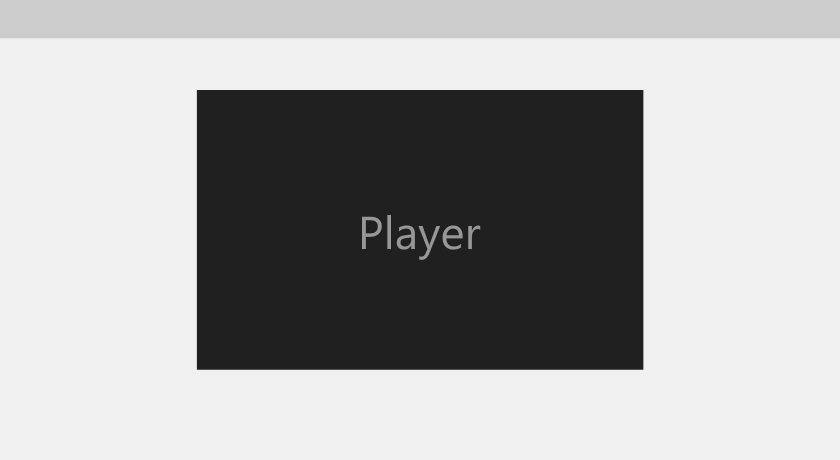
- Lock player size. This locks the published course at the slide size plus additional width and height for the player frame and features (reference the table below). Even if learners resize their browsers, the course stays at the slide size.
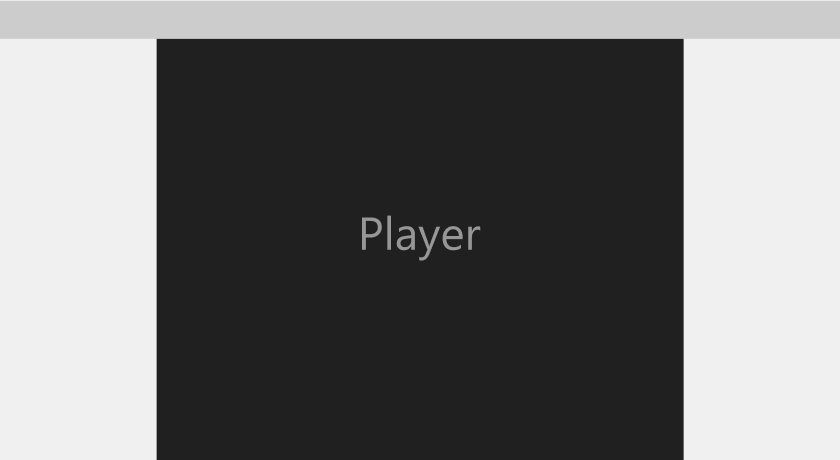
- Lock player size to fit browser. This scales your published course to fit within the learner’s browser while maintaining the modern player’s aspect ratio. This results in some white space around the player.
Note: The “Scale player to fill browser” option works on desktop and mobile devices. The “Lock player size” and “Lock player size to fit browser” options only work on desktop computers.
Check out these visual references to understand how each sizing option displays.
| Scale player to fill browser |
Lock player size |
Lock player size to fit browser |
 |  |  |
Choose the Page Background Color
When using the “Lock player size” or “Lock player size to fit browser” option, you can further personalize your course by choosing the page background color. This color appears behind your published course, and learners may see it around the outside of your player frame. Click Colors & Effects on the ribbon, then choose a page background color using the color selector.
Calculate the Dimensions of Your Published Course
The overall size of your published course is a bit bigger than your slide dimensions. Modern player features have the pixel sizes below when the player is set to the “Lock player size” option. These dimensions can change as the modern player responds to different browser sizes.
| Player Feature | Width | Height |
| Player frame | +20 pixels | +20 pixels |
| Title | +23 pixels | |
| One or more topbar tabs | +24 pixels | |
| Volume controller, closed captioning button, play/pause button, seekbar, or navigation buttons | +51 pixels | |
| Sidebar | +240 pixels |
Tips:
- You can turn player features on and off on a slide-by-slide basis, but each player feature adds width or height to your entire course, even if it’s only used on a single slide.
- The modern player with menus and controls turned off won’t add any width or height to your course.
- If you don’t want the menu icons to go past the edge of the frame when you use Lock player size or Lock player size to fit browser, start with the sidebar collapsed.
- When you choose Lock player size to fit browser, the player frame is prevented from scaling larger than the original slide dimensions by default. If the browser is smaller than the player frame, it will scale down to show the entire player. To disable this option, uncheck the box labeled Prevent scaling larger than original size dimensions.
Understand Compatibility
Modern player size control is exclusive to Storyline 360 as of April 2025. Project files that use the “Lock player size” or “Lock player size to fit browser” options won't open in earlier versions of Storyline 360. To restore compatibility, set the modern player size to the default “Scale player to fill browser” option.