
Browse Articles
Select a Product
null Support Directory
Browse all null articles. (Last Updated
No articles found.
Search Results
No articles found.
Storyline 360: Using the Font Formatting Options
Article Last Updated Oct 19, 2026
This article applies to:
The text editor in Storyline 360 gives you complete control over text formatting and placement. Read on to learn more about the font formatting features. For paragraph formatting options such as alignment and spacing, check out this user guide.
- Work with the Font Tools
- Use the Font Window
- Use Keyboard Shortcuts
- Apply Consistent Text Formatting Throughout a Project
Work with the Font Tools
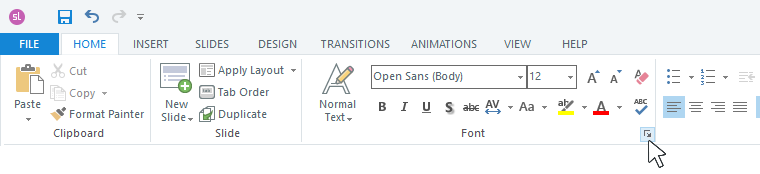
Select the text you want to edit, go to the Home tab on the ribbon, and use the Font formatting options.

Here are some tips for working with the font tools:
- Font sizes are measured in points (pt). Use a minimum font size of 12 pt to maximize readability.
- Hover over the buttons in the Font group to see their functions.
- You can apply formatting to an entire text box, or to a single word or paragraph in the text box. To quickly select a word, just double-click it. To select a paragraph, triple-click any word in the paragraph.
- You can select multiple text boxes on a slide and format them all at once. Use Shift+click or Ctrl+click to select more than one text box, or click and drag around multiple text boxes. Then choose your formatting options.
- Use text styles for a consistent design throughout your course.
- Read this article to learn more about selecting colors for your font.
- For even more control over your text, right-click the text box, choose Format Shape, then select the Text Box tab on the left side of the window that appears. Learn more about formatting text boxes here.
Use the Font Window
Many of the same formatting tools on the ribbon are also available in the Font window. Select the text you want to edit, then click the arrow in the lower-right corner of the Font group on the ribbon.
The following window will open where you can edit several font attributes, including style, size, color, effects, and character spacing.

Use Keyboard Shortcuts
Use these shortcuts for common tasks to work even faster.
|
Keys |
Function |
|
Ctrl+A |
Select all |
|
Ctrl+B |
Bold |
|
Ctrl+E |
Center align text |
|
Ctrl+I |
Italicize |
|
Ctrl+K |
Insert a hyperlink |
|
Ctrl+L |
Left align text |
|
Ctrl+R |
Right align text |
|
Ctrl+U |
Underline |
|
Ctrl+= |
Change the selected text to subscript |
|
Ctrl+Shift+= |
Change the selected text to superscript |
|
Ctrl+Shift+> |
Increase font size |
|
Ctrl+Shift+< |
Decrease font size |
Find more keyboard shortcuts in this user guide.
Apply Consistent Text Formatting Throughout a Project
There are several ways to speed up your workflow and ensure your course has a consistent design. Check out these user guides for time-saving features: