
Browse Articles
Select a Product
null Support Directory
Browse all null articles. (Last Updated
No articles found.
Search Results
No articles found.
Storyline 360: Video Transcripts
Article Last Updated Jan 16, 2026
This article applies to:
Streamline your accessibility workflow with video transcripts. Starting with the April 2023 update, Storyline 360 automatically generates synchronized video transcripts from closed captions. Transcripts don't just benefit learners who are deaf or hard of hearing—they also aid anyone who needs to learn in a noisy environment, prefers to read, or uses a braille display.
Generate and Enable Video Transcripts
Generate transcripts and enable the transcript button simultaneously. Add closed captions to video files as usual, then turn on accessible video controls.
Details:
- Transcripts are generated from video closed captions. To change the text in the transcript, edit the caption text. The transcript then automatically updates to match the updated captions.
- The font and font size you select for all player elements also applies to transcript text.
- Website videos use their own player controls and features, which may or may not include transcripts.
- Video transcripts aren't supported for videos in 360° images.
View Video Transcripts
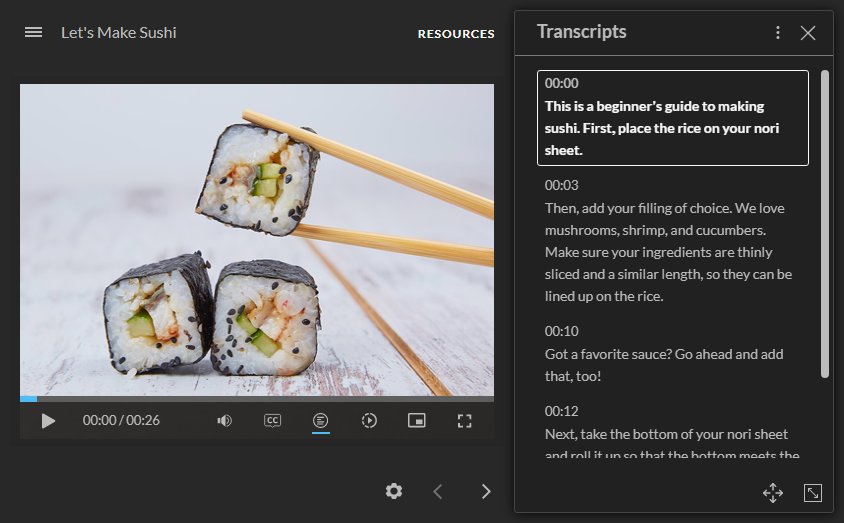
Learners view a video transcript by clicking the transcript button in the accessible video controls, as shown below. To hide the transcript, they click the button again.

- Autoscroll: By default, transcripts autoscroll as the video plays. Learners can scroll through the transcript and continue autoscrolling by clicking Resume autoscroll. To disable autoscroll, they click the vertical ellipsis (⋮) in the upper-right corner and uncheck the box.
- Show timestamps: The time indicating the exact point when the transcript text aligns with the video displays by default. To hide timestamps, they click the vertical ellipsis (⋮) in the upper-right corner and uncheck the box.
- Move: There are two ways to move the transcript to a floating window. Learners can click the 4-headed arrow in the lower-right corner or hover over the top area of the transcript window, then drag it wherever they want.
- Resize: There are two ways to change the size of the transcript window. Learners can click the resizing handle in the lower-right corner or hover over the edges of the transcript window, then drag it to their desired dimensions.
Pro Tips:
- The playback speed also sets the autoscroll speed, allowing learners to control the pace.
- These best practices can help you boost video accessibility even more.
Understand Compatibility
Accessible video controls—including video transcripts—are exclusive to the modern player style in Storyline 360 as of April 2023. You can open, edit, and publish projects with video transcripts in earlier versions of Storyline 360.