
Browse Articles
Select a Product
null Support Directory
Browse all null articles. (Last Updated
No articles found.
Search Results
No articles found.
Storyline 360: Working with Check Boxes
Article Last Updated Jun 1, 2026
This article applies to:
Want learners to be able to select more than one option? Check boxes let you build multi-select interactions for quizzes, surveys, and more. You can customize their appearance and control what happens when learners make selections. Read on to learn how.
Create and Customize Check Boxes
To add a check box, go to the Insert tab on the ribbon and click Input. Choose one of the check box styles, then click the slide or layer where you want it to appear. To add text, select the check box and start typing.
You can also:
- Change fonts, sizes, colors, and paragraph formatting using the options on the Home tab. Learn more.
- Adjust alignment, autofit behavior, and margins by right-clicking the check box, choosing Format Shape, and selecting the Text Box tab. Learn more.
Giving check boxes meaningful names makes them easier to identify in triggers and interactions. To rename a check box, right-click it and select Rename. You can also double-click it in the timeline and enter a new name.
To format a check box, select it and go to the Format tab. You can change its styles, colors, and effects. Colors come from your theme. To apply the same look to all new check boxes in your project, right-click a customized check box and choose Set as Default Check Box.
To delete a check box, select it and press Delete on your keyboard.
Add Check Box Interactivity
Use states and triggers to define how check boxes respond to learner interaction.
Check boxes include built-in states that change their appearance when learners hover over, click, or otherwise interact with them. By default, these include Normal, Hover, Down, Disabled, and Selected. You can edit these or create your own. Learn more.
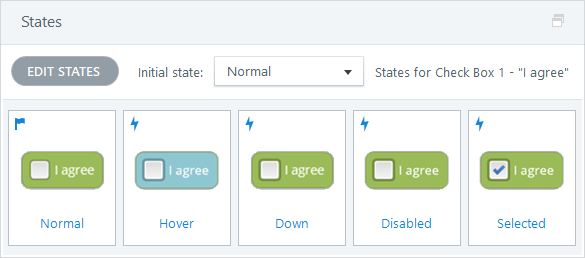
You can use triggers to determine what happens when learners select a check box. For example, you can show a layer, play a video, adjust a variable, and more. Learn more.
You can also:
- Convert slides to freeform interactions and use check boxes as answer choices in a multiple-response activity with optional scoring and feedback.
- Create button sets to allow only one selection at a time. When check boxes are grouped, selecting one automatically deselects the others. You can include multiple button sets on the same slide.
Make Check Boxes Accessible
Accessible check boxes help all learners understand their options, navigate choices easily, and make selections confidently. Follow these tips to boost check box accessibility:
- Provide clear instructions and feedback. Explain what learners should do, including that they can select more than one option when applicable. Make sure interactions are easy to follow so learners understand how to select and change their choices. Provide feedback after they make selections or submit their response (3.3.2 Labels or Instructions).
- Avoid unexpected changes after selection. If checking a box automatically submits a response, reveals content, or changes the current view, inform learners before the change occurs (3.2.2 On Input).
- Use descriptive text. Write check box text that clearly describes each option so learners understand what each option represents without needing extra context (2.4.6 Headings and Labels).
- Group related options clearly. Provide a clear question or group label so learners can easily understand how the check box options relate to one another (1.3.1 Info and Relationships).
- Set a logical focus order. Arrange check boxes in a meaningful order so keyboard and screen reader users can move through options predictably and efficiently (2.1.1 Keyboard, 2.4.3 Focus Order).
- Test check boxes with a screen reader and keyboard. Confirm learners can move between options and select or clear check boxes using the keyboard. Learn more about navigating multiple-choice questions with a screen reader or keyboard (2.1.1 Keyboard).
- Keep focus states visible. Make sure learners can easily identify which check box currently has keyboard focus. If you customize the focus indicator, ensure it remains easy to see against surrounding colors (2.4.7 Focus Visible, 2.4.11 Focus Not Obscured [Minimum]).
- Use sufficient contrast. Choose text and background colors that are easy to read in all check box states. Use at least a 4.5:1 contrast ratio for text and 3:1 for check box controls and other non-text elements (1.4.3 Contrast [Minimum], 1.4.11 Non-text Contrast).
- Add visual cues to show selection. Use clear indicators, such as a check mark or a distinct style change, so learners can tell when an option is selected. Avoid relying on color alone to convey selection (1.4.1 Use of Color).
- Make check boxes easy to select. Use large, clearly spaced check boxes for learners using touch, a mouse, or other input methods. Aim for a minimum target size of 24 by 24 pixels (2.5.8 Target Size [Minimum]).