
Browse Articles
Select a Product
null Support Directory
Browse all null articles. (Last Updated
No articles found.
Search Results
No articles found.
Articulate 360 AI and Frontline: Optimizing Your Image Generation Workflow
Article Last Updated Sep 17, 2026
This article applies to:
As a content creator, you’ve probably struggled to find relevant visuals—even with access to millions of high-quality images in Content Library 360. Now you have another option: Generate custom images based on your prompts with AI.
The image generation feature is available in Articulate 360 AI and Frontline. Visit our user guides to learn how to start generating images on each app:
AI—and your imagination—do the heavy lifting for image generation. But what if you’re having trouble getting just the right image with your prompt? The following best practices can help to create high-quality images.
- Write Clear and Specific Prompts
- Understand Image Generation Limitations
- Play to AI’s Strengths
- Switch Up the Image Style (or Create Your Own)
- Mitigate Bias With Proper Prompting
Write Clear and Specific Prompts
To get the best results when generating an image, be specific in your prompts. Focus specifically on what you want to see, and put the most important parts of your prompts at the beginning.
Use clear and concrete words—not words that might carry multiple meanings. As much as possible, use adjectives to describe every detail of the scene as you see it in your mind. The images below illustrate the difference between a generic prompt and one with words that define specific details.
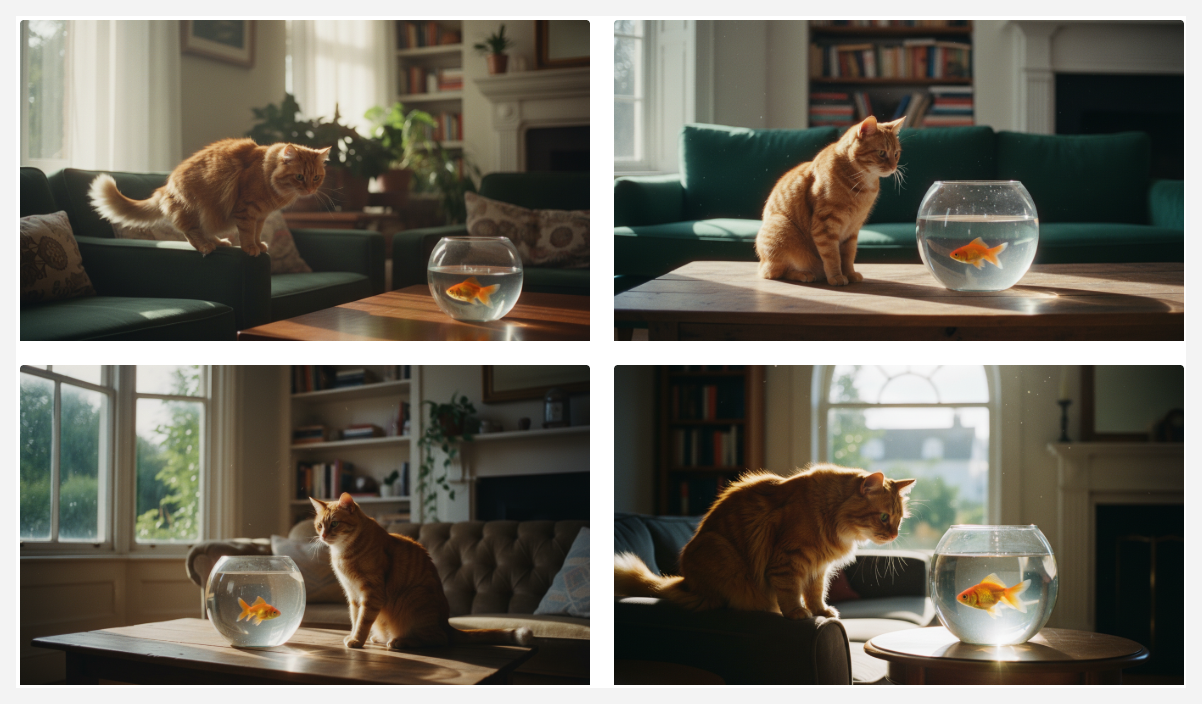
Prompt: A cat sitting on a couch in a living room, staring at a goldfish in a glass bowl, sun shining through a window
Style: Cinematic
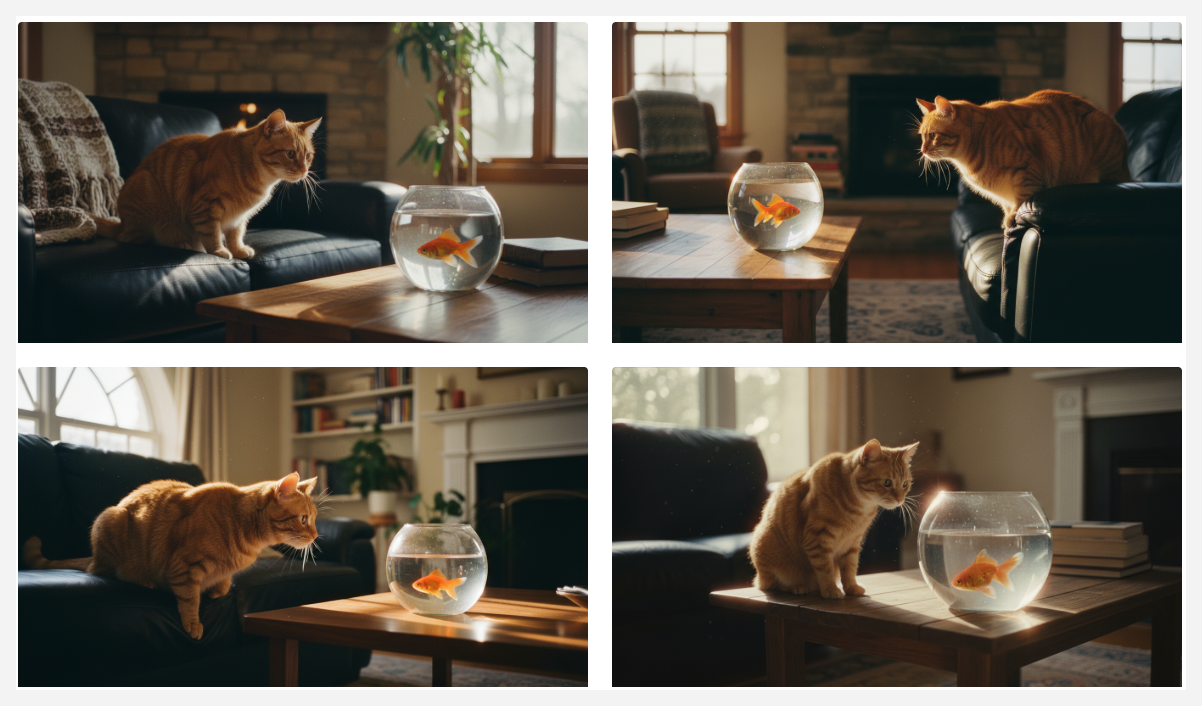
Prompt: An orange tabby cat sitting on a black leather couch in a cozy living room, staring at a goldfish swimming in a small glass bowl, sun shining through a window
Style: Cinematic
Pro tip: If you include what you don’t want to see in your prompt, you still draw focus to that element, making it more likely to appear in your generated images. Still stuck? Ask AI to write a prompt, or use the prebuilt Create an AI image prompt to get started.
Understand Image Generation Limitations
Generating an image with AI isn’t like searching for an image in your web browser. Image generation won’t return consistent results from prompts that describe complicated scenarios or specific “image choreography.” If you need specific text or are demonstrating how something is done in a specific way, we recommend using Content Library 360 or searching for stock photography.
AI image generation also struggles to generate content from prompts that ask for high visual accuracy and specificity—think people or places where slight visual variations make it very apparent that the image is AI-generated. For instance, if you try to generate an image of a hospital scene, you’ll get a creative interpretation based on what the AI model knows about a scene like that. If you look closely at the results, you might find some inconsistencies, such as an extra hand on the patient’s shoulder and an extra stethoscope around the doctor’s neck, as shown in the images below.

Prompt: A doctor checking a patient’s heartbeat
Style: None
Play to AI’s Strengths
AI image generation is highly versatile. You can use it for a wide variety of creative needs, whether grounded in the real world or drifting into fantasy and imagination. It excels at generating realistic images that convey complex emotions or feelings but can also create conceptual, abstract images—even a mix of multiple concepts that are unrelated or aren’t based in reality. Check out the images below for some examples.
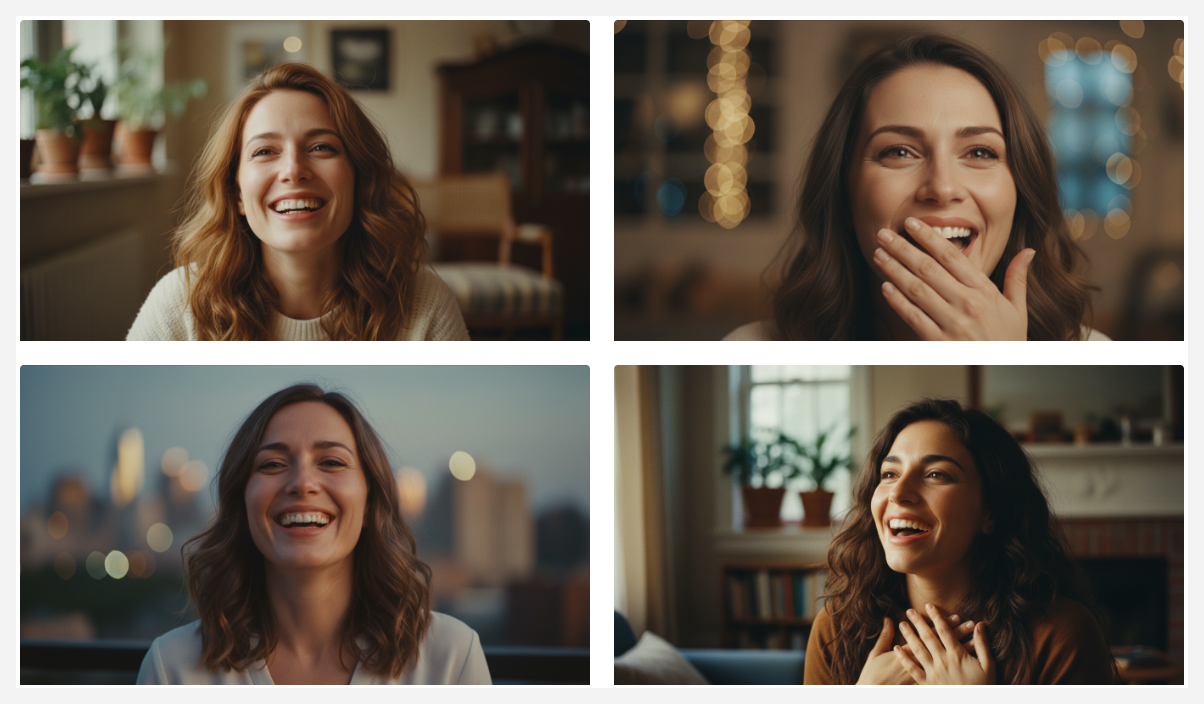
Prompt: Close-up of a woman with a joyful expression after receiving great news.
Style: Cinematic
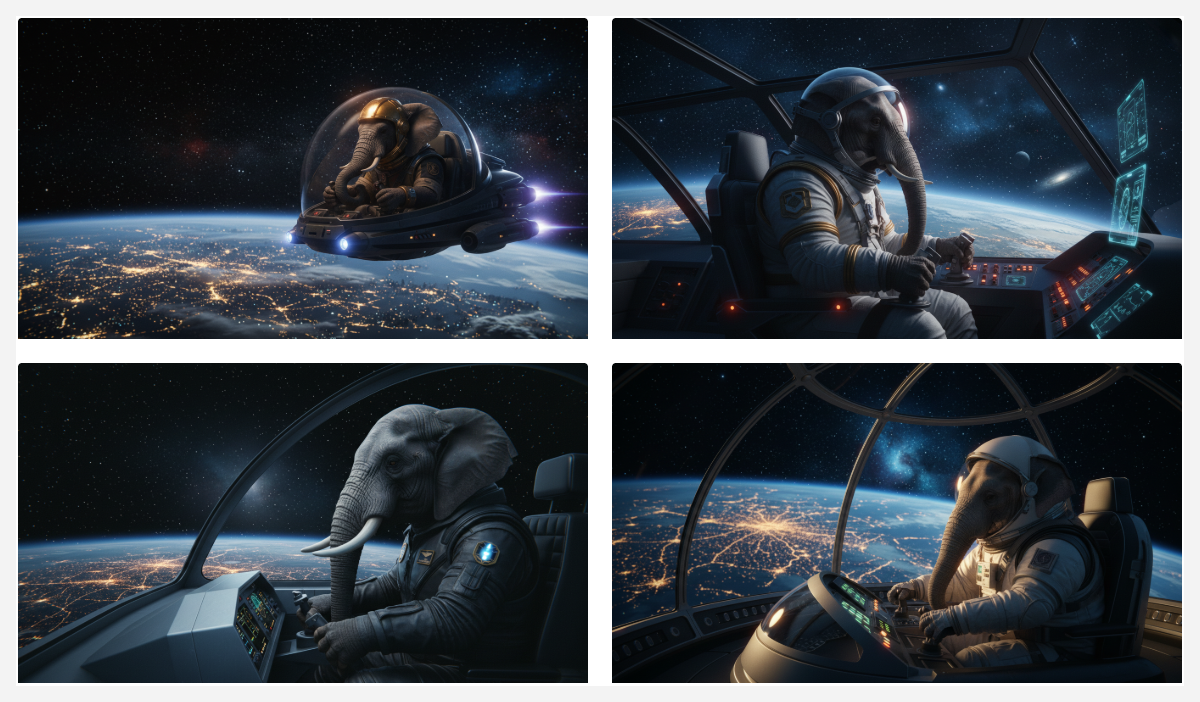
Prompt: An elephant piloting a spaceship in orbit, clear and dark background, city night lights visible below
Style: Cinematic
Switch Up the Image Style (or Create Your Own)
If the images generated aren’t quite right, you can always try your prompt in another style. AI image generation offers several built-in styles, and the prompts behind those styles are visible, so you can copy and customize them. The examples below show how selecting different built-in styles changes the images generated, even as the prompt stays the same.
Pro Tip: Generated images can’t be recreated exactly, even if you use the same prompt. If you see something that you like, download it or insert it into your training before trying a different image style.
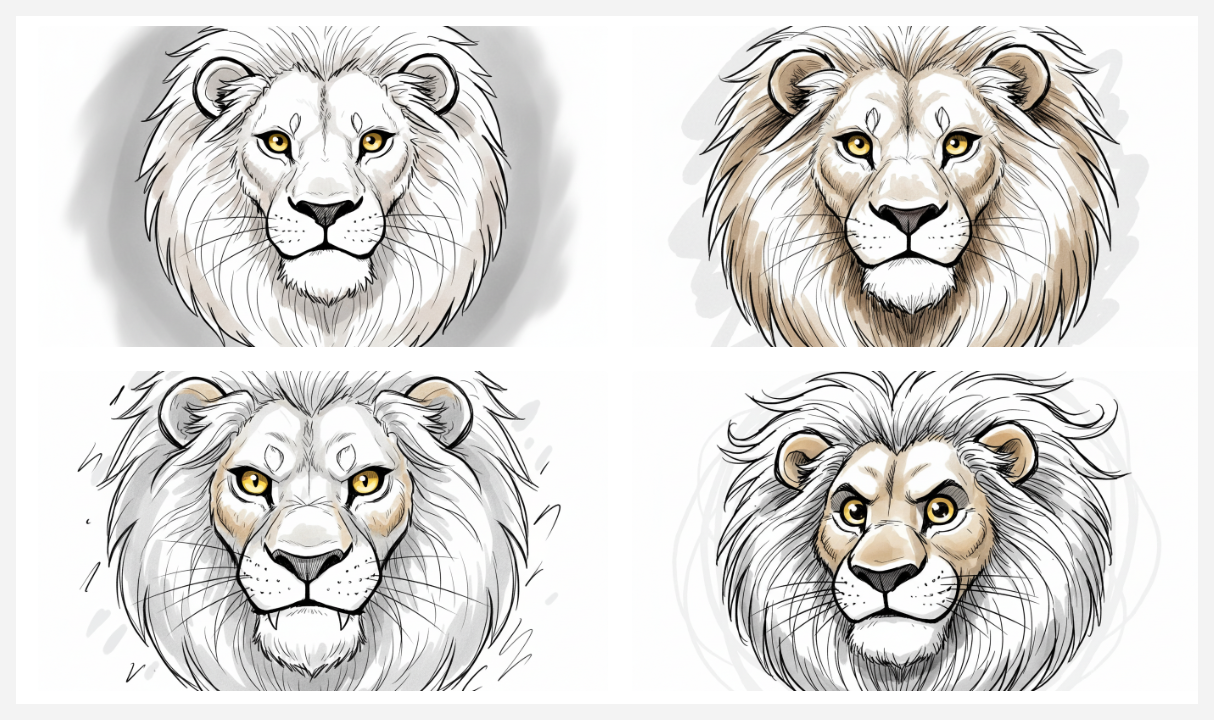
Style: Editorial Sketch
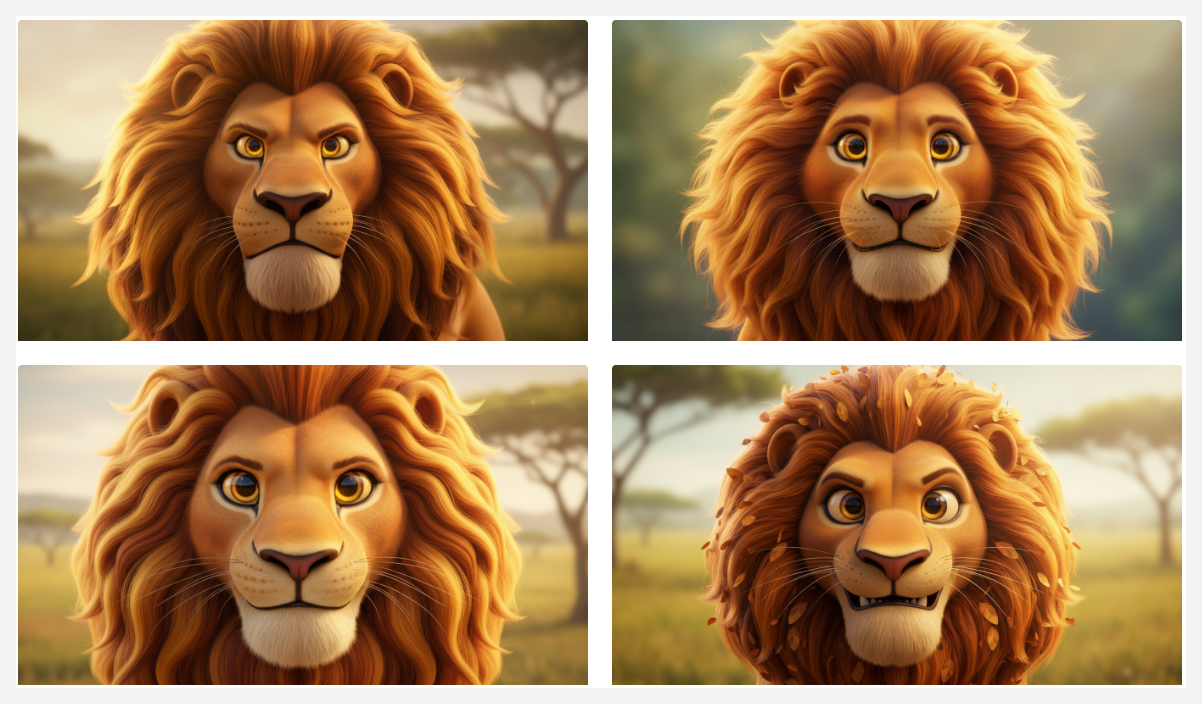
Style: 3D Animated
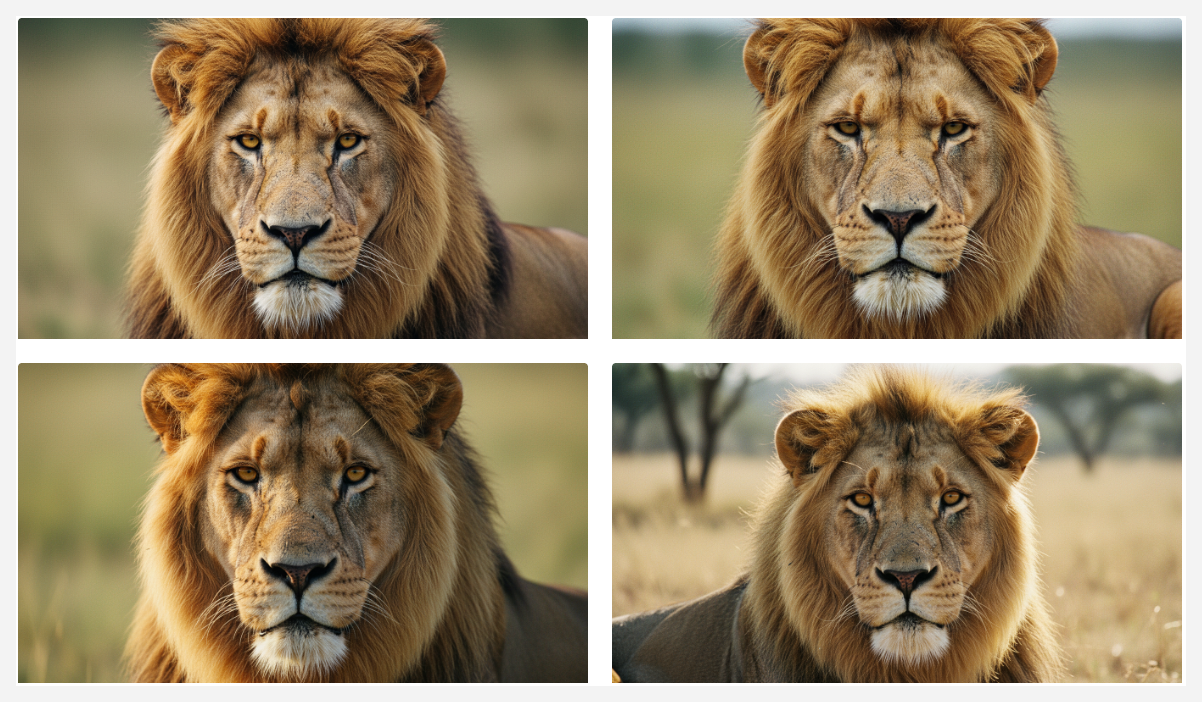
Style: Cinematic
AI-generated Prompt: Close-up image of a majestic lion, showcasing its powerful face with intense golden eyes, a thick mane that flows like waves of sunlit grass, and a strong jawline. The texture of its fur is detailed, with shades of tawny and hints of darker brown, capturing the essence of its wild beauty. The background is softly blurred to emphasize the lion’s fierce expression and regal presence.
You can also create your own custom style to generate unique images, from doodles to digital art styles, and in different genres like sci-fi, steampunk, or medieval fantasy. You name it—your imagination is the limit!
Here are some keyword recommendations to help you create brilliant custom styles.
- Medium: the material used. Examples include oil painting, pencil sketch, or vintage photography.
- Art Style: the artistic style desired. Examples include impressionism, realism, and surrealism. You can also use the name of a specific famous artist that represents the style you’re looking for, such as Rembrandt, Picasso, and Monet.
- Resolution: how sharp and detailed an image is. Examples include highly detailed, ultrarealistic, and soft focus.
- Color: specific shades used to create images that feature a certain color or tone. Examples include light blue, deep red, and mint green.
- Lighting: lighting effects described through keywords like cinematic lighting, dark, moody, etc.
- Additional details: additional descriptors (modifiers) used to enhance an image.
Mitigate Bias With Proper Prompting
AI image generation is evolving and will sometimes generate results that don’t align with your expectations. Our goal with this feature is to provide you with neutral, diverse, and inclusive images, but bias can sometimes be unintentionally introduced during model training. While changes to your prompting can’t entirely prevent bias, they can mitigate biased output.
Articulate’s AI uses subprocessors for its underlying technology. They provide the model, and we further refine it to meet your needs. While we’ve already done work to eliminate bias in the output, it’s impossible to foresee every possible situation. That’s why we encourage you to send us information when you encounter bias when using our AI tools. This way, we can continue to improve AI generation for our customers.
Explore the following examples of how to prompt to reduce bias in your generated output.
Age Diversity
In general, AI image generation models skew young. When age parameters aren’t provided in the prompt, these models may exclude mature adults in active and positive roles. For example, when generating an image of “an office meeting,” the AI model may generate a group of people in their 20s or 30s by default. To include various age groups, try something such as “Office meeting, showcasing people of different ages, from young adults to older adults.”
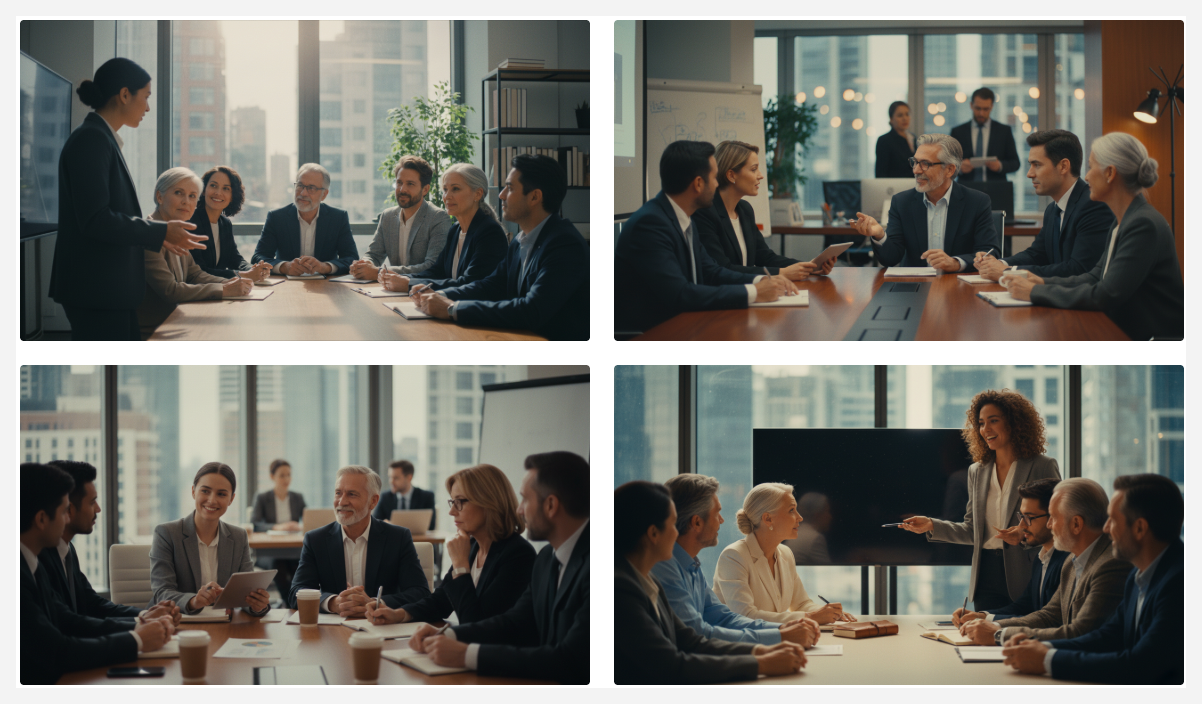
Prompt: Office meeting, showcasing people of different ages, from young adults to older adults.
Style: Cinematic
Gender Inclusivity
When generating images showcasing people in different professions, the AI model may reflect stereotypical gender roles, associating certain professions with specific genders. For instance, asking for “a group of construction workers” may result in an all-male crew. To encourage gender diversity in professional roles, try being specific, with a prompt like “A small group of construction workers, including men, women, and non-binary individuals.”
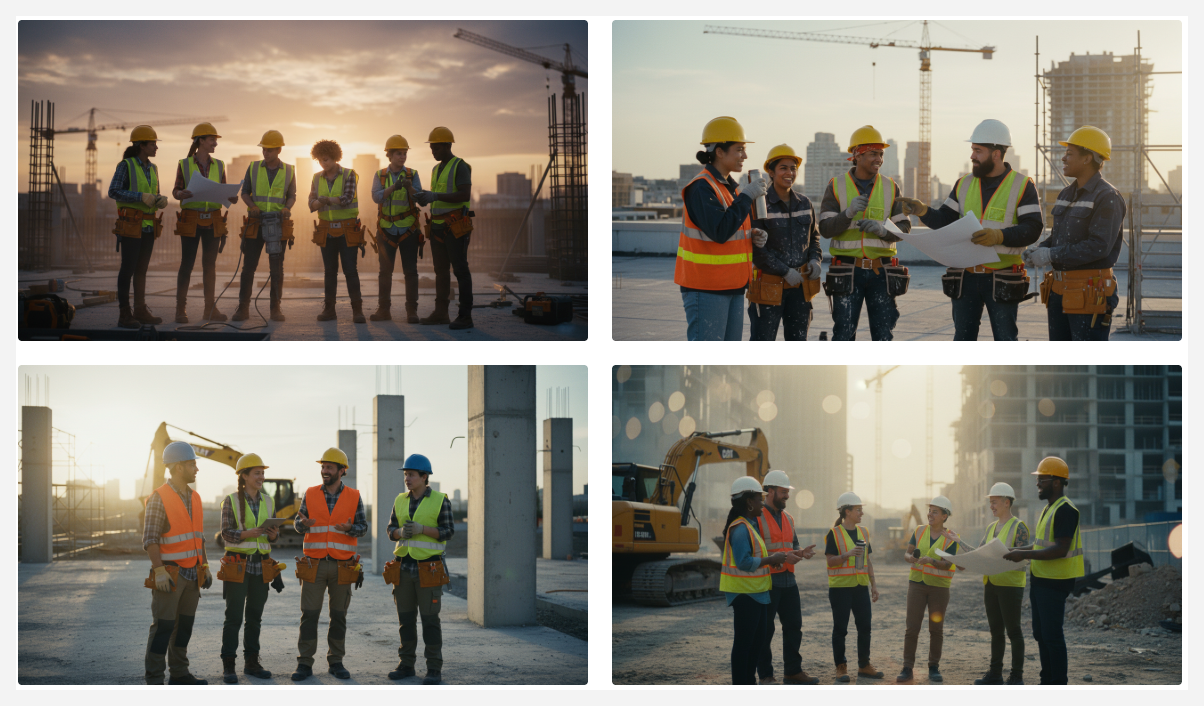
Prompt: A small group of construction workers, including men, women, and non-binary individuals.
Style: Cinematic
Racial and Ethnic Diversity
Explicitly guiding AI to reflect a broader spectrum of human diversity helps reduce racial and ethnic biases, including the overrepresentation of certain racial and ethnic groups, typically from Western cultures, and the underrepresentation of others. When you ask AI to generate an image of a group of people in certain professions without specifically asking for different racial and ethnic backgrounds, you’ll likely get an image that replicates existing societal biases.
To improve racial and ethnic inclusion, get specific with a prompt like, “A group of engineers and developers from different racial and ethnic backgrounds—including Asian, Hispanic, Indigenous, African, and European—participating in a hackathon.”
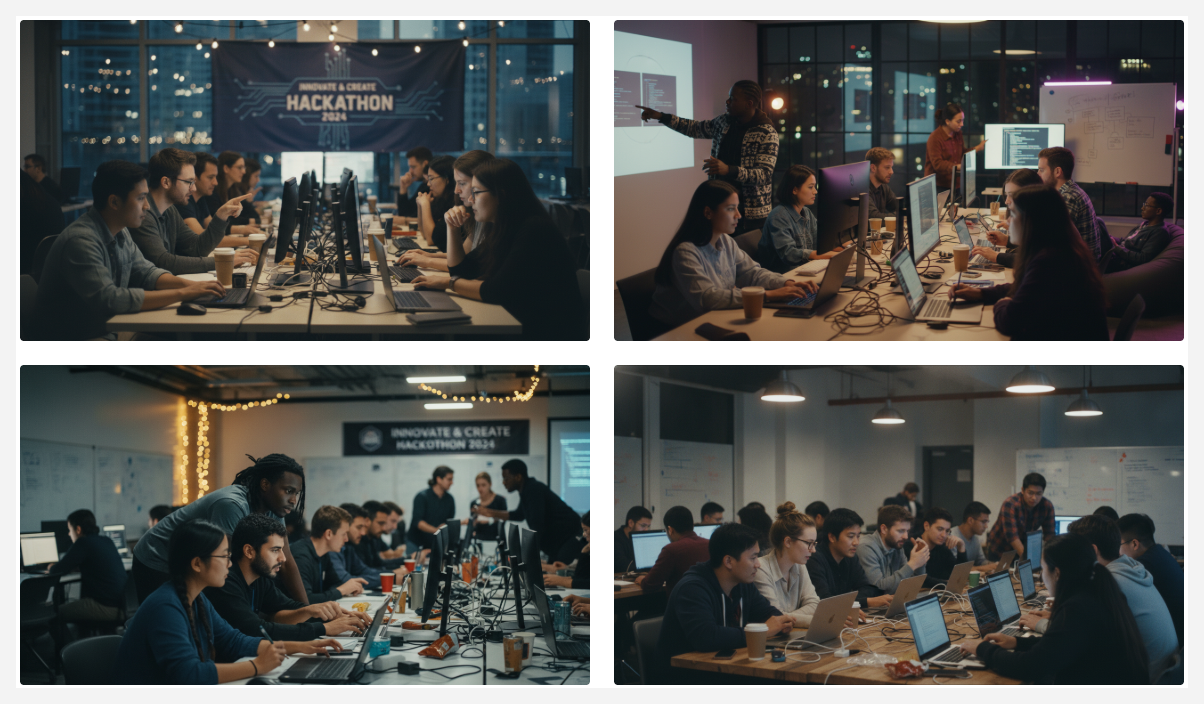
Prompt: A group of engineers and developers from different racial and ethnic backgrounds, including Asian, Hispanic, Indigenous, African, and European—participating in a hackathon.
Style: Cinematic
Disability Representation
Whether AI-generated or not, media and images often underrepresent people with disabilities. Crafting a prompt that explicitly asks for people with diverse physical abilities encourages the AI model to generate images that go beyond generic portrayals and properly represent a wider spectrum of physical conditions. For example, “A physically diverse group of people—including some with visible disabilities such as blindness, mobility impairment, and limb differences and showing mobility aids such as wheelchairs, canes, and prosthetics—engaging in fun activities.”
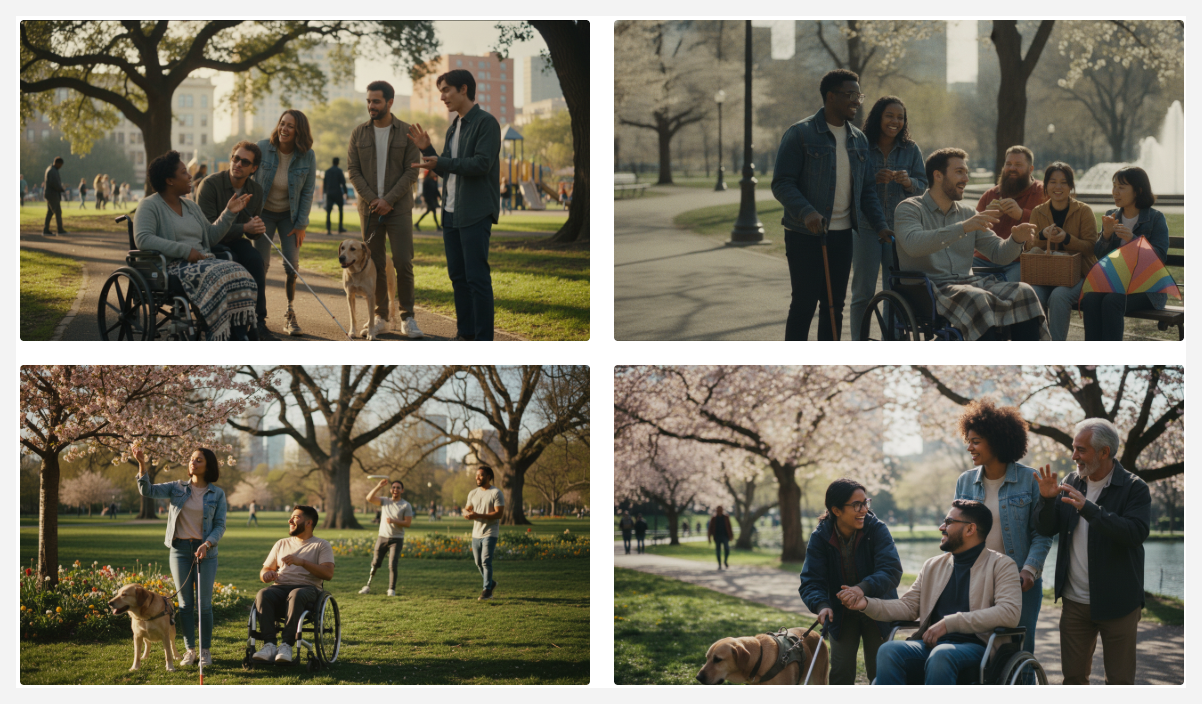
Prompt: A small, physically diverse group of people in a park—including a person with blindness and a person in a wheelchair.
Style: Cinematic
Getting just the right image takes trial and error. As you experiment, you’ll find what works best for you and your learners. If your prompts still generate biased or offensive content, we encourage you to report any inappropriate output (including the prompts you used) so we can create a better experience for all users.
Video Tutorials
Want to learn more before getting started? Check out our video tutorials for additional guidance on using AI to generate images.
Articulate 360 Training also has additional video tutorials on using other AI features.
You must be logged in to your Articulate 360 AI or Frontline account to watch the videos. Don’t have an account yet? Sign up for a free trial now!