
Browse Articles
Select a Product
null Support Directory
Browse all null articles. (Last Updated
No articles found.
Search Results
No articles found.
Articulate 360: Disabling AI Assistant
Article Last Updated Mar 27, 2026
This article applies to:
Because some organizations must restrict the use of AI functionality, we’ve made it easy for account owners and primary admins to request that AI Assistant be disabled for their entire subscription. That allows creators to continue to use Rise 360 and Storyline 360 without seeing any AI features or functionality.
For more information on AI Assistant security and privacy, check out this resource.
Need to disable other cloud-based services? Visit the Articulate 360: Disabling Cloud-based Services article for details.
What to Expect
Here's what to expect from Articulate 360 apps when AI Assistant is disabled:
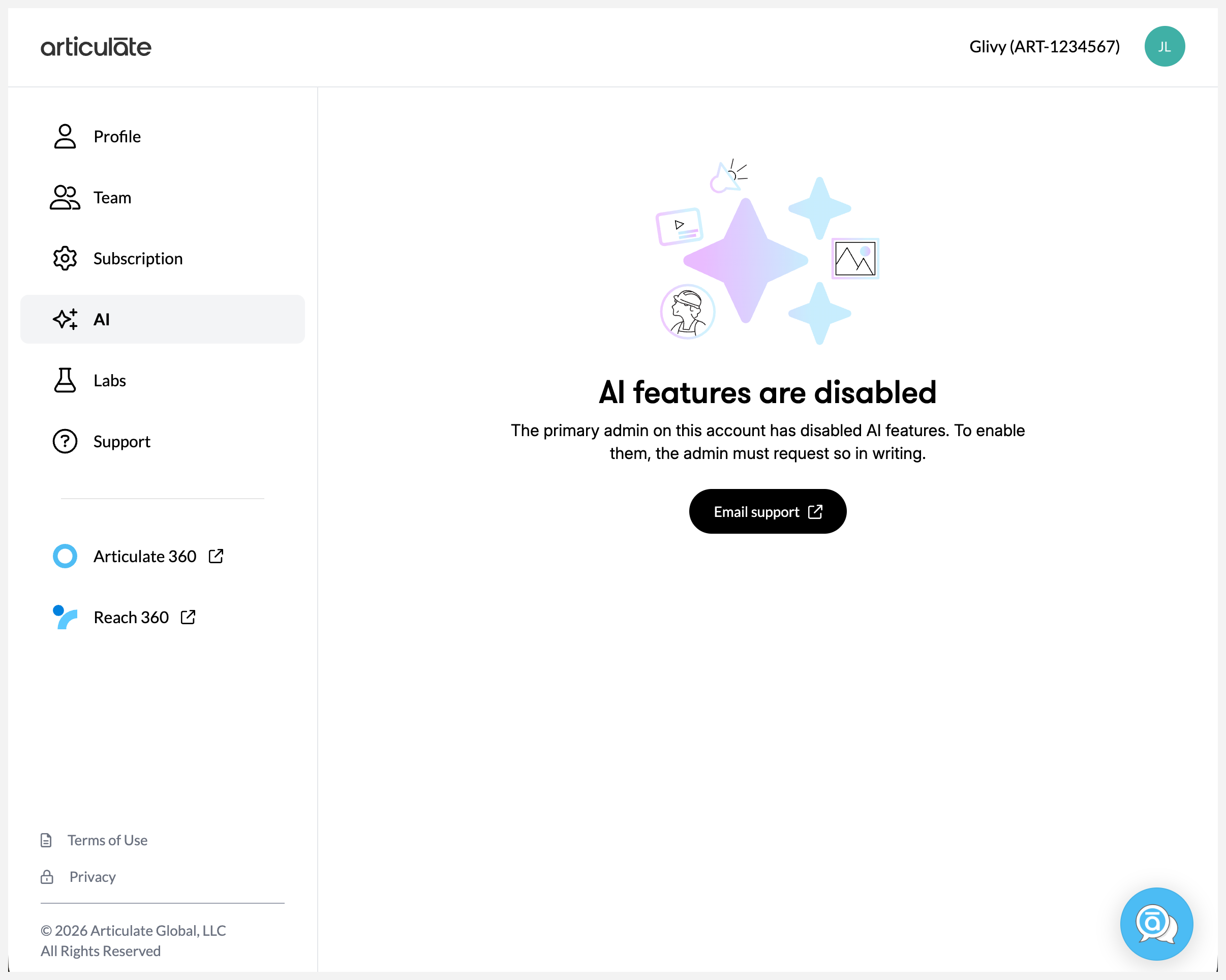
- Articulate 360 Dashboard: On the AI tab, you’ll see a confirmation that AI Assistant is disabled for your subscription with a link to contact support for details, as shown below.
- Rise 360: AI Assistant is hidden so creators can't access it.
- Storyline 360: AI Assistant is hidden so creators can't access it.
How to Request the Disabling of AI Assistant
As the account owner or primary admin, you can email sales@articulate.com at any time to request that AI Assistant be disabled for your Articulate 360 AI subscription or free trial.
Did you know? As an account owner or primary admin, you can disable AI functionality without submitting a request. From your account dashboard, select AI, then click the Create with AI drop-down arrow and choose No one to disable it for everyone, or choose Specific groups to disable it only for specific user groups. In this state, AI Assistant remains visible to creators in Rise 360 and Storyline 360 but isn't functional. Learn more.
FAQs
Find answers to common questions about disabling AI Assistant below.
- I already disabled cloud-based services for my subscription. Does that include AI Assistant?
- Is disabling AI Assistant on the Articulate 360 dashboard different from submitting a request to disable AI Assistant?
- Are Articulate 360 network endpoints used when AI Assistant has been disabled?
- Can I disable AI Assistant just for individual users?
- I changed my mind. Can you reactivate AI Assistant for my subscription?
I already disabled cloud-based services for my subscription. Does that include AI Assistant?
No. Disabling cloud-based services doesn't disable AI Assistant. You must make a separate request to disable AI Assistant.
Is disabling AI Assistant on the Articulate 360 dashboard different from submitting a request to disable AI Assistant?
Yes. When you disable AI Assistant from your account dashboard, AI Assistant tools still display in Rise 360 and Storyline 360 but aren’t functional. When AI Assistant is disabled by submitting a request, it’s no longer visible in Rise 360 and Storyline 360.
Are Articulate 360 network endpoints used when AI Assistant has been disabled?
Yes. Disabling AI Assistant will block most Articulate 360 endpoints but not all network traffic. If you have any questions, please email us at enterprise@articulate.com.
Can I disable AI Assistant just for individual users?
No. If AI Assistant is enabled for your subscription, you can disable it from your account dashboard for specific groups or the entire subscription. When disabled this way, AI Assistant tools still display in Rise 360 and Storyline 360 but aren’t functional.
I changed my mind. Can you reactivate AI Assistant for my subscription?
Absolutely! As the account owner or primary admin, you can email support@articulate.com to request reactivation at any time.