
Browse Articles
Select a Product
null Support Directory
Browse all null articles. (Last Updated
No articles found.
Search Results
No articles found.
Articulate 360 AI and Frontline Teams: Naming, Renaming, and Switching Teams
Article Last Updated Sep 10, 2026
This article applies to:
After you buy an Articulate 360 AI Teams or Frontline subscription, the first thing you’ll be prompted to do is confirm your team name. Don’t worry—you can change your team name at any time. And, if you’re an account owner or admin for more than one team, you can also switch between teams right from your account management console. Here’s how.
Confirm Your Team Name
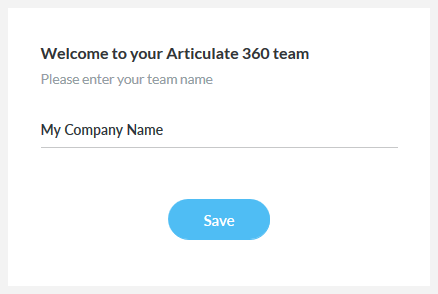
After buying a subscription, you’ll be prompted to open the account management console and confirm your team name. Choose a short version of your company name. If your organization has more than one subscription, include a label to differentiate them—for example, "Glivy - Marketing" or "ACME - Sales." Once you’ve entered the name, click Save.
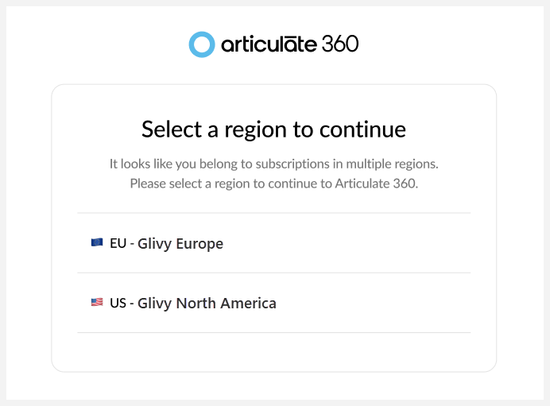
If you have subscriptions in both the U.S. and EU data centers, you’ll be prompted to select the region you want to sign into.
Change Your Team Name
If you need to change the name later, members with primary admin and admin permissions can change the team name.
- Launch the Subscription page in your account management console. If you have subscriptions in both the U.S. and EU data centers, you’ll be prompted to select the region you want to sign into, as shown in the image above.
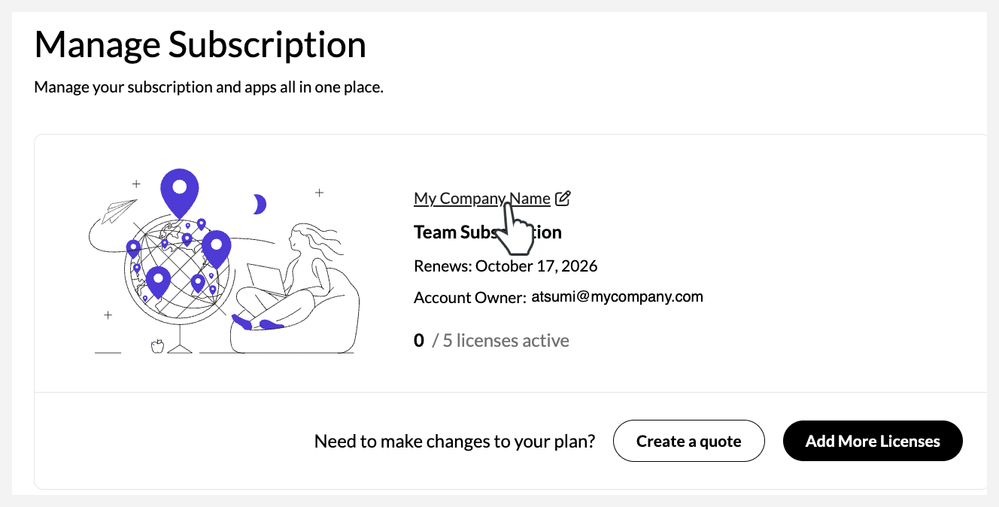
- Click your team name, as shown below.
- Enter a new name for your team and click Save.
Switching Between Teams
Since members with primary admin, 360 admin, or group manager permissions can belong to more than one team, we made it easy to switch between teams.
- Sign in to your account management console.
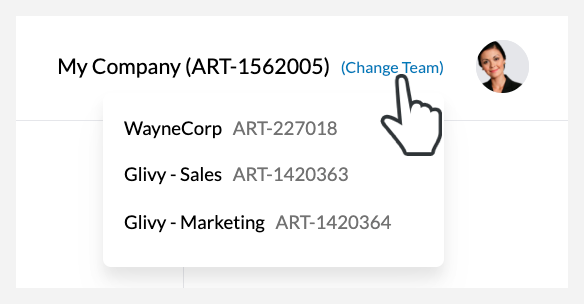
- Click (Change Team) in the upper-right corner beside your profile icon and select the team you want to manage from the drop-down list that appears. (You’ll only see this option if you’re a member of multiple teams.)
- Choose a team from the list that appears.
Note: If you have subscriptions in both the U.S. and EU data centers, you must sign out of the current region, sign back in, and select the appropriate region to switch between subscriptions.