
Browse Articles
Select a Product
null Support Directory
Browse all null articles. (Last Updated
No articles found.
Search Results
No articles found.
Articulate Localization: Managing Translation Usage With a Course-Based Plan
Article Last Updated Sep 10, 2026
This article applies to:
This article explains how to manage translation access, allocate publish credits by group, and track publish usage for your team when you have a course-based localization plan that’s billed when a course is published.
- Grant or Remove Translation Access
- Allocate Publish Credits per Creator Group
- Track Published Translations
Grant or Remove Translation Access
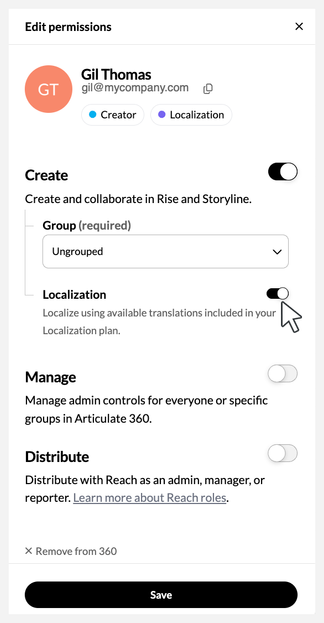
With a course-based localization plan, members with primary admin, 360 admin, and group manager permissions can grant or remove translation access from the Team page. Creators with translation access can initiate translations in Rise 360 and Storyline 360. Creators without access can’t initiate translations but can use all other Localization features, including managing and publishing multi-language courses. Follow these steps to grant or remove creator translation access:
- Launch the Team page from your browser. Creators with translation access have a Localization badge under the Permissions column.
- Click the name of the member from the list to launch the Edit permissions sidebar.
- Under Create, enable or disable the Localization toggle as needed.
- Click Save at the bottom of the sidebar to complete the process.
Notes:
- Newly added creators will not automatically have translation access even if they were previously part of the team.
- Any creator with access to translated content can publish translations and use publish credits. To manage credit usage, disable translation access for specific creators and ensure they don’t have access to translated content.
Allocate Publish Credits per Creator Group
With a course-based localization plan that’s billed when a course is published, members with primary and 360 admin permissions can activate group credit allocation on the Team page, under the Groups tab. Distributing purchased publish credits to specific groups helps individual departments or cost centers manage their usage efficiently while preventing overlap with other teams' usage.
Enable Credit Allocation
Here’s how to enable and allocate publish credits to a group:
- Launch the Team page from your browser and navigate to the Groups tab.
- Click Enable credit allocation under the “Localization credits used” section on the right.
- A side panel appears on the right showing the total allocated credits and the total credits purchased on top. The following information displays for each creator group in the subscription:
-
- Group: group name
- Used: number of credits used
- Allocated: number of credits allocated
- Increase the allocated credits to allow creators from each group to publish more translations.
- Click Enable credit allocation at the bottom of the side panel to complete the process.
Note:
- Used credits are automatically counted under Allocated for the corresponding group that used them.
- Unallocated credits can’t be used until you assign them to a group.
- Creators with insufficient credits can only publish the source language. To publish target languages, they’ll need to ask an admin to add credits to their group.
Edit Allocated Credits
Once credit allocation is enabled, you can adjust the allocated values at any time. Here’s how:
- Launch the Team page from your browser and navigate to the Groups tab.
- Click the [x] credits available to allocate link in the “Localization credits used” section. Or, click the More (...) icon on the right and choose Edit allocated credits.
- Adjust the allocated values as needed.
- Click Save at the bottom to confirm the changes.
Disable Credit Allocation
Credit allocation can be disabled if it’s no longer needed. Follow these steps to deactivate:
- Launch the Team page from your browser and navigate to the Groups tab.
- Click the More (...) icon beside the “Localization credits used” section on the right.
- Choose Disable credit allocation.
- Select Disable from the prompt that appears.
Once credit allocation is disabled, creators go back to sharing a single pool of credits.
Track Published Translations
With a course-based localization plan, members with primary admin or 360 admin permissions can also view the team's published translation usage and total purchased credits for the current billing period. This information can be found in the Localization section of the Subscription page.
For more detailed information, click Download usage report to get a CSV file with published translation data for your team. The report includes:
- Author details:
- Name
- Creator group: If applicable, this is the author’s group at the time the translated content was published.
- Contract start date: the effective contract start date for the publish run
- Course information: Course title and unique course ID
- Published Translation details:
- Source language and target language
- Publish credits used
- Publish date/time in UTC (Coordinated Universal Time)
- Authoring tool used: Rise 360 or Storyline 360
- Canceled date/time (if the author canceled the publish run)
- Is delinquent: Shows “true” if there are billing issues with the subscription