
Browse Articles
Select a Product
null Support Directory
Browse all null articles. (Last Updated
No articles found.
Search Results
No articles found.
Quizmaker 360: Formatting Radio Buttons and Check Boxes
Article Last Updated Jan 16, 2026
This article applies to:
Several question types in Quizmaker 360 use radio buttons or check boxes for answer choices, and you can format them to complement your quiz design.
Changing Styles
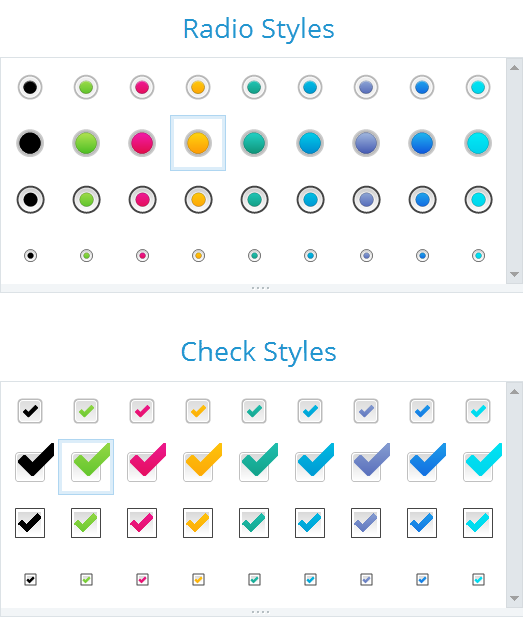
Quizmaker has a gallery of predefined button styles. Just click the one you want.
- In Slide View, select a radio button or check box from your question.
- Go to the Format tab on the ribbon.
- Use the Radio Styles or Check Styles drop-down to choose a variation. (The color choices come from your theme colors.)
Changing Colors
If you'd prefer to use custom colors for radio buttons and check boxes, you can do that, too.
- In Slide View, select a radio button or check box.
- Go to the Format tab on the ribbon.
- Use the following options to customize the button:
- Radio Fill/Check Fill: Select a color to fill the background of the button. For a transparent background, choose No Fill. If you don't see the color you want, choose More Fill Colors to define a custom color or use the Eyedropper to match a color from your visible screen area.
- Radio Border/Check Border: Select a color for the button's border. If you don't want an outline, choose No Border. If you don't see the color you want, choose More Border Colors to define a custom color or use the Eyedropper to match a color from your visible screen area. To change the thickness of the border, choose a Weight.
- Radio Color/Check Color: Select a color for the radio button or check mark. If you don't see the color you want, choose More Radio Colors or More Check Colors to define a custom color, or use the Eyedropper to match a color from your visible screen area.
Tip: The default color choices are controlled by your theme colors.
Setting Default Styles and Colors
After customizing a radio button or check box, you can set it as the default style for all new buttons in the same quiz. Just right-click it, and choose Set as Default Radio Button or Set as Default Check Box.
You Might Also Want to Explore:
Working with Theme Colors
Formatting Shapes, Captions, and Text Boxes
Using Custom Quiz Templates