
Browse Articles
Select a Product
null Support Directory
Browse all null articles. (Last Updated
No articles found.
Search Results
No articles found.
Rise 360: Enabling AI Tutor
Article Last Updated Jul 24, 2026
This article applies to:
Boost learner success without disrupting the flow of learning with AI Tutor. In-course chat support allows learners to ask questions, get simpler explanations, request examples, or summarize key points without leaving the training. Read on to learn how to enable it.
Enable AI Tutor
You can enable AI Tutor in any training you choose, whether it’s a course or microlearning. Here’s how:
- Open the course or microlearning you want to enable AI Tutor for.
- Click Settings (gear icon) in the upper right of the course overview page to open Course Settings.
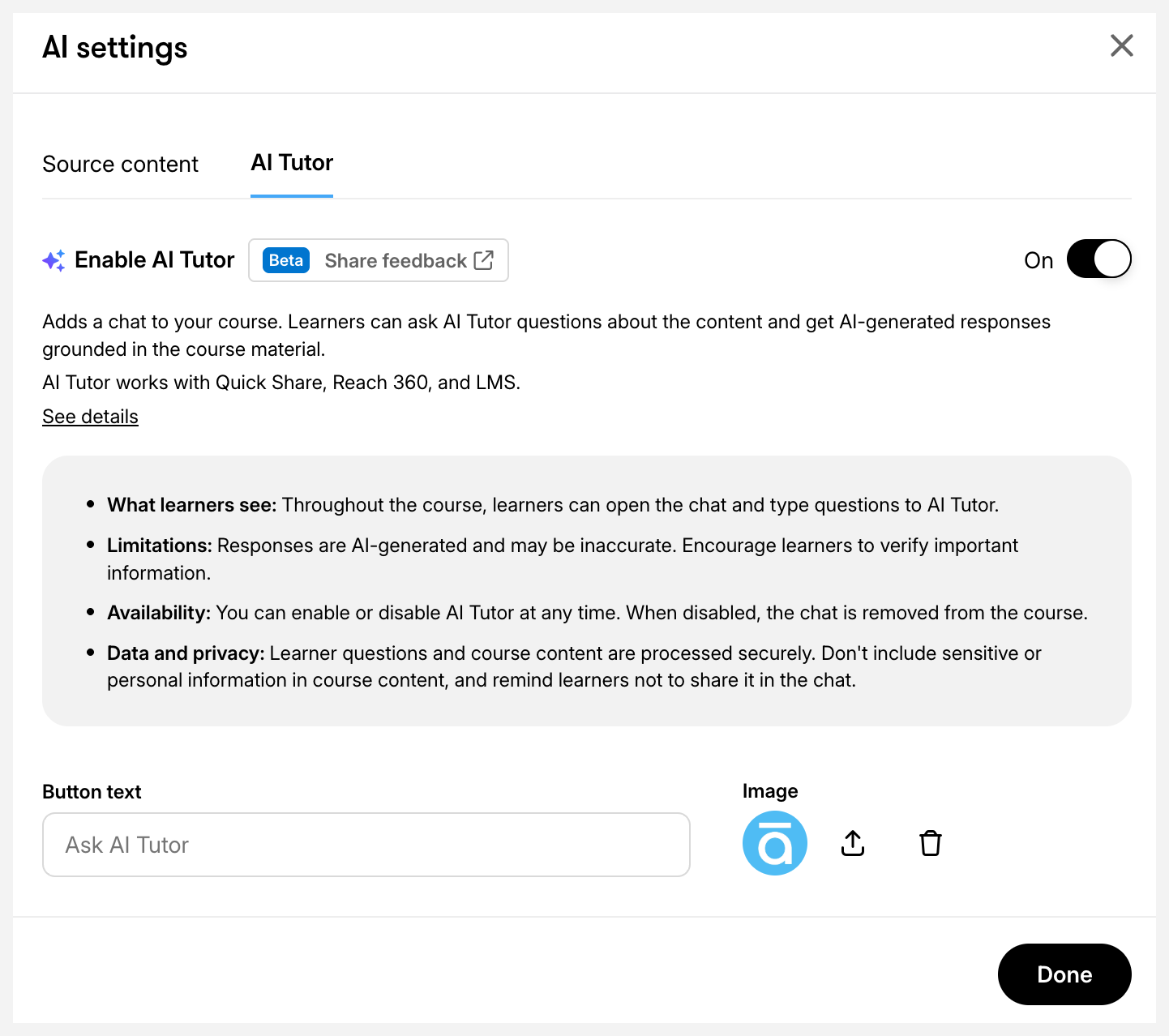
- Go to the AI Tutor tab, then toggle Enable AI Tutor on.
You can also enable AI Tutor from two other places on the course overview page:
-
- Click Publish in the upper right, then select AI Tutor.
- Click the AI Assistant button in the upper right, then choose AI settings from the drop-down menu. In the AI settings window, go to the AI Tutor tab and toggle the switch to enable AI Tutor.
Note: If you turn off AI Tutor in a published course, you need to republish the course to remove the learner-facing Ask AI Tutor button.
- (Optional) Enter a custom name in the Button text input box at the bottom. This will appear as the label on the button learners click to start a chat.
- To edit tooltip and placeholder labels, go to the Labels tab on the Course Settings page, then scroll to the AI Tutor section.
- If you have a brand image or logo to upload, click the upload image icon in the bottom right.
- The image will appear in the AI Tutor chat window header.
- To delete an uploaded image, click the delete icon.
- Click Done to save your settings. On the Course Settings page, changes are saved automatically.
Once enabled, the Ask AI Tutor button displays in the lower-right corner of your course, visible in the preview and the published version. Click the button to open the chat window. Prebuilt prompts for explaining, searching, or summarizing the training content display. Use the chat box to enter custom requests.
If learners don’t click the Ask AI Tutor button on the course overview page, AI Tutor automatically opens the first time they scroll down in a lesson.
Compatibility and Accessibility
AI Tutor has a fully responsive, touch-friendly design. It supports screen readers and keyboard navigation, works with translated and localized courses, and is compatible with Quick Share, Reach 360, and LMS outputs.
Network Requirements
AI Tutor needs access to external network services to work properly. On highly restricted networks, like some corporate intranets or allow-listed environments, it may be limited or unavailable. If you run into issues, ask your IT team to allowlist the required Articulate 360 network endpoints.
Provide Feedback
We’re excited about how AI Tutor can help you, as an author, in supporting your learners during training. While this feature is still evolving, your feedback will help improve it.
In the AI Tutor tab of the Course Settings page or the AI settings window, click the Share feedback button to give us your thoughts. Your feedback goes directly to our product and engineering teams to help improve the experience for everyone.
FAQs
Is AI Tutor the same as AI Assistant?
No. AI Assistant is for authors, while AI Tutor is for learners. AI Assistant helps authors build training by generating, refining, and editing content in authoring tools like Rise 360 and Storyline 360.
AI Tutor assists learners while they are taking a training. Embedded in the course experience, Ask AI Tutor answers questions and guides learners through concepts, helping them understand the material better.
Will AI Tutor reveal answers to quizzes and knowledge checks?
No. AI Tutor is designed to support learning, not bypass it. Learners will not be able to extract answers from AI Tutor during quizzes or knowledge checks. This ensures that Ask AI Tutor enhances comprehension while maintaining the instructional intent of assessments.
Does AI Tutor support languages other than English?
AI Tutor works with translated and localized courses, and its underlying large language model (LLM) can understand and respond in languages supported by OpenAI.
Does AI Tutor pull content from outside the course?
AI Tutor is grounded in the published course material—it doesn’t browse the web. However, since AI Tutor uses a large language model (LLM) with built-in general knowledge, it may occasionally draw on information beyond the course material, especially when a learner asks something the course doesn't cover. We're actively working to reduce that.
Does the course author have visibility into the learner’s chat?
By default, learner conversations with AI Tutor are private to the learner and the system for functionality and improvement purposes. The ability to provide course creators with course-relevant, anonymized feedback from learner sessions is coming soon.
Any data handling complies with Articulate’s privacy, security, and data processing standards.
Does learner feedback get shared with Articulate?
Yes. We use thumbs-up/thumbs-down feedback and interactions to improve AI Tutor, but any data is handled according to Articulate’s privacy, security, and data processing standards and is anonymized whenever possible.
Can AI Tutor answer questions about audio and video content?
Yes. AI Tutor can access transcripts, if available, to answer questions about audio and video content.
Can AI Tutor reference content from code blocks?
Yes. AI Tutor can reference text within code blocks in its responses.
Can AI Tutor reference content from Storyline blocks?
No. Currently, AI Tutor doesn't have access to Storyline blocks.
Can AI Tutor share source content within the chat?
AI Tutor can reference course content in its responses, but direct access to source files isn’t available at this time. We’re considering ways to expand this, such as through a resource library.