
Browse Articles
Select a Product
null Support Directory
Browse all null articles. (Last Updated
No articles found.
Search Results
No articles found.
Rise 360: Work on Content with Other Team Members
Article Last Updated Mar 27, 2026
This article applies to:
Collaborative authoring is exclusively available to Articulate 360 Teams. Not a teams subscriber? Contact an Articulate 360 sales representative to learn more.
Articulate 360 Teams in the same regional data center can easily collaborate on Rise 360 content. Team members can create and edit different lessons in a course at the same time or take turns fine-tuning the same content.
In this article, you’ll learn how to share and manage individual pieces of content. If you’re collaborating on multiple items, we recommend using team folders for a more efficient process.
Sending a copy of Rise 360 content to another Articulate 360 user in the same regional data center is another option. In this case, each of you has an independent copy, which is useful when you’re working with an individual Articulate 360 subscriber but can’t provide real-time collaboration. To learn how to collaborate in real time, keep reading.
- Add Collaborators to Content
- Change a Collaborator’s Role
- Collaborate on Content with Other Authors
- Remove Collaborators from Content
- Remove Yourself from Content
- Transfer Content to a Different Owner
Add Collaborators to Content
You can add as many collaborators as you want to Rise 360 content as long as they have an Articulate 360 Teams subscription. Collaborators don't have to be on the same team; they just need to have an Articulate 360 Teams subscription in your same regional data center. Here’s how:
- Go to your Rise 360 dashboard and open the content you want to share.
- Click Collaborate in the upper right corner of the editor. (You can also click the Settings icon and choose the Collaborators tab to get to the same screen.)
- Enter an email address for each team member who should have access and click Invite.
- Click Close.
Each team member you invite receives an email notification, and the content automatically appears on their Rise 360 dashboard in the Teams section. Collaborators also see the owner's profile icon on the content tile.
Note: Items you're working on with collaborators outside your team appear in the External Teams section of the Rise 360 dashboard.
Change a Collaborator’s Role
Collaborators can have one of three roles when working on content:
- The Owner can do everything.
- A Manager can edit, share, and publish content and modify course settings, but they can't edit labels, transfer ownership, view Quick Share metrics, or delete the course. They can also remove themselves as collaborators.
- An Editor can only edit content—they can't access any of the options in Settings, Collaborate, or Publish.
By default, collaborators are assigned the Editor role. You can update their role at any time:
- Go to your Rise 360 dashboard and open the content on which you’re collaborating.
- Click Collaborate in the upper right corner of the editor. (You can also click the Settings icon and choose the Collaborators tab to get to the same screen.)
- Modify the collaborator’s role from the drop-down menu in their list entry.
- Click Close.
Note: Adding a course manager or editor doesn't transfer ownership. Only the course owner can transfer content.
Collaborate on Content with Other Authors
Everyone on your team who has access to a Rise 360 training can work on different course lessons simultaneously or take turns editing the same lesson or microlearning. Changes appear immediately. Here’s how each feature works with collaborators.
Edit the Title, Description, and Author
Only one author at a time can edit the content title and description. When someone else is editing either field, it turns gray, and you see the author’s profile picture or initials beside it.
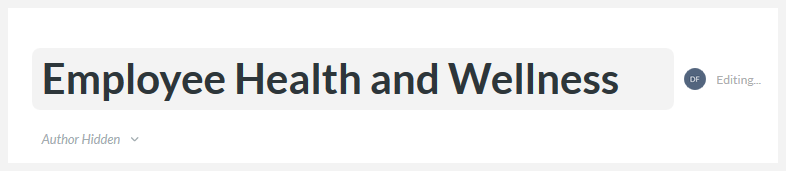
Anyone can change the author that displays in the published training. Just click the Author drop-down list and choose one of the collaborators or hide the author altogether.
Add New Section Headers and Lessons
All collaborators can add new section headers and lessons to the course outline.
Edit Section Headers
Only one author at a time can edit an existing section header. When someone else is editing it, it turns gray, and the author’s profile picture or initials display beside it, as shown above.
Edit Lessons
In a course, you can edit any existing lesson unless someone else is currently working on it. If that happens, you’ll see the other person’s profile picture or initials and the time of their last edit beside the lesson in the course outline.
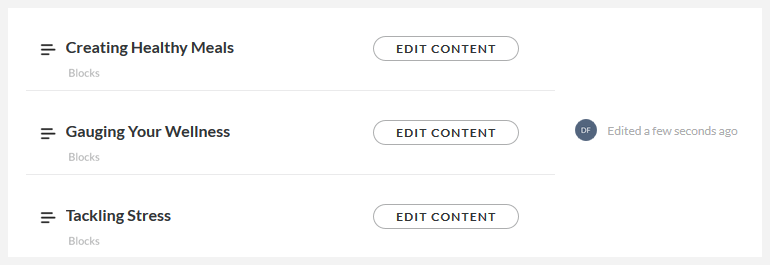
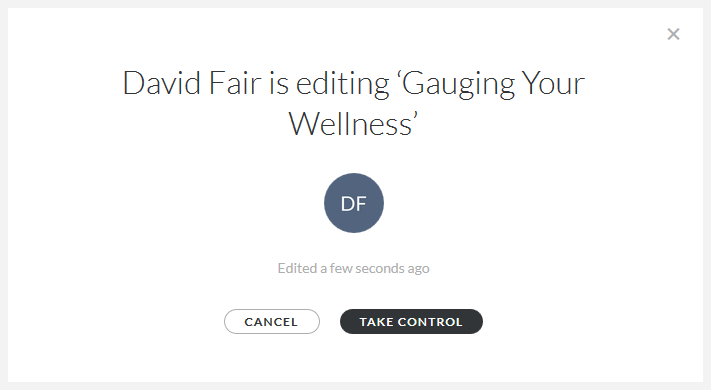
If you click the Edit Content button for a lesson that another author is currently editing, you have the option to take control of the lesson. We recommend contacting the other author, as a courtesy, before doing so, as taking control locks them out of the lesson.
Delete Section Headers and Lessons
All collaborators can delete section headers and lessons unless they’re currently being edited by other authors.
Rearrange Section Headers and Lessons
All collaborators can rearrange section headers and lessons in the course outline—even when they’re being edited by other authors.
Preview the Course
All collaborators can preview the course.
Share, Review, and Export the Course
Only the course owner or a course manager can share the course with learners via Quick Share or Reach 360, publish to Review 360, or export it for hosting in an LMS or web server.
Share the Review 360 Course with Non-Articulate Users
Only the course owner can allow a course published to Review 360 to be shared with users who don't have Articulate IDs.
Change Course Settings
Only the course owner or a course manager can change the course settings, including theme, navigation mode, and collaborators.
Edit Text Labels
Only the course owner can edit its text labels.
Send, Duplicate, and Move the Course
Only the course owner or a course manager can send, duplicate, and move the course.
Delete and Restore the Course
Only the course owner can delete or restore the course. Here’s how to transfer ownership to another author.
Remove Collaborators from Content
Course owners and managers can remove other collaborators from content. Course managers can also remove themselves.
- Go to your Rise 360 dashboard and open the content you need to edit.
- Click Collaborate in the upper right corner of the editor. (You can also click the Settings icon and choose the Collaborators tab to get to the same screen.)
- Hover over each team member you want to remove from the training, click the X that appears, and then click Remove to confirm.
- Click Close.
When you remove collaborators, the course is deleted from their Rise 360 dashboard. If they’re editing the course when you remove their access, they immediately return to their Rise 360 dashboard.
Remove Yourself from Content
Course managers can remove themselves from content.
- Go to your Rise 360 dashboard and open the training you want to remove yourself from.
- Click Collaborate in the upper right corner of the editor. (You can also click the Settings icon and choose the Collaborators tab to get to the same screen.)
- Hover over your name, click the X that appears, and then click Remove to confirm.
Course owners can’t remove themselves from a course; they must first transfer ownership.
Transfer Content to a Different Owner
Only the course owner can transfer ownership to another author. Here’s how:
- Go to your Rise 360 dashboard and open the training you want to transfer.
- Click Collaborate in the upper right corner of the editor. (You can also click the Settings icon and choose the Collaborators tab to get to the same screen.)
- Hover over your name in the list of collaborators, and click the Transfer link that appears.
- Select a collaborator to be the new owner, and click the Transfer button. (If the new course owner isn't already in your collaborators list, you'll need to add them first.)
- Click Close.
Note: Other collaborators remain when you transfer ownership.