
Browse Articles
Select a Product
null Support Directory
Browse all null articles. (Last Updated
No articles found.
Search Results
No articles found.
Storyline 360: Built-In Variables
Article Last Updated Mar 4, 2026
This article applies to:
Built-in variables can help you create dynamic and personalized learning experiences in Storyline 360, even if you don’t have advanced coding skills. This article describes what built-in variables are available and how they can enhance functionality and interactivity in your training.
- Accessibility
- Quiz Results
- Slide Numbers
- xAPI (Tin Can API) Identifiers
- Elapsed Time
- Background Audio Volume Variable
- Articulate Localization
Accessibility
Manage accessibility settings such as accessible text, captions, and zoom using these built-in variables.
|
Name |
Type |
Default Value |
Description |
|---|---|---|---|
|
|
True/False |
False |
Turns accessible text on/off. It’s off by default. |
|
|
True/False |
False |
Displays or hides closed captions on the player. They’re hidden by default. |
|
|
True/False |
False |
Turns modern player zoom (zoom-to-fit) on/off. It’s off by default. |
Quiz Results
Monitor quiz performance with the built-in variables outlined below. They can be added when you insert a question or a result slide. Each quiz name is prefixed to its related built-in result slide variable. Values are calculated when a learner attempts a quiz.
Question Result
|
Name |
Type |
Description |
|
|
True/False |
The result of a learner’s response to the current question. When the value is true, they answered correctly. When it’s false, they answered incorrectly. This variable will always be false for survey questions. |
Result Slide
|
Name |
Type |
Description |
|---|---|---|
|
|
Number |
The passing score in percentage. |
|
|
Number |
The passing score in points. |
|
|
Number |
The learner’s score in percentage. By default, quiz scores display with decimals. If you enable the round score percentage option, |
|
|
Number |
The learner's score in points. |
Combined Result Slide (Learners must pass each quiz)
|
Name |
Type |
Description |
|---|---|---|
|
|
Number |
The number of required quizzes in a combined result slide that the learner failed. |
|
|
Number |
The number of required quizzes in a combined result slide that the learner passed. |
|
|
Number |
The total number of quizzes required for learners to pass the course. |
|
|
Number |
Whether the learner passed or failed each quiz in a combined result slide. Storyline 360 automatically adds this variable for combined result slides that require learners to pass each quiz. |
Slide Numbers
Track learner progress using slide-number variables that are automatically set based on menu and project order. The value of each variable for the current slide displays in parentheses in the Storyline 360 editor, as shown below. Some values, such as Progress through the menu, are calculated in real time as learners take the course.
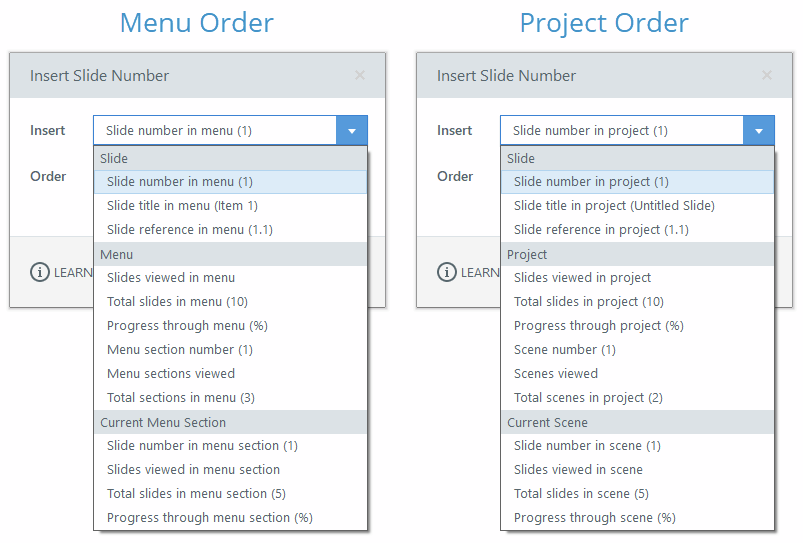
Menu Order
Reference player menu information using variables that reflect creator customizations such as the ones described below. These include variables such as renamed slide titles, rearranged items, or deleted and hidden slides.
Slide
|
Name |
Type |
Description |
|---|---|---|
|
|
Number |
The current slide's number in the player menu. |
|
|
Text |
The slide's name/title in the player menu. |
|
|
Number |
The slide's reference number in the player menu. |
Menu
|
Name |
Type |
Description |
|---|---|---|
|
|
Number |
The number of slides the learner has viewed in the player menu. |
|
|
Number |
The total number of slides in the player menu. |
|
|
Number |
The percentage of slides in the menu the learner has viewed. |
|
|
Number |
The player menu section of the current slide. |
|
|
Number |
The number of menu sections the learner has visited. |
|
|
Number |
The total number of sections in the player menu. |
Current Menu Section
|
Name |
Type |
Description |
|---|---|---|
|
|
Number |
The slide's number in the current menu section. |
|
|
Number |
The number of slides the learner has viewed in the current menu section. |
|
|
Number |
The total number of slides in the current menu section. |
|
|
Number |
The percentage of slides the learner has viewed in the current menu section. |
Project Order
Reference slide, project, and scene progress using the following variables (as defined in Story View):
Slide
|
Name |
Type |
Description |
|---|---|---|
Project.SlideNumber |
Number |
The current slide's number in the project. |
|
|
Text |
The slide's name in the project. |
|
|
Number |
The slide's reference number in the project. |
Project
|
Name |
Type |
Description |
|---|---|---|
|
|
Number |
The number of slides in the project the learner has viewed. |
|
|
Number |
The total number of slides in the project. |
|
|
Number |
The percentage of slides in the project the learner has viewed. |
|
|
Number |
The scene number of the current slide. |
|
|
Number |
The number of scenes the learner has visited. |
|
|
Number |
The total number of scenes in the project. |
Current Scene
|
Name |
Type |
Description |
|---|---|---|
|
|
Number |
The slide's number in the current scene. |
|
|
Number |
The number of slides the learner has viewed in the current scene. |
|
|
Number |
The total number of slides in the current scene. |
|
|
Number |
The percentage of slides the learner has viewed in the current scene. |
xAPI (Tin Can API) Identifiers
Define course activities and slide identifiers for custom xAPI statements using the following variables:
|
Name |
Type |
Description |
|---|---|---|
|
|
Text |
The internationalized resource identifier (IRI) your LRS and LMS use to identify activities in a course. The unique string of characters in the IRI corresponds to the course’s Identifier value, as shown below.
|
|
Text |
A unique string of characters assigned by Storyline 360 to identify a slide. It's used along with the value for Note that you can’t change the value of the Slide.Id variable. You can, however, use the xAPI statement editor to replace the variable with another one supported by xAPI. |

Elapsed Time
Track elapsed time at the project, scene, or slide level using the variables below. Each variable reports time in milliseconds.
|
Name |
Type |
Description |
|---|---|---|
|
|
Number |
The cumulative elapsed time spent on an entire course. |
|
|
Number |
The cumulative elapsed time spent on a scene. |
|
|
Number |
The cumulative elapsed time spent on a slide. |
Background Audio Volume Variable
Fine-tune the background playlist volume using a percentage-based variable.
|
Name |
Type |
Description |
|---|---|---|
|
|
Number |
The volume of the background playlist in percentage. |
Articulate Localization
Use the following variables to identify the learner’s course language and reading direction when translating courses with Articulate Localization:
|
Name |
Type |
Description |
|---|---|---|
|
|
Text |
The language code for the course language that the learner is viewing. |
|
|
True/False |
The value is True when the learner is viewing a right-to-left language and False if it’s a left-to-right language. |