
Browse Articles
Select a Product
null Support Directory
Browse all null articles. (Last Updated
No articles found.
Search Results
No articles found.
Storyline 360: Working with Variables
Article Last Updated Jun 9, 2026
This article applies to:
Want to personalize content, track learner input, or add conditional interactivity? Project variables make it possible—no coding required. Use them to remember learner input, perform calculations, and trigger actions across slides, scenes, or an entire project. Keep reading to learn about using variables.
- Add Variables
- Edit Variables
- Use Variables with Triggers
- Reference Variable Values in Slide Text
- Find Variables
- Translate Variables
- Understand the Difference Between Variables and States
- Make Variables Accessible
Chat with AI to quickly add, rename, list, modify, and delete variables in your course. Learn more in this user guide.
Add Variables
To add a variable, follow these steps:
- Click the Manage project variables icon in the Triggers panel.
- When the Variables window opens, click the Create a new variable icon (the plus sign).
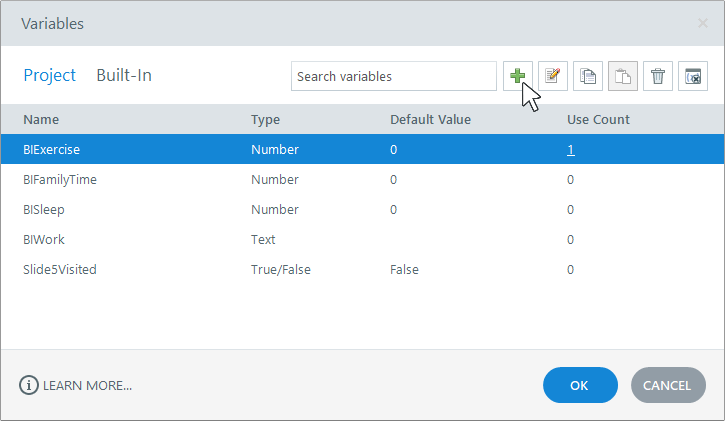
- Give your variable a descriptive name so it’s easy to identify later, then choose a variable type:

- True/False: Tracks whether something is true or false. Common uses include toggle buttons and restricting navigation based on whether an event has occurred.
- Text: Holds text values. Common uses include personalizing content with a learner’s name and evaluating text-based interactions. Text variables can hold up to 32,767 characters.
- Number: Holds numeric values. Common uses include tracking how many times an event has occurred and performing calculations. Number variables can hold static values or random values within a range. Learn more about random number variables.
- Enter a default value (text variables can be blank), then click OK to save and OK again to close the Variables window.
Storyline 360 also adds variables automatically when you use these features:
- Result slide: Four number variables are added for scoring by default. If you have a combined result slide that requires learners to pass each quiz, a true/false variable is added as well. Learn more.
- Dial: A number variable is added to track the dial value.
- Slider: A number variable is added to track the slider value.
- Text-entry field: A text variable is added to track learner input.
- Numeric-entry field: A number variable is added to track learner input.
Edit Variables
To edit a variable, click the Manage project variables icon in the Triggers panel. Select the variable you want to edit and click the Edit the selected variable icon (the pencil and paper) in the upper right corner. You can rename the variable or change its default value, but not its type. Click OK twice to save and close.
You can also rename variables and change default values by clicking directly in the grid. When you rename a variable, all references to it in your slide text and triggers update automatically.
To copy and paste variables, select the ones you want to duplicate (use Ctrl+click, Shift+click, or Ctrl+A to select multiple), then click the Copy the selected variable and Paste the copied variable icons in the upper right corner.
To delete variables, select the ones you want to remove and click the Delete the selected variable icon (the trash can) or press Delete on your keyboard.
To remove all unused variables at once, click the Delete unused variables icon in the toolbar. This deletes all variables with a Use Count of 0 in one click.
Keep the following in mind when deleting a variable:
- Any references to it in your slide text remain intact and will need to be edited or deleted manually.
- Triggers that involve the deleted variable also remain but become unassigned. You can edit or delete those triggers.
- Variables referenced only in JavaScript triggers aren’t tracked by Storyline 360, so they have a Use Count of 0 and will be deleted when you click the Delete unused variables icon.
Use Variables with Triggers
You can use a trigger to change a variable’s value during a course. Add an Adjust variable trigger to get started. Learn more about triggers.

You can also use variables to add conditions to triggers. For example, you might change the state of an object when a true/false variable is true. Learn more about trigger conditions.

Reference Variable Values in Slide Text
Variable references let you display variable data anywhere in your course, making content dynamic and interactive. For example, you might ask learners to enter their names on the first slide, store that in a variable, then use references to personalize the rest of the course.

Variable references can be added to any text-based object, including text boxes, captions, shapes, and buttons. Learn more about variable references.
Tip: To quickly replace a variable reference, right-click a dynamic variable placeholder, scroll to Reference, and select a Project, Built-In, or Slide Numbers variable.
Find Variables
To find a variable in the Variables window, use the Project and Built-In tabs in the upper left corner to switch between variables you created and those provided by Storyline 360. Use the search field to locate a specific variable.
To see where a variable is used in your course, click the hyperlinked number in the Use Count column. Storyline 360 displays all references to that variable in a separate window.
Translate Variables
Storyline 360’s built-in translation features let you translate default values for variables and references in your slide text, but not variable names. If you translate variable references, you’ll also need to manually translate the variable names. If variable names and references don’t match, the references won’t work.
Note: Text variables are automatically translated when you create multi-language Storyline 360 projects with Articulate Localization.
Understand the Difference Between Variables and States
Variables and states both track information and add interactivity, but they differ in scope. States control visual elements for a single slide, while variables work across slides, scenes, or an entire project.
Use variables when you want to:
- Remember the values entered by the learner
- Count the number of times a button is clicked
- Perform mathematical calculations
- Trigger actions based on learner input
Use states when you want to:
- Remember which objects have been clicked
- Change how objects look based on learner interaction
- Trigger actions based on learner interaction
Make Variables Accessible
Accessible variables help learners experience personalized, dynamic content without barriers. Follow these tips to improve variable accessibility:
- Write clear labels for data-entry fields. When a variable captures learner input, the field that collects it should have a clear, descriptive label so learners know what’s expected (3.3.2 Labels or Instructions).
- Inform learners about variable-driven changes. When a variable triggers a change such as navigating to a different slide, opening a lightbox, or revealing new content, let learners know what will happen before it occurs (3.2.2 On Input).
- Help learners discover variable-driven content changes. When a variable updates content or triggers an event, move focus to the updated content or present it on a new layer or slide so learners can easily find the change (2.4.3 Focus Order).
- Keep focus visible during variable-driven interactions. When a variable triggers a state change or displays a new layer, ensure the focused element remains visible and isn’t covered by new content (2.4.7 Focus Visible, 2.4.11 Focus Not Obscured (Minimum).
- Use sufficient contrast. When you use variable references to display learner input or dynamic values, choose text and background colors that are easy to read in every state where text appears. Use at least a 4.5:1 contrast ratio for text (1.4.3 Contrast (Minimum).
- Pair color changes with another visible indicator. If a variable changes an object’s color to convey information, include another visible indicator, such as a text label, icon, or other visual cue that’s easy to distinguish as well (1.4.1 Use of Color).
- Display important information as text. When a variable triggers a visual change that conveys information, include it in a text object (1.1.1 Non-text Content).