
Browse Articles
Select a Product
null Support Directory
Browse all null articles. (Last Updated
No articles found.
Search Results
No articles found.
AI Assistant in Storyline 360: AI JavaScript Entrance Animations
Article Last Updated Jun 9, 2026
This article applies to:
Invigorate your content with AI-powered entrance animations you don’t have to code yourself. Chat with AI Assistant in Storyline 360, describe your desired effect in conversational language, and watch AI Assistant write the code and create the JavaScript trigger. Keep reading to learn how.
- Get Started
- Apply Entrance Animations to One or Multiple Objects
- Iterate and Create Multi-Step Animations
- Understand Compatibility
Get Started
Follow these steps to make engaging JavaScript entrance animations by chatting with AI Assistant.
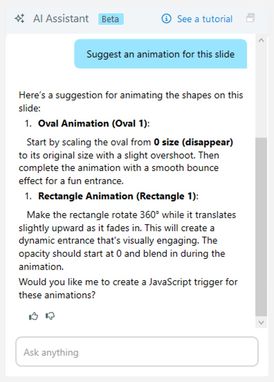
- Write your prompts. Click the AI Assistant tab on the right, then enter your prompts in the chat box at the bottom. Prompts can be as simple as “Suggest an animation for this slide.” If you already have an object selected, you could say something like, “Make this object appear slowly.”
- Generate the trigger. AI Assistant responds with an outline for an appropriate animation, as shown in the image below.
-
- If you prefer, you can skip the outline by asking AI Assistant to create the trigger right away.
- Once you approve the outline, AI Assistant converts your instructions into JavaScript code and creates the trigger.
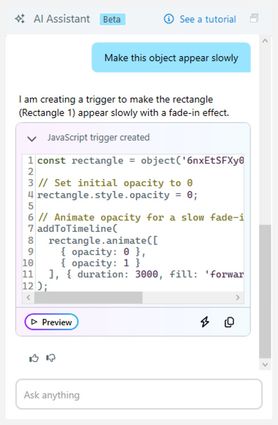
- Review and edit code (optional). AI Assistant displays the code snippet within the chat window, but it’s hidden by default. Click the chevron in the response heading to reveal the code, as shown in the image below.
-
- To copy the code, click the Copy JavaScript icon (paper sheets) below it, on the right.
- If you want to manually edit the code or adjust the trigger settings, click the Open Trigger icon (lightning bolt). This opens the Trigger Wizard dialog box, where you can update the name, modify the code, adjust the timing, and add conditions.
- By default, the AI-generated trigger is linked to the “Timeline starts” event. Enter a follow-up prompt if you’d like to change it. Learn how to modify JavaScript animation triggers with AI in this user guide.
- Preview the animation. Click the Preview button to switch Storyline into preview mode and see the animation play.
- Refine the result. While in preview, you can continue to chat with AI Assistant to make further adjustments. For example, you can say things like, “Slow the animation down 2x” or “Loop the animation infinitely.” Undo actions by simply asking in the chat. Previous code snippets also have a Restore Trigger button to revert or compare different versions.
- Share your feedback (optional). If you find the generated content helpful, click the thumbs-up icon in the lower left, just below the Preview button. If not, click the thumbs-down icon and share your thoughts. Your feedback will go directly to our product and engineering teams.
Note: AI Assistant can’t remember past conversations yet. Closing and reopening a project resets the chat.
Supported Animation Effects
AI Assistant can generate numerous popular entrance animation effects, including:
- Fade
- Fly In
- Float In
- Swivel
- And more…
Note: AI Assistant can also invent new entrance animations. Try experimenting to see what works. For example, ask AI Assistant to “make the buttons wiggle and fade in.”
Unsupported Animation Effects
While simple masking animations are possible, animations that exactly match Storyline’s existing masking animations, or very complex mask animations, are not likely to work. These include, but are not limited to:
- Split
- Wipe
- Shape
- Random Bars
Pro Tips:
- Need creative inspiration? Ask AI Assistant for ideas. For example, “Suggest animations for this slide.”
- AI Assistant recognizes slide selections, so naming objects in prompts isn't always necessary.
- You can apply JavaScript entrance animations to objects on slide layers, not just objects on the base slide.
- Ask AI Assistant to write detailed code comments to help clarify what each part does when inspecting the generated JavaScript code.
- Be cautious when combining slide transitions and JavaScript animations, as some may conflict and cause unexpected results, particularly with certain motion types.
Apply Entrance Animations to One or More Objects
When working with one or more objects on a slide, AI Assistant offers flexibility in applying entrance animations.
Animate Individual Objects
Specify which animation should apply to each individual object. Below is an example of applying a different animation to each object.

Prompt: Move the square from left to right, the circle from top to bottom, the cross from right to left, and the triangle from bottom to top
Animate Multiple Objects
Animate all objects using the same animation effect with a single prompt. The example below shows the same animation applied to all objects.

Prompt: Make the objects appear slowly
Pro Tip: AI Assistant creates a single trigger regardless of the number of animations and objects. If you need a separate trigger for each object, specify that in the chat.
Iterate and Create Multi-Step Animations
Chatting with AI Assistant to create animations makes iterating easy. It also allows you to combine effects into multi-step animations, boosting content interactivity. Here’s how:
- Begin by asking AI Assistant to create an initial animation.
- Click the Preview button to enter preview mode. The AI chat box remains open during preview. Clicking the AI Assistant button in the top right hides or reopens it.
- While in preview, you can provide more instructions to add new effects to existing animations. You can add as many steps as you want, and AI Assistant rewrites the code while keeping the same trigger.
- Each update automatically refreshes the preview, allowing you to see changes instantly.
- Not satisfied with the results? Remember that you can easily undo actions by asking AI Assistant in the chat or by using the Restore Trigger button in previous code snippets to revert to a specific step or compare versions.
Check out our tips and tricks article for additional prompt ideas and examples.
Looking to create more advanced interactions? Read this user guide to learn more.
Understand Compatibility
AI JavaScript entrance animations are exclusive to Storyline 360 as of December 2, 2025. Projects with JavaScript animation triggers created in AI Chat won’t open in earlier versions of Storyline 360. To restore compatibility, delete the trigger name in the generated JavaScript trigger, then save your file.