
Browse Articles
Select a Product
null Support Directory
Browse all null articles. (Last Updated
No articles found.
Search Results
No articles found.
Storyline 360: Trying Experimental AI Chat Features
Article Last Updated Sep 29, 2026
This article applies to:
Curious about what’s coming next for AI Chat? The experimental chat toggle lets you try chat features that are still in development. Keep reading to learn how to enable them and explore what’s currently available.
Note: Because these features are experimental, they may change, become standard AI Chat features, or be removed.
Enable Experimental AI Chat Features
Follow these steps to get started with experimental AI Chat features:
- Go to Story or Slide View.
- On the right side of the screen, click the AI Assistant tab.
- Enable the Use experimental features toggle at the top of the chat window.
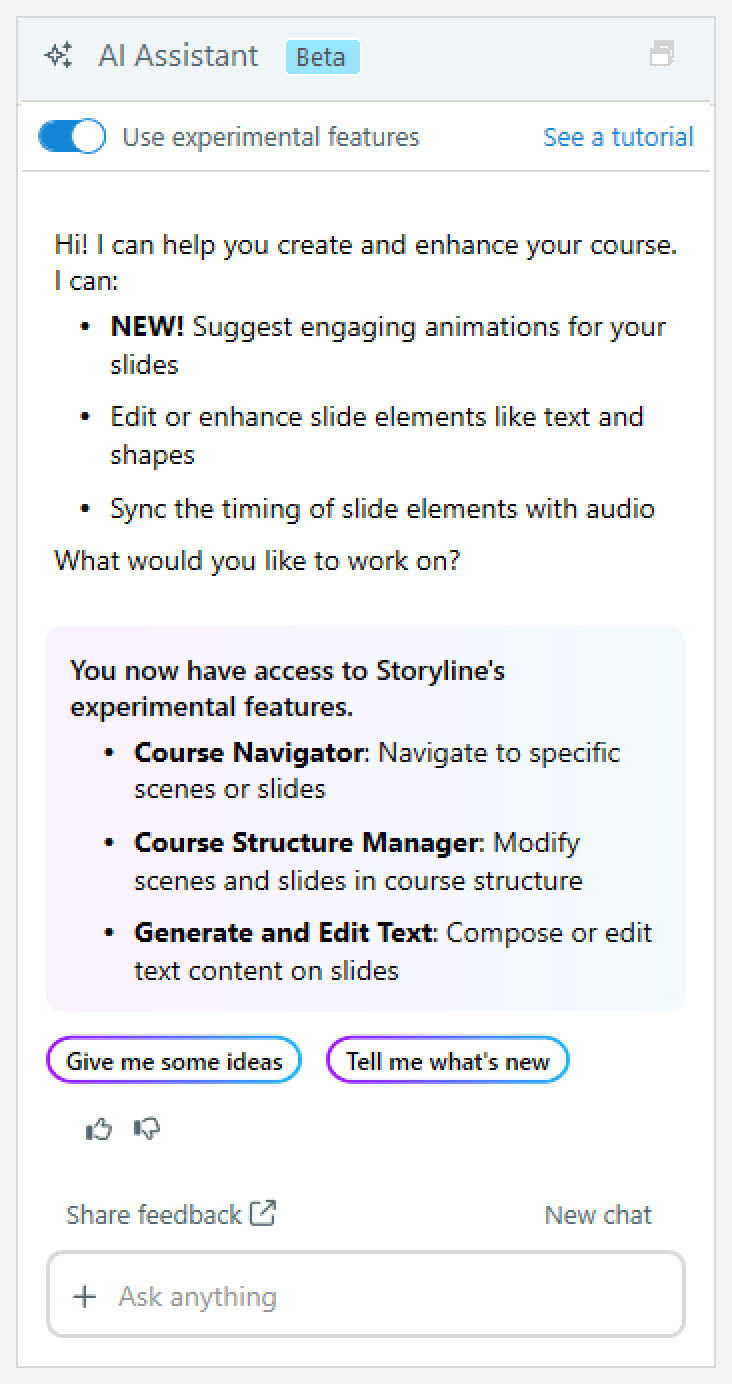
Once enabled, you’ll have access to the latest experimental AI Chat features available in your version of Storyline 360.
Note: Experimental AI Chat features are separate from Labs. They’re available only in Storyline 360 through the experimental features toggle.
Explore Experimental AI Chat Features
The following experimental AI Chat features are currently available. Check back often as new features may be added over time.
Choose a Chat Mode
If you’re focusing on a specific task, such as working with audio, animations, design, JavaScript, or quizzes, you can choose a chat mode to align with your goals. Switching the mode helps you get the best results from your prompt.
Generate and Edit Text
Compose new text or improve existing content right from the chat. Rewrite text, adjust tone, or change length.
Manage Text-to-Speech Audio
Generate, update, or replace text-to-speech audio across multiple slides at once using the chat. You can also find and preview voices, adjust narration, and replace unavailable voices from there.
Provide Feedback
We’d love to hear how the experimental AI Chat features are working for you! After completing an action or generating an output, use the feedback icons below the response to rate the result. Click the thumbs-up icon if it meets your needs, or the thumbs-down icon to let us know what didn’t work. You can also use the Share feedback link above the chat box. Your feedback helps us improve the experience for everyone.