
Browse Articles
Select a Product
null Support Directory
Browse all null articles. (Last Updated
No articles found.
Search Results
No articles found.
Storyline 360: Using AI Chat Features
Article Last Updated Sep 29, 2026
This article applies to:
Creating or editing course content often means clicking through menus and dialogs to find the right tool or setting. AI Chat in Storyline 360 streamlines that work by letting you describe what you need and refine results in the same conversation. Keep reading to learn more.
Start With Prompts
Follow these steps to get started with AI Chat:
- Open a new or existing Storyline 360 project, then go to Story or Slide View.
- On the right side of the screen, click the AI Assistant tab.
- Optional: To try experimental features, enable the Use experimental features toggle at the top of the chat window.
- Use the chat box at the bottom to enter your prompts.
- Click the Give me some ideas button in the chat if you’re unsure how to start or want some sample prompts, as shown below. To get suggested prompts for recently shipped chat functions, click Tell me what’s new, then select an option from the results to use it.
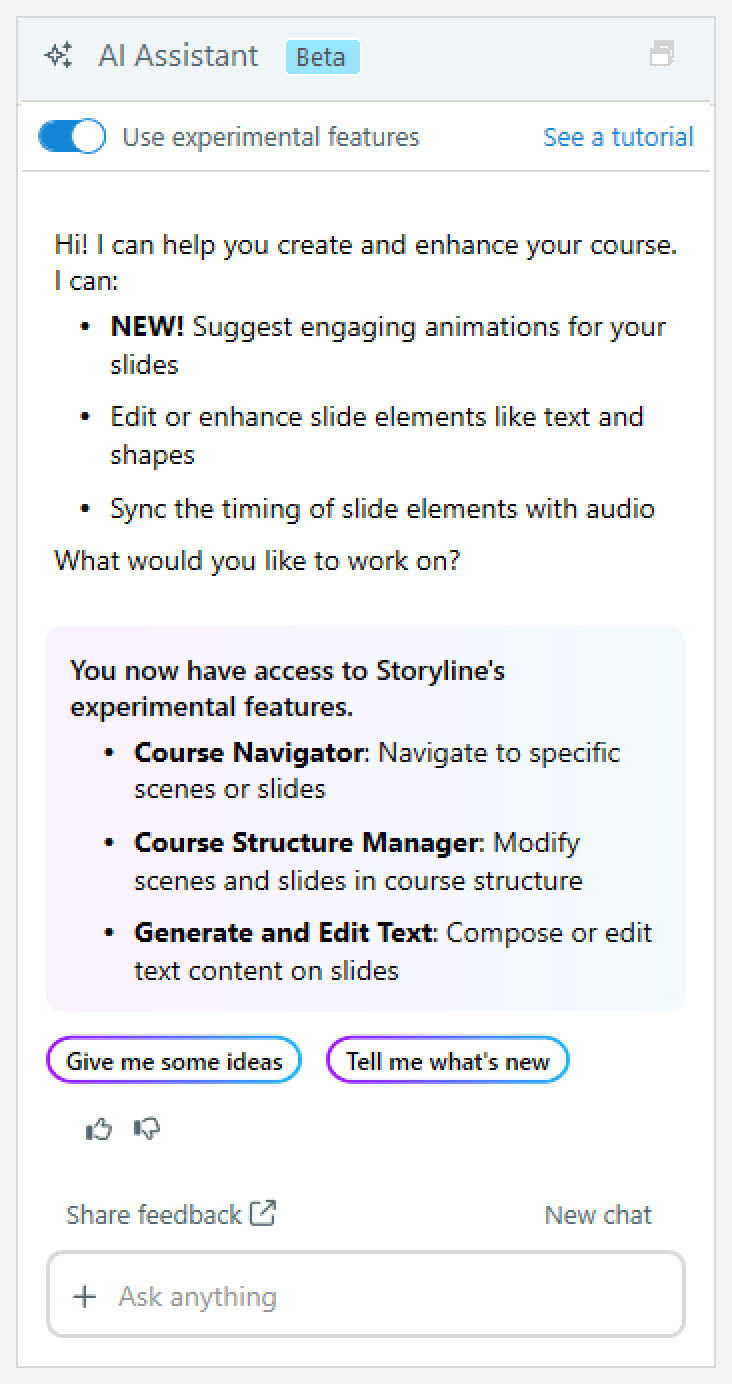
Want to see how it works before trying it yourself? Review our AI Chat short course by clicking the See a tutorial link in the top-right corner.
-
If you want to reset your conversation, click the New chat link in the upper-right corner of the chat box. You can also type /clear, /clearhistory, or /reset in the chat. This clears the chat window and resets the chat memory of the current conversation.
When AI Chat can’t complete a requested action, it explains how to complete the task, provides links to relevant user guide documentation, and may offer to show you where to find the feature in Storyline 360.
Explore AI Chat Features
Here’s how each AI Chat feature can streamline your workflow, and how you can use it effectively.
Creating Visual and Audio Content
Create and Edit Images
Speed up content creation by generating images from prompts or slide content. You can also edit images directly in the chat window.
Ask AI Chat to create an image by describing what you want, or let it generate one from your slide content or an uploaded file. Generated images appear in the chat response, where you can insert the image, save it to the media library, preview it, or click the sliders icon to open the Generate AI Image window and explore more variations.
Use follow-up prompts to refine generated images, or review the image editing guide for more details.
Add and Format Shapes
Build slide layouts faster by using AI Chat to create built-in shapes or update existing ones. Describe the shape you want to add, or select shapes and prompt AI to change their color, size, position, and more.
For example, prompt AI to “Add a red circle to the slide” or “Align the selected shapes horizontally.” AI applies the changes directly to the slide, and you can undo or continue refining them with follow-up prompts. Learn more in this user guide.
Create Text-to-Speech Voiceovers
Generate voiceovers from your slide content or notes, or provide a script in the chat. This opens the Generate AI Audio window to the Text-to-Speech tab, where you can fine-tune or preview the generated voiceover. Check out this user guide for more details.
Create Sound Effects
Generate sound effects that match your slide content by describing the sound you want. This opens the Generate AI Audio window to the Sound Effects tab, where you can select from generated outputs or manually regenerate them. Review this user guide to learn more.
Designing Slides and Timing Content
Create or Modify Theme Colors
Generate a cohesive, easy-to-update design palette from an image or prompt.
Ask AI to create theme colors from an image, slide content, or a custom prompt. Read our theme colors user guide for details.
Sync Slide Elements with Audio
Skip manual timeline adjustments by syncing slide objects and animations with audio.
Try it by typing a prompt such as “Sync objects with audio.” AI Chat automatically aligns text and objects with your audio. Check out the syncing slide elements with audio user guide for details.
Create Summary Slides
Generate summary slides from project text. Ask AI to generate a summary, select the content you want to use as a reference, then click Continue to start the summary generation workflow.
Choose whether to add the summary using a prebuilt layout or a blank slide, add more instructions if needed, then click Generate the summary to insert a new slide in the current scene. Find more info in this user guide.
Building Interactivity
Create and Edit Triggers
Build interactions faster by creating new triggers or modifying existing ones directly in the chat.
Describe the events, actions, and conditions you want, then ask AI to preview the slide so you can test and refine the interaction.
Create Animations
AI Chat can suggest and create built-in entrance, emphasis, and exit animations, motion paths, and JavaScript entrance animations. It can also generate related triggers and label them by action.
Review the built-in animations user guide to learn how to create entrance, emphasis, and exit animations, as well as motion paths. To learn more about JavaScript entrance animations, review the JavaScript entrance animations user guide or review the prompt tips article.
Create JavaScript Interactions
Turn your ideas into JavaScript interactions, no coding required.
Describe the interaction you want, and AI Chat writes the code and automatically creates an Execute JavaScript trigger. Review our JavaScript interactions user guide for details.
Manage Layers and Variables
Work with slide layers and project variables using plain-language prompts.
Ask AI to add, rename, modify, list, and delete layers and variables. You can also update layer properties.
Preview Courses
Preview your slide or entire project while it’s still open, so you can test and refine content in the same workflow.
In preview mode, AI Chat remains available on the right. If it gets in the way, click the AI Assistant button in the upper-right corner to hide it. Click the button again to reopen the window.
Managing Projects
Navigate Projects
Jump to a specific scene or slide using simple chat prompts.
Ask AI to open a scene or slide by name or number. For example, try prompts like “Go to the introduction scene” or “Take me to slide 12.2.” Learn more about navigating projects with AI.
Organize Projects
Organize your project faster by asking AI to add, rename, reorder, or delete scenes and slides directly from the chat. You can also edit slide properties and open slides in new tabs there.
Describe the changes you want to make, and AI will update your project structure accordingly. Learn more about organizing projects with AI.
Creating Assessments
Generate Questions and Quizzes
Turn existing content into question slides and quizzes. Start by describing the quiz, specifying which content to include (by topic or the whole course), and listing the specific question types. You can also let AI decide automatically by not specifying any question types. Then, choose whether to insert the quiz as new slides or in a question bank, or add more instructions if needed. AI will provide a quiz plan for you to review and approve. If you agree, just say so in the chat, and AI will start generating the quiz.
When you ask for a question slide, AI Chat responds with a summary of the plan. AI Chat can also adjust question-level settings, such as feedback type, answer shuffling, scoring, and attempts, across multiple slides and question banks. Review our question settings user guide for details.
AI in Storyline 360 supports the following question types:
- Multiple Choice
- Multiple Response
- Fill-in-the-Blank
- Word Bank
- Matching Drag-and-Drop
- Matching Dropdown
- Sequence Drag-and-Drop
- Sequence Dropdown
- Numeric
- True/False
Improving Accessibility
Generate Closed Captions
Boost efficiency and content accessibility by generating captions for uncaptioned audio and video content in your course.
Prompt AI to generate captions for multiple audio and video files in one step. The generation runs in the background while you continue working. A notification appears in the lower-right corner once the generation is complete. Check out the full user guide for more information.
Get Better Results
- Be specific. Include the object, slide, layer, or content you want AI Chat to use whenever a reference is needed, especially when your project contains multiple similar elements.
- Name timeline objects clearly. Descriptive names make it easier for AI Chat to identify the right text, image, shape, character, or media file.
- Refine with follow-up prompts. If the first result isn’t quite right, ask for changes such as a different tone, shorter text, revised timing, a new visual style, or a simpler interaction.
- Ask for ideas. When you’re not sure how to begin, ask AI Chat to suggest animations, quiz questions, image prompts, theme colors, or ways to make a slide more interactive.
- Plan complex requests first. For complex requests, ask AI Chat to plan the result before generating content or triggers. This lets you review the approach, clarify details, and make adjustments before changes are applied.