
Browse Articles
Select a Product
null Support Directory
Browse all null articles. (Last Updated
No articles found.
Search Results
No articles found.
Rise 360: Create New Microlearning
Article Last Updated Sep 10, 2026
This article applies to:
When it comes to training, sometimes less is more. Microlearning is bite-sized content that's focused on a single learning objective. It's perfect for improving in-the-moment performance and knowledge retention. Use microlearning for one-off concepts or as part of an overall training program.
In Rise 360, you can create microlearning that scrolls continuously or steps through content at points you define. Keep reading to learn more.
Create Microlearning
To create a blank microlearning from your dashboard, click Start from blank above the main window and select Microlearning. You can also create a microlearning in your Library by clicking the Create new button and selecting Start from blank > Microlearning. If you'd like to start your course with real content templates, select the Templates option.
Note: Training content is created in the folder you're currently in. If you're in a team folder, it inherits the collaborator settings for that folder.
While we've provided curated microlearning templates, you can create microlearning content from any lesson template. Scroll to the bottom of the template list and click Browse Lesson Library. From there, select any individual lesson template.
Customize your template by adding blocks and content. When complete, you can share your content with learners.
Note: Since you can't add quizzes to microlearning, completion is registered only when a user views 100% of the training.
Select Navigation Mode
Microlearning is presented as either stepped or continuously scrolling content.
For stepped navigation, learners navigate by scrolling or clicking the progression arrows at the top and bottom of the content. If the current step doesn't fully fit on the screen, clicking the bottom arrow displays the additional content until the step is complete. Clicking again advances to the next step.
To modify your navigation mode, select Theme > Navigation. There you can choose Continuous or Stepped.
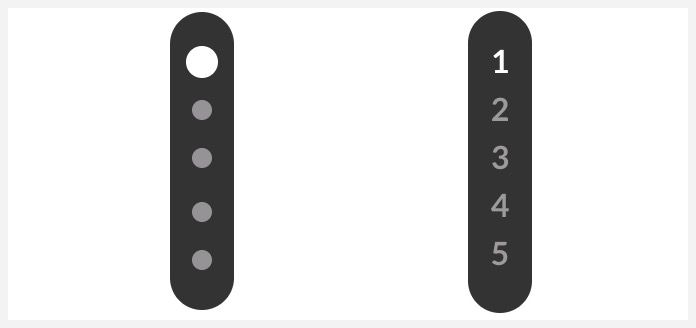
By default, stepped navigation has an unnumbered progress indicator bar. You can also select a numbered indicator bar or turn off the indicator bar entirely.
Combine Blocks
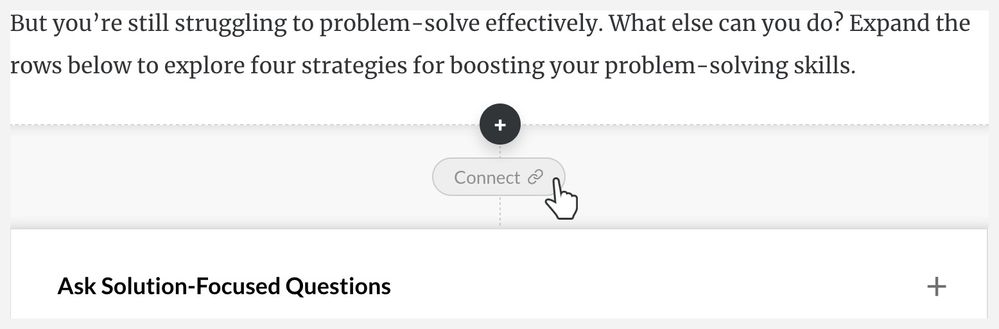
In stepped mode, you have the option to combine multiple blocks together so that they display in the same step. Click the Connect button to link two blocks. Unlink blocks by clicking the Disconnect button.
Customize Theme
Just like with other content, you can modify theme, cover page, navigation, font, color, and block options from the Theme menu at the top of the page.