
Browse Articles
Select a Product
null Support Directory
Browse all null articles. (Last Updated
No articles found.
Search Results
No articles found.
Articulate 360 AI: Accessing Content and Creating Deliverables From the Dashboard
Article Last Updated Sep 10, 2026
This article applies to:
Create fully responsive deliverables, access your content, and quickly jump to your Articulate apps right from your dashboard. There’s nothing to install, so you can get started right away.
Access the dashboard by signing in to https://articulate.com from a supported web browser.
Regional Data Center Warning: When logging in, you'll be automatically redirected to the regional data center you selected during trial or account creation. You can only collaborate with and send copies of your content to other creators in the same regional (U.S. or EU) data center. Creators can’t collaborate with or send copies of content to creators in a different regional data center.
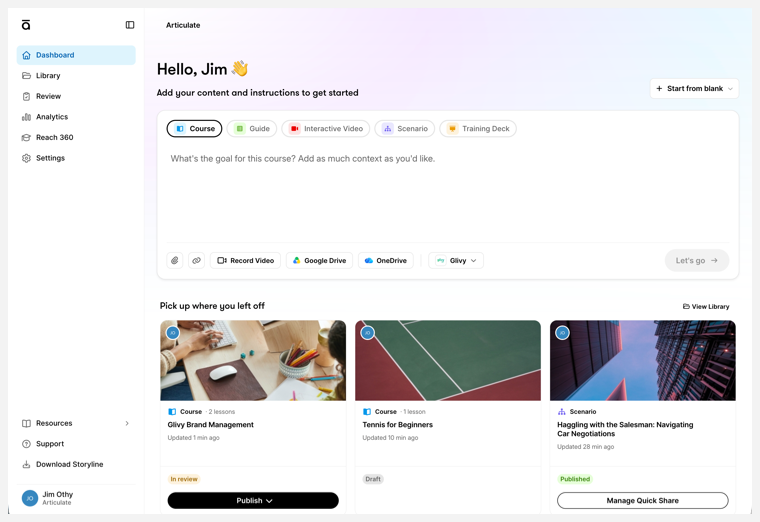
Use the Sidebar to Access Content and Services
The dashboard sidebar provides easy access to your content library, Analytics dashboard, and additional Articulate apps, settings, resources, and support.
You can hide the sidebar by clicking the Collapse/Expand icon in the upper-right corner. When you navigate to another screen, click the Articulate logo to return to the main dashboard.
Note: The sidebar isn't currently accessible in Reach 360 or the Template library. Use your browser navigation to return to the dashboard.
Follow the links for each item to learn more.
- Dashboard — Quickly create content and easily access your most recent deliverables.
- Library — Access and manage all content created by you and your team.
- Review — View and manage content that you’ve shared with others for their review.
- Analytics — See engagement metrics, audience activity, and more for your published content.
- Reach 360 — Access content and manage learners via Articulate's fast, frictionless LMS.
- Settings — Make changes to your profile, team, brands, subscription, and more.
- Resources — Further explore content creation and support assets.
- Templates — Open the template library in the current window.
- Tutorials — Get started with on-demand and facilitated product training.
- Webinars — Find upcoming real-time and live-moderated training webinars.
- Community — Dive into product and learning forums with fellow creators.
- Help Articles — Find answers to your questions and learn more about Articulate products with user guides and help articles.
- Support — Chat with Artie, our AI support agent, to get answers fast.
- Download Storyline — For Windows users only, download Storyline, Articulate’s desktop creation tool.
- Profile icon — Go directly to your profile settings or sign out of your account.
Create Deliverables
Quickly jump into content creation in the main section of your dashboard. Use the prompt block to generate the following deliverables from the dashboard:
- Course — Create a course containing multiple lessons and quizzes.
- Guide — Convert a video into a single-page, step-by-step explanation of a process.
- Interactive Video — Convert a video into a structured training experience with chapters, transcripts, and summaries.
- Scenario — Simulate a back-and-forth conversation in a chat-like setting.
- Training Deck — Build a slide-based presentation.
Generate Content
Select a deliverable type and enter as many details as you like in the main window, or record instructions by clicking the microphone icon in the lower-right. To generate a more complete draft, upload source materials, provide a link, or record a video.
Note: Some formats may require specific supporting content and information. See the articles linked from the deliverable types above for additional information.
You can also add branding to your content. Your organization's default brand is pre-selected, but you can select any available brand formatting from the drop-down menu at the bottom of the window.
Click Let's go when you're ready to step through the generation process, leveraging your knowledge and resources to create an AI-assisted draft. Depending on the deliverable type, AI generates images and content, distilling information from your source materials and creating structured content for you to customize and refine.
If you prefer to start from scratch or with a pre-built content template, you can create a blank course or microlearning and access the template library by making a selection from the Start from blank menu.
Make a Screen Recording
Creating a screen recording allows you to jump-start documenting a process. AI uses your recording and narration to generate screenshots and create detailed steps.
Pro Tip: If you're recording a process that generates pop-up windows, make sure they're captured by recording the entire screen instead of a specific application.
- Click Record Video.
- Using the tabs in the pop-up window, choose whether you'd like to share a browser tab, a specific application, or the entire screen. Toggle system audio sharing as needed.
- Click Share.
- Recording begins immediately. Walk through your task, narrating your steps (you may need to allow your browser to access your microphone).
- Pause and resume the recording as needed, then click End to finish.
- Click Attach recording to upload it as a content creation source.
Access Recent Content
Under the content generation prompt, you'll also see the most recent deliverables you've worked on, arranged by their last modification date. At a glance, you can see the author, deliverable type, and current publishing status.
If you've published your content via Quick Share, you can open the content and jump to the publishing settings by clicking the Manage Quick Share button for that item.
To see all your content, click the Library button at the top of this section or select Library from the dashboard sidebar.