
Browse Articles
Select a Product
null Support Directory
Browse all null articles. (Last Updated
No articles found.
Search Results
No articles found.
Rise 360: Get Started with AI Assistant
Article Last Updated Apr 16, 2026
This article applies to:
Maximize productivity with AI Assistant, an AI information and automation tool now seamlessly integrated into Rise 360. Generate content and images, refine existing content, and more.
Getting started is quick and easy. Keep reading to discover how to access AI Assistant and how it can help you at the course overview level. When you’re ready, learn how to use AI Assistant to create content in lessons. Then, check out some tips to help you get the most out of AI Assistant.
Access AI Assistant
When you open a Rise 360 course or microlearning, click the AI Assistant button in the upper right corner to display the AI Assistant menu.
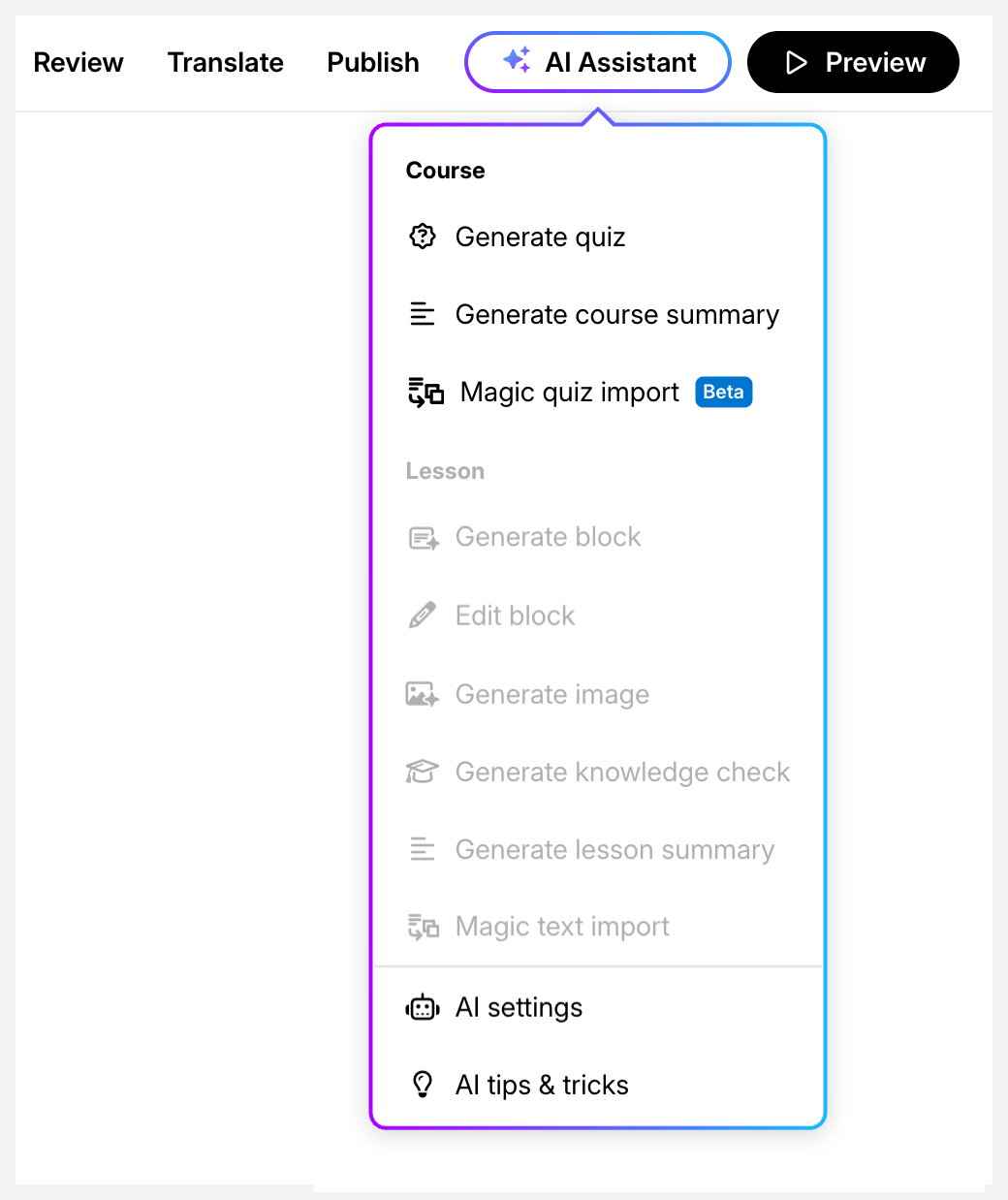
Features are grouped together based on the section of training to which they apply. The options at the bottom of the menu are available at any time. Simply click an active option to get started.
Adjust Training-wide Settings
Click AI Settings to access training-wide settings and upload source content. Click Done when you're finished adjusting your settings. These settings apply to the current training only. You can access AI Settings from anywhere in your training.
Source Content
Drag and drop or click Choose files to upload source content for AI Assistant to use in the current training. Check out the table in this article for a list of supported file types and limitations.
Once your files have been uploaded, you can select one or more of them whenever AI Assistant prompts you to specify source content.
When uploading source content, a dynamic status message appears under each item and on the lower right of the page if the process takes longer than expected. Blue checkmarks appear next to successfully analyzed files that are ready for use. To delete a source, click the trash icon to the right. You can also manage this list wherever source content is used.
Manage AI Assistant Access
Admins can disable AI for all team members or specific user groups from the account dashboard. When AI is disabled this way, AI Assistant still appears in Rise 360 and Storyline 360, but the features aren’t functional. To disable and hide Articulate 360 AI features completely, please email sales@articulate.com. We'll be glad to help.
Need more information? Check out our FAQs to quickly find answers to common questions, or dive into our tips to get the most out of AI Assistant.